You can enable the UX1 panel just for your sub-resellers. For example, if you are a reseller of level one, then you can enable it for resellers of level two, three, etc.
Note: UX1 for Resellers is optimized for resellers with 1,000 accounts.
To configure access to theUX1 panel for your resellers, do the following:
- In Operations RCP, go to System > Settings > Enable/Disable UX1 for Resellers.
-
On the Defaults for New Resellers tab, you can configure access to UX1 panel for your new resellers.
Note: On the screenshots and in the text below, we consider a reseller of level one, therefore the self-service panel is called Customer CP. For a provider the scenario is the same, only the self-service panel is called Hosting CP.
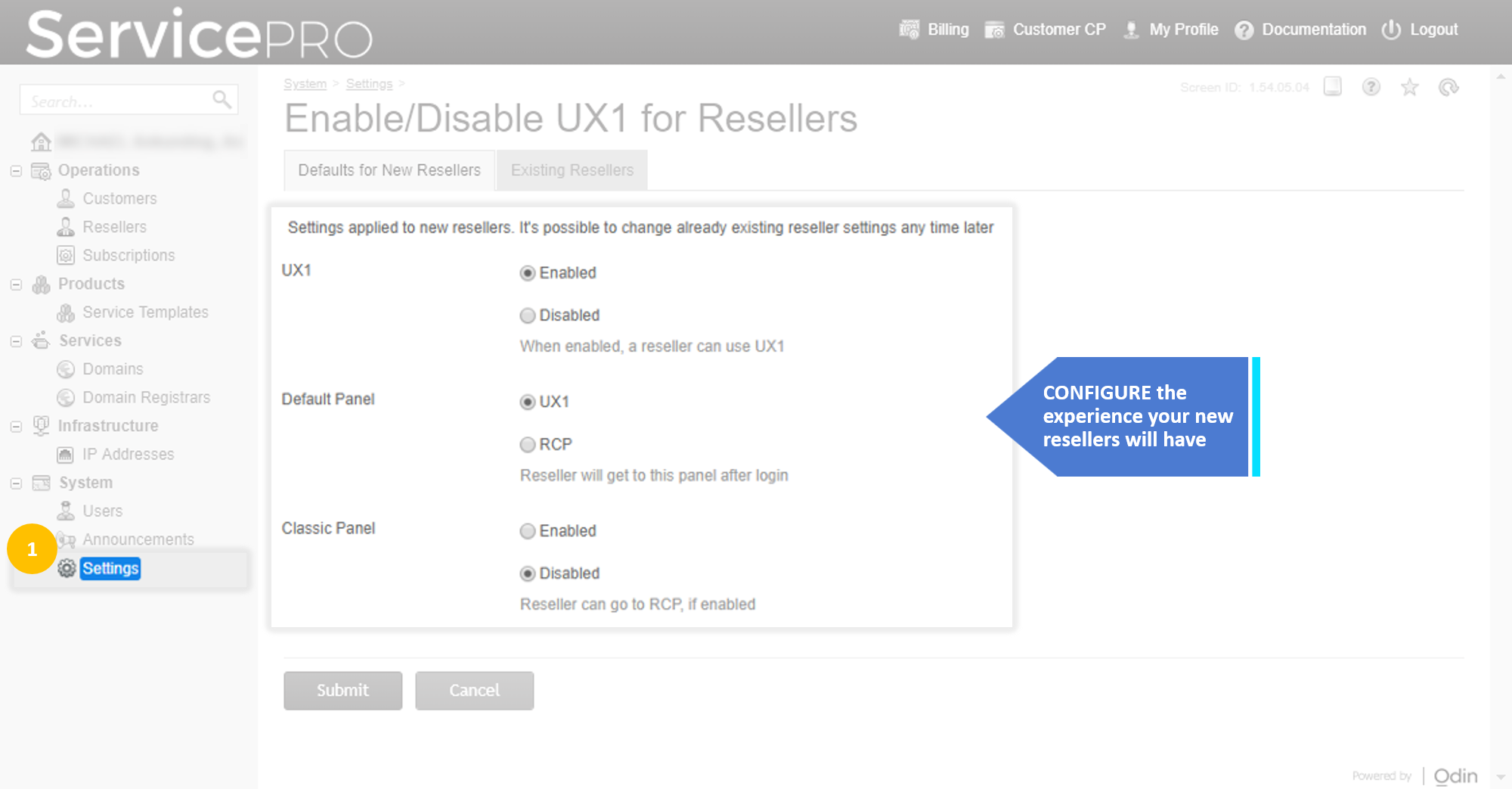
To change the settings, click Edit.
- UX1. Enable or disable the UX1 for your new resellers.
- Default Panel. Define which panel (UX1 or RCP) will be shown by default to your reseller.
- Classic Panel. Allow or deny your reseller access to the Classic Panel. This mode implies the ability to switch from UX1 panel to RCP by clicking the link in UX1 redirecting to RCP for more advanced functionality.
If a reseller is not initialized and the UX1 Expert Mode is disabled, when they log in to the UX1 panel, the corresponding message suggesting to contact the provider will be shown.
If a reseller is not initialized and the UX1 Expert Mode is enabled, when they log in to the UX1 panel, the Reseller Initialization wizard will start. After completing all the steps of the wizard, the reseller will be redirected to the UX1 panel.
-
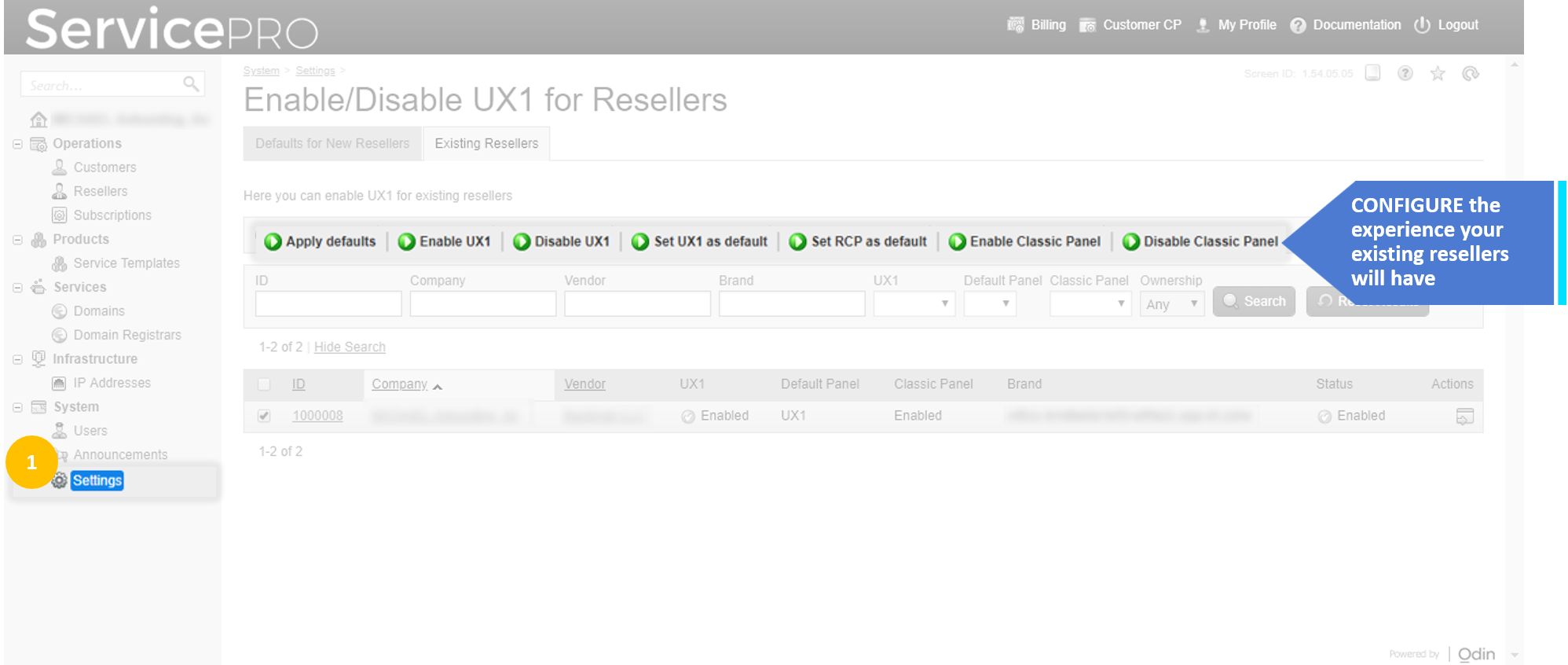
On the Existing Resellers tab, you can configure access to the UX1 panel for your existing resellers. You can select the reseller in the list and click the respective button to apply the settings. The options are described in the previous step. The Apply Defaults button applies the settings defined on the Defaults for New Resellers tab to the selected reseller.
Possible Modes
Using the following combinations, you can configure one of the three basic modes for your resellers:
- Traditional RCP only. Your resellers can manage their business using only traditional RCP
- UX1= disabled,
- Default Panel = RCP
- Classic Panel = disabled
- RCP by default + UX1 (instead of Customer CP) + Classic Panel. Your resellers log in to RCP by default and manage their business there. The Customer CP link in RCP redirects to the UX1 panel. If they need to return to RCP, they can click Classic Panel in UX1 panel
- UX1 = enabled
- Default Panel = RCP
- Classic Panel = enabled
- UX1 by default + Classic Panel. Your resellers log in to UX1 panel by default and manage their business there. For advanced configuration, they can click Classic Panel in the UX1 panel to get access to RCP
- UX1 = enabled
- Default Panel = UX1
- Classic Panel = enabled