The Reseller's Guide to CloudBlue Commerce with UX1 Marketplace
This quick start guide is intended for resellers. It explains how to set up the Customer Marketplace where your customers will purchase products and services. It also explains how to purchase on behalf of your customers.
Contents:
-
How to Fill In Your Product Catalog and Get Ready for Selling
-
Building a catalog from scratch
-
Step 1: Prepare sales categories and service plans in Billing
-
Step 3: Import the product catalog from Billing to the End-Customer Marketplace and adjust it
-
Step 4: Promote services on the landing page (Home page) of the Customer Marketplace
-
Step 5 (Optional): Customize the Marketplace tile on the Dashboard
-
Becoming Familiar with Sales Channels and Marketplace
To configure the offers that will be available to your customers and enable customers to purchase those offers through their Customer Panels, use the Sales Channels area in your CloudBlue Commerce reseller panel.
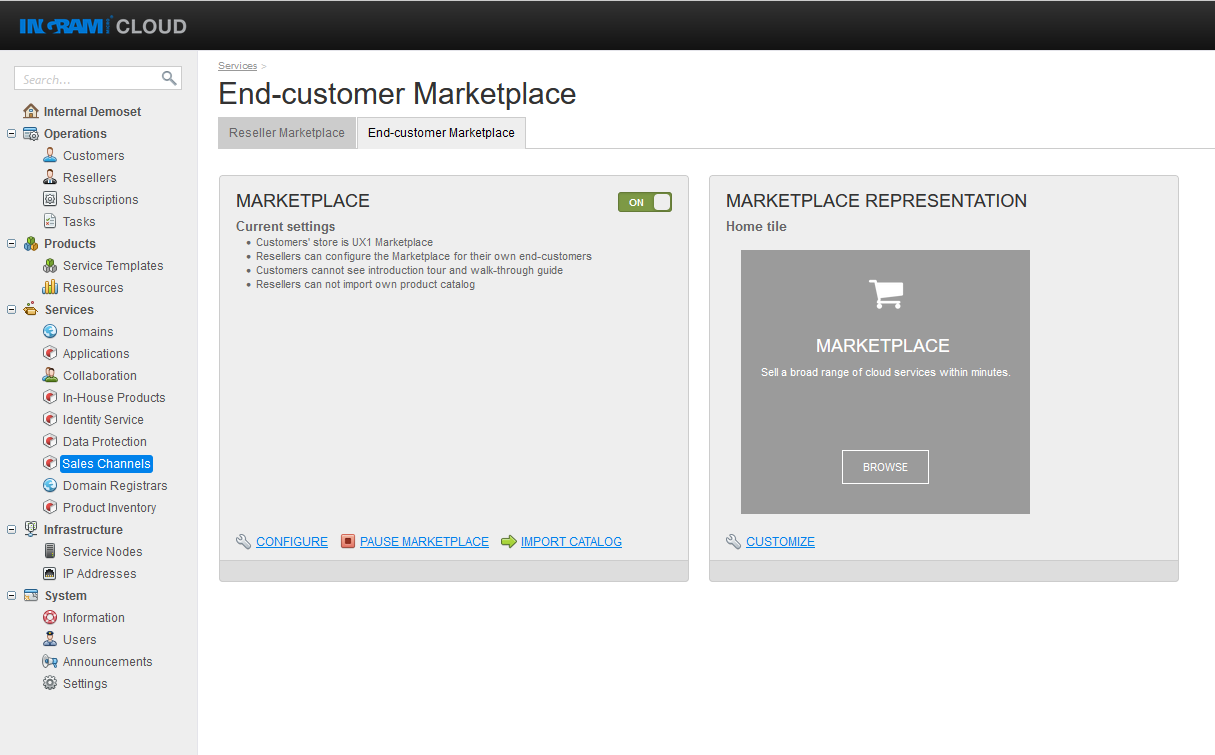
When your customers log in to their Customer Panels, they can browse and purchase your offers in the area called Marketplace.
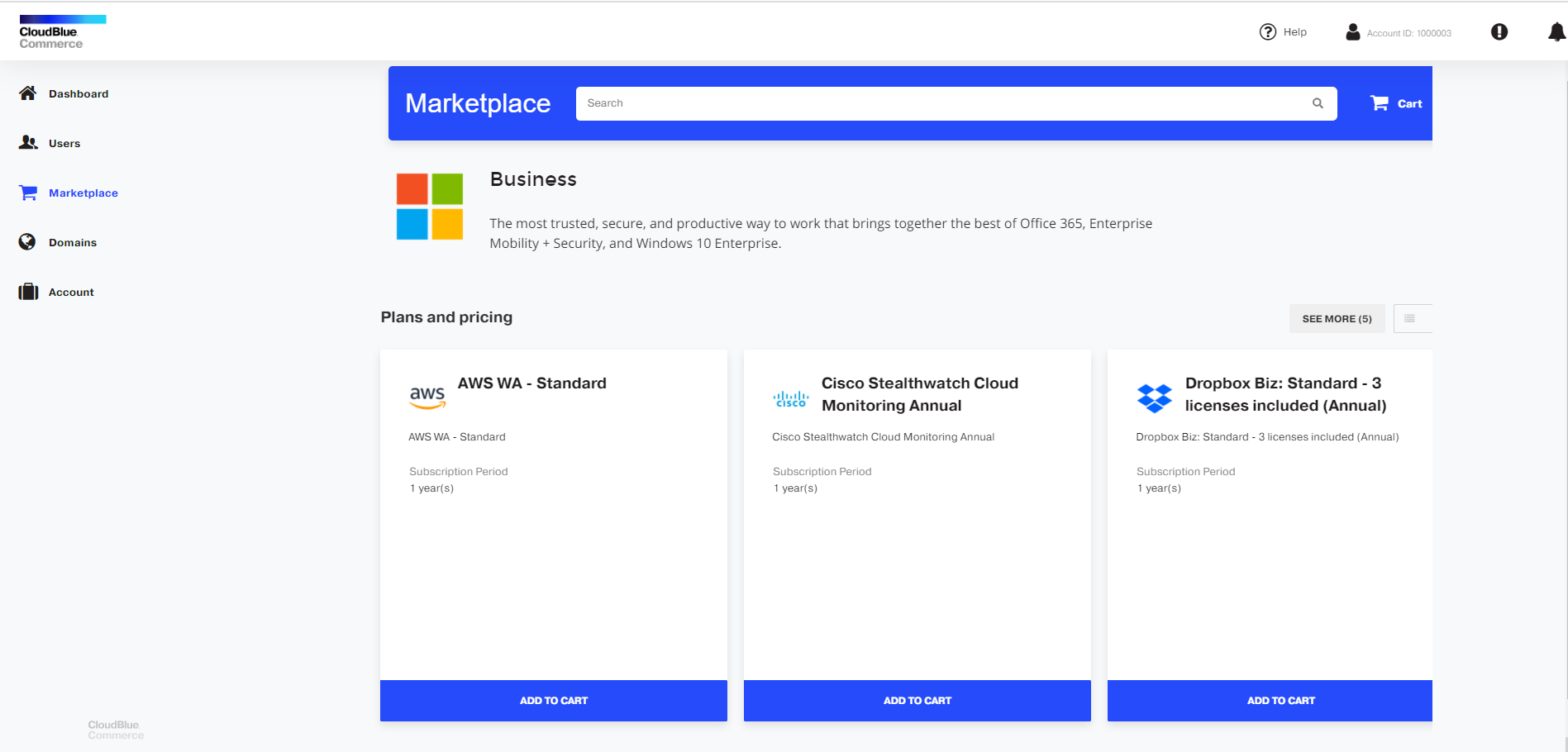
To sum up, what you configure through Sales Channels is what your customers purchase through their Marketplaces.
How to Fill In Your Product Catalog and Get Ready for Selling
Depending on your contract, you can either resell the product catalog offered by your provider, or you can build your own catalog from scratch.
Using the catalog offered by the provider
If your contract provides the option to resell the catalog offered by the provider, complete the following steps to configure the End-Customer Marketplace.
Step 1: Enable access to the Customer Marketplace
-
Log in as a reseller to CloudBlue Commerce and go to UX1 > Sales Channels > End-Customer Marketplace.
-
In the General section, click On.
-
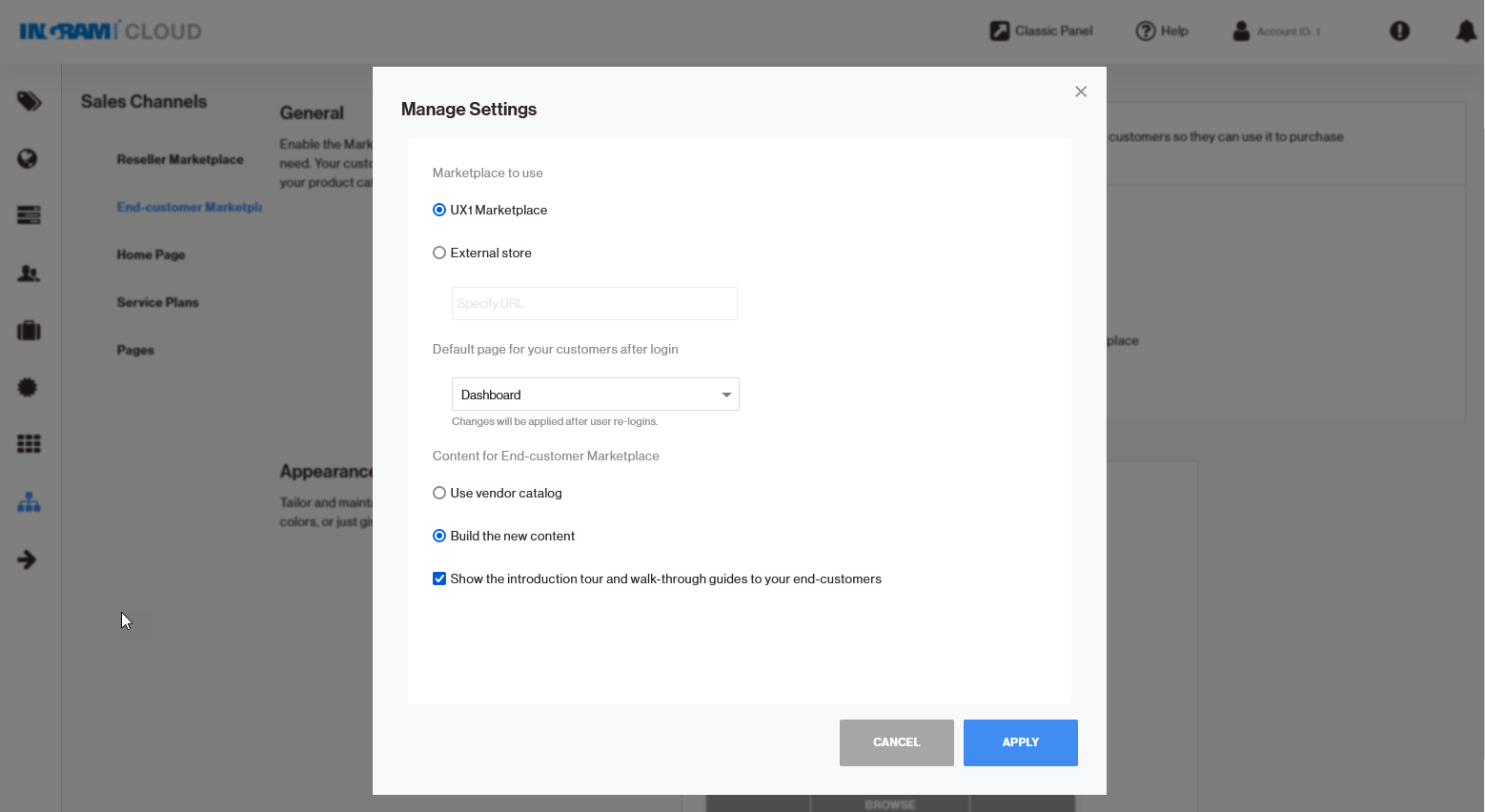
Click Configure and specify the following settings:
-
Which Marketplace to use. Select UX1 Marketplace.
-
The default page for your customers after login (Marketplace or Dashboard).
-
What to offer in the Customer Marketplace. Select Use vendor catalog.
-
Whether to display the introduction tour and walk-through guides to your end customers. Select this option for your customers to see a brief presentation on first login.
-
-
Click Apply to save the changes.
Step 2: Retrieve the catalog, review it, and adjust it
-
Go to Reseller Panel > UX1 > Sales Channels, click Home page in the left navigation pane, click END-CUSTOMER MARKETPLACE at the top, and then click Import Catalog.
When the import is finished, take a few moments to review the service plans and product pages that will be available in the Marketplace. These are the building blocks of a product catalog. Providers prepare service plans first, and then they prepare product pages that include service plans.
While working with the catalog from your provider, you cannot add or edit products, services, or service plans. You can only make them unavailable to your customers.
-
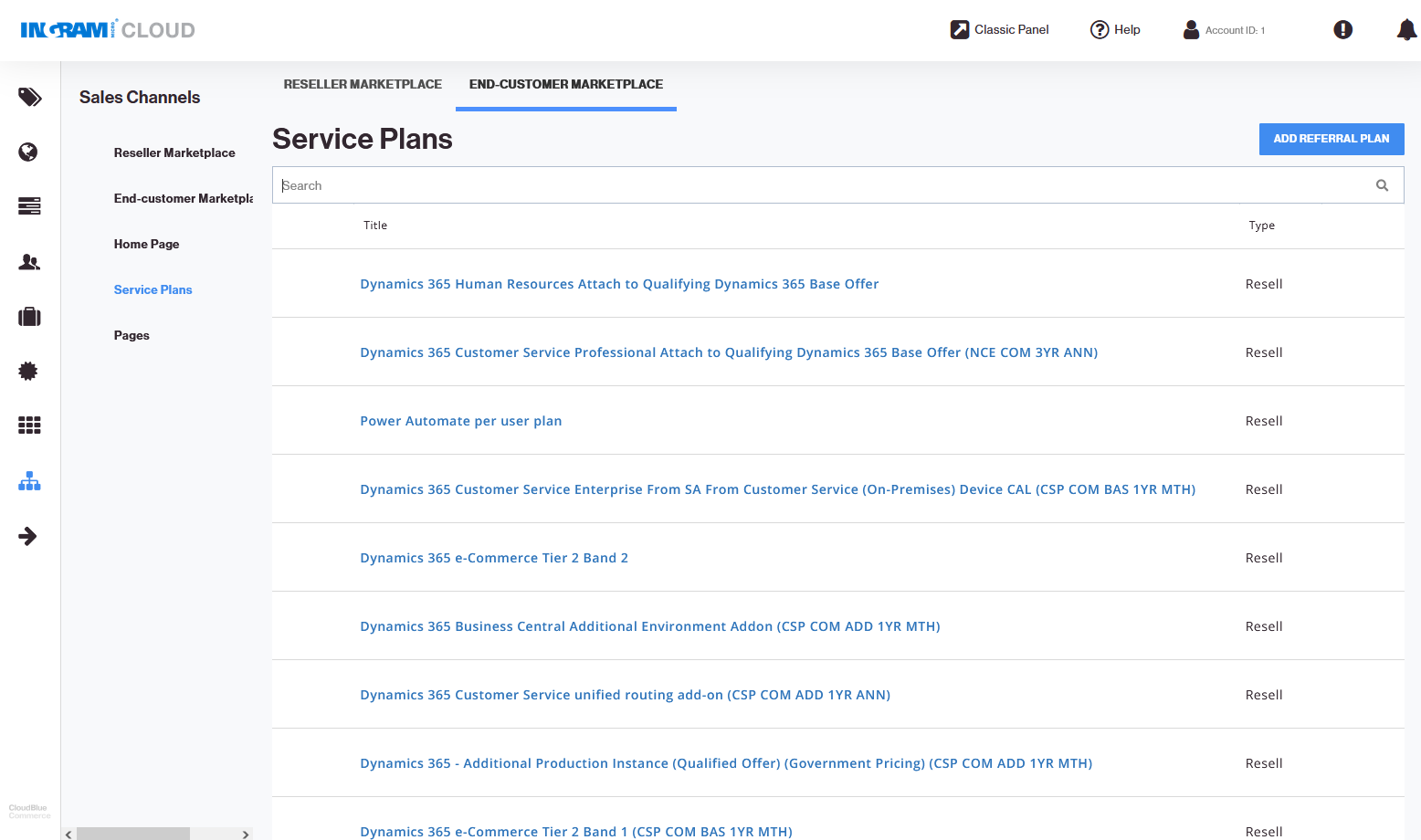
Go to Service plans (Reseller Panel > UX1 > Sales Channels > Service Plans > END-CUSTOMER MARKETPLACE). This is a list of all service plans offered by your provider.
-
To make a plan temporarily unavailable to users, hover the mouse pointer over the plan’s name and click the
 icon.
icon.When finished with plans, move on to pages.
-
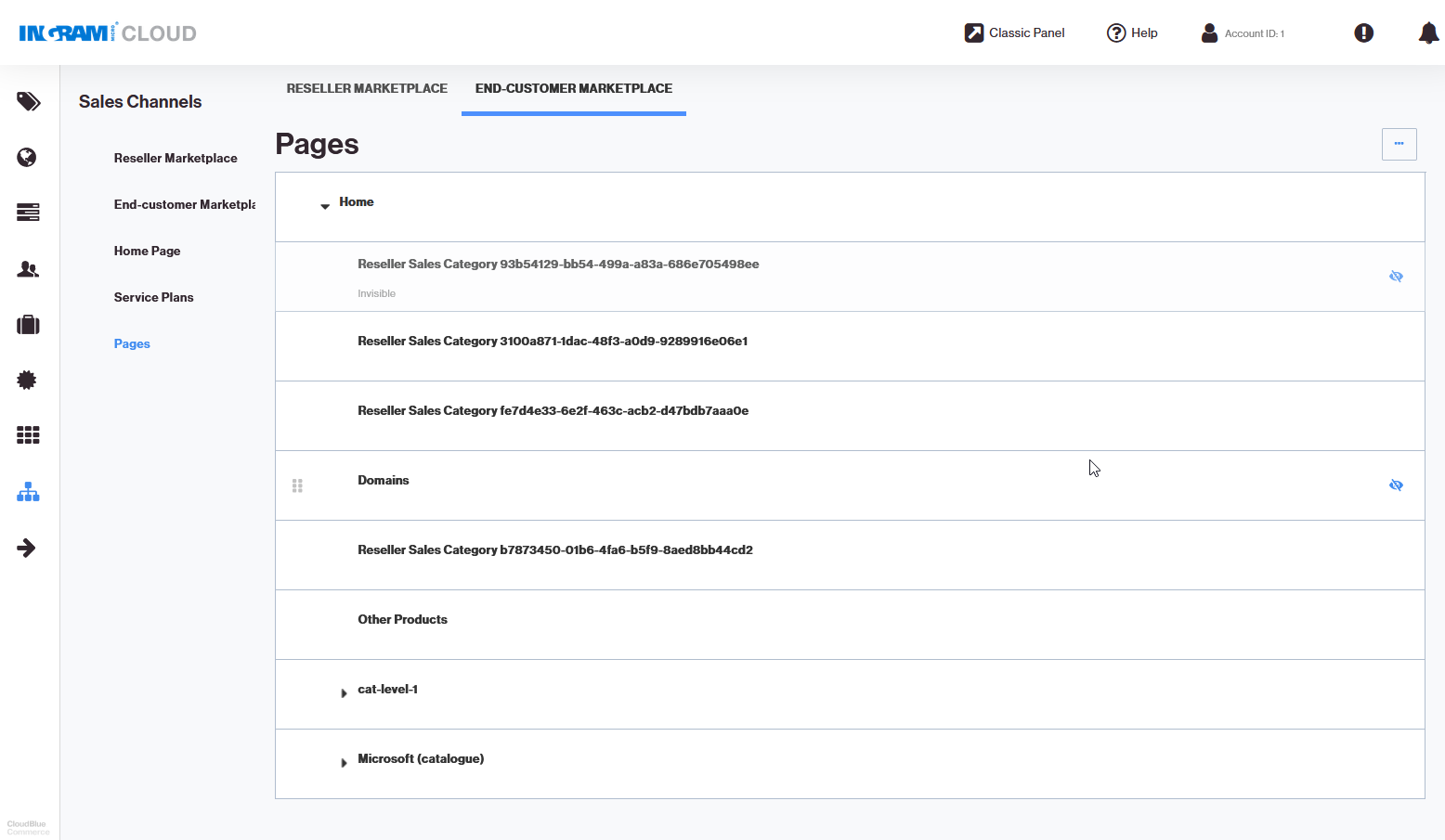
Go to Pages (Reseller Panel > UX1 > Sales Channels > Pages > END-CUSTOMER MARKETPLACE). This is a list of all product pages that were created by the provider for their catalog. The pages are organized in a top-down structure starting with Home.
-
To make a product page or a category page unavailable to users, hover the mouse pointer over the page name, and click the
 icon.
icon.Now that you removed all pages that you do not want to display in your catalog, let’s move on to configuring the Home page, which is the landing page of the Customer Marketplace for your customers.
Step 3: Configure the landing page (Home page) of the Customer Marketplace
The landing page includes the following items:
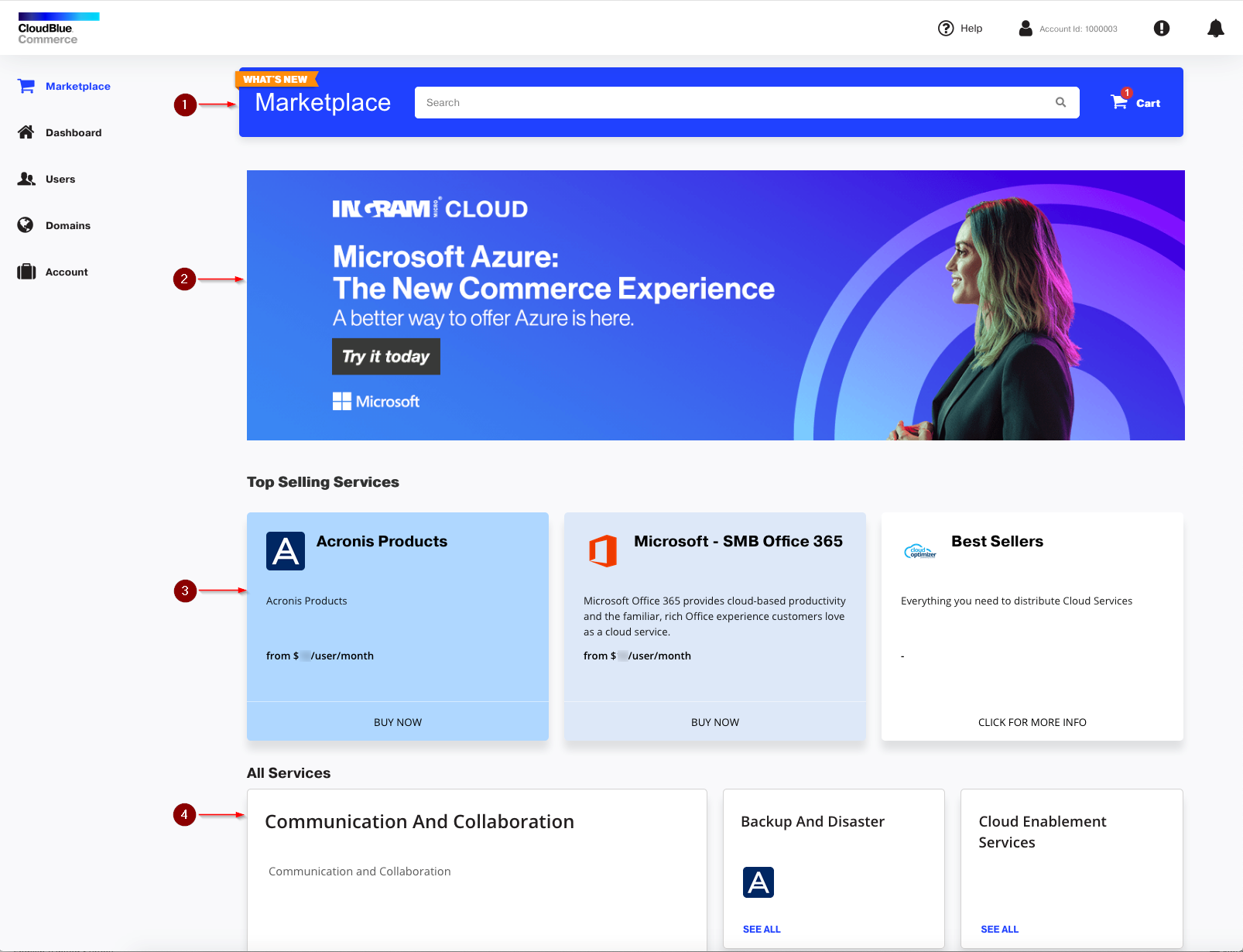
1. A search by products and services.
2. A banner. You can add several pictures and make a slide show.
3. A list of featured products or services, also referred to as promo pages or promotions.
4. A product catalog. It consists of product pages and sub-pages with service plans.
We already configured the product catalog (4) in the previous steps, so let’s now configure the banners (2) and the promo section (3).
To configure the banners:
-
Go to Reseller Panel > UX1 > Sales Channels > Home Page > END-CUSTOMER MARKETPLACE.
-
Specify what you want to display in the banner area by clicking the
 icon.
icon. -
You can choose to upload one banner or make a slide show out of multiple banners.
-
Specify the URL to the banner image. The image must be available elsewhere on the internet. The image dimensions must not exceed 1300 by 375 pixels, and the file size must not exceed 100 kilobytes. We recommend using images in PNG format.
-
If you want to redirect users to a website when they click the banner, type a link in the Link box and select the Open link in new window checkbox.
-
To make a slide show, click the navigation icons
 and
and  to switch between image slots and upload more images.
 -
If you want to rearrange images in the slide show, select the order of each image in the Position menu.
-
If you want to delete an image, click DELETE.
-
Click SAVE.
To specify which items or offers to display on the landing page of the Customer Marketplace, in the Top Selling Services area below the banner:
-
Go to Reseller Panel > UX1 > Sales Channels > End-customer Marketplace (in the left navigation pane) > Content > Promo Section > LAUNCH.
-
Click SELECT.
-
Specify the following:
-
Title. Up to 50 characters.
-
Description. Up to 150 characters.
-
Promo price. The price that will be in effect during the promotion period. Up to 20 characters.
-
Button label. The button label, such as Buy Now. Up to 20 characters.
-
Under Appearance, select the colors to use for the tile name and button label. Select an icon for the tile (150 by 150 px, PNG or SVG format). Select a background image to fill in the entire Top Selling Services area. We recommend using an image of 400 by 1000 px for a background.
-
Under Promotion Period, specify when and for how long the promoted items will appear in the Customer Marketplace.
-
-
Click ADD.
-
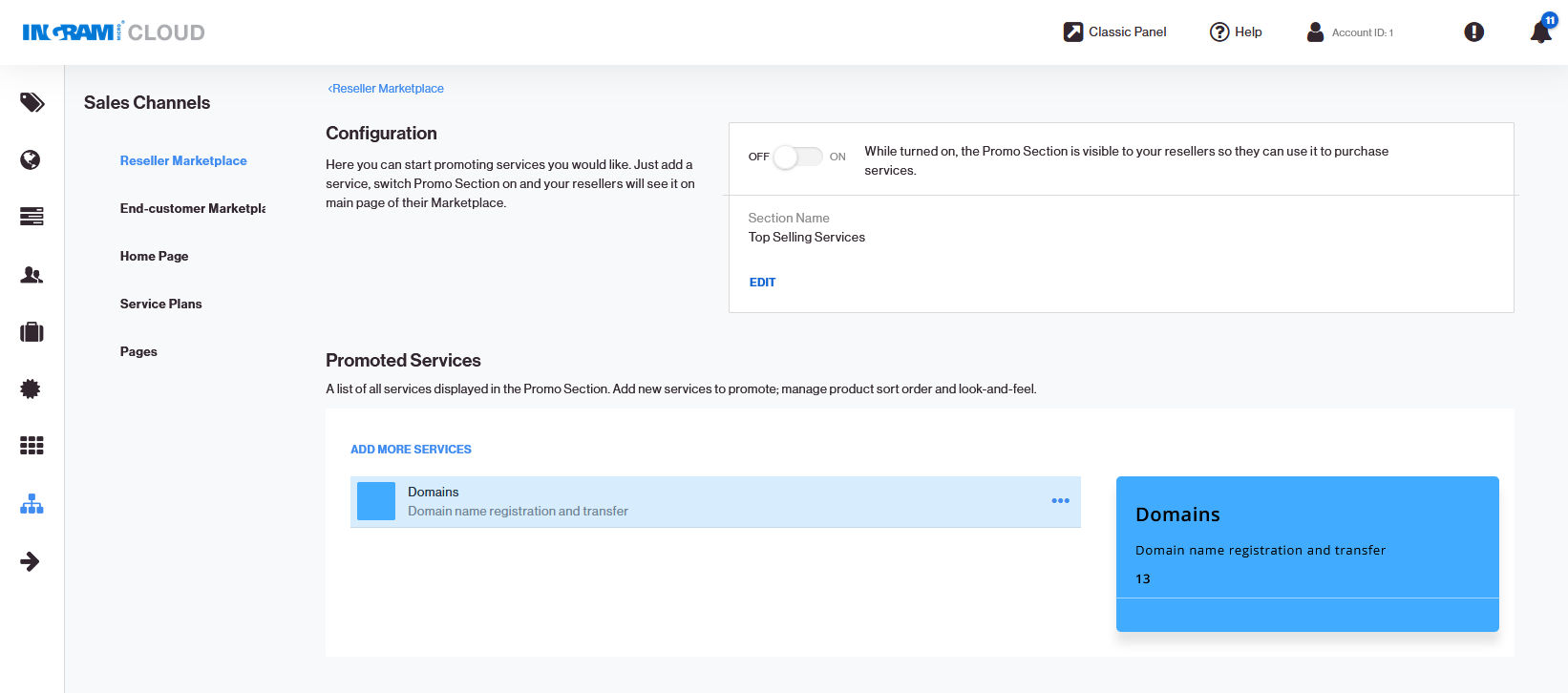
To launch the promotion campaign, click the On button under Configuration.
-
If you want to edit or remove an item from the Top Selling Services area: Go to Reseller Panel > UX1 > Sales Channels > End-customer Marketplace (in the left navigation pane) > Content > Promo Section > MANAGE, click the
 icon, and click Customize or Delete.
Building a catalog from scratch
If your reseller subscription does not include any apps or services for reselling, prepare your own catalog and make it available to your customers through the End-Customer Marketplace.
By default, the product catalog is empty, and you need to fill it in. To do this, create sales categories and service plans in the Billing area of the CloudBlue Commerce Reseller Panel, and then import them into the Customer Marketplace. When the import is completed, select which of your offers will be available to users, specify pricing, and prepare visually appealing tiles, called product pages, to showcase your offers in the Marketplace.
Step 1: Prepare sales categories and service plans in Billing
-
Go to Reseller Panel > Classic Panel (in the top navigation pane) > Billing.
-
Configure service plans and sales categories as described in Creating and Managing Service Offers.
Step 2: Enable access to the Customer Marketplace
-
Log in as a reseller to CloudBlue Commerce and go to UX1 > Sales Channels > End-Customer Marketplace.
-
In the General section, click On.
-
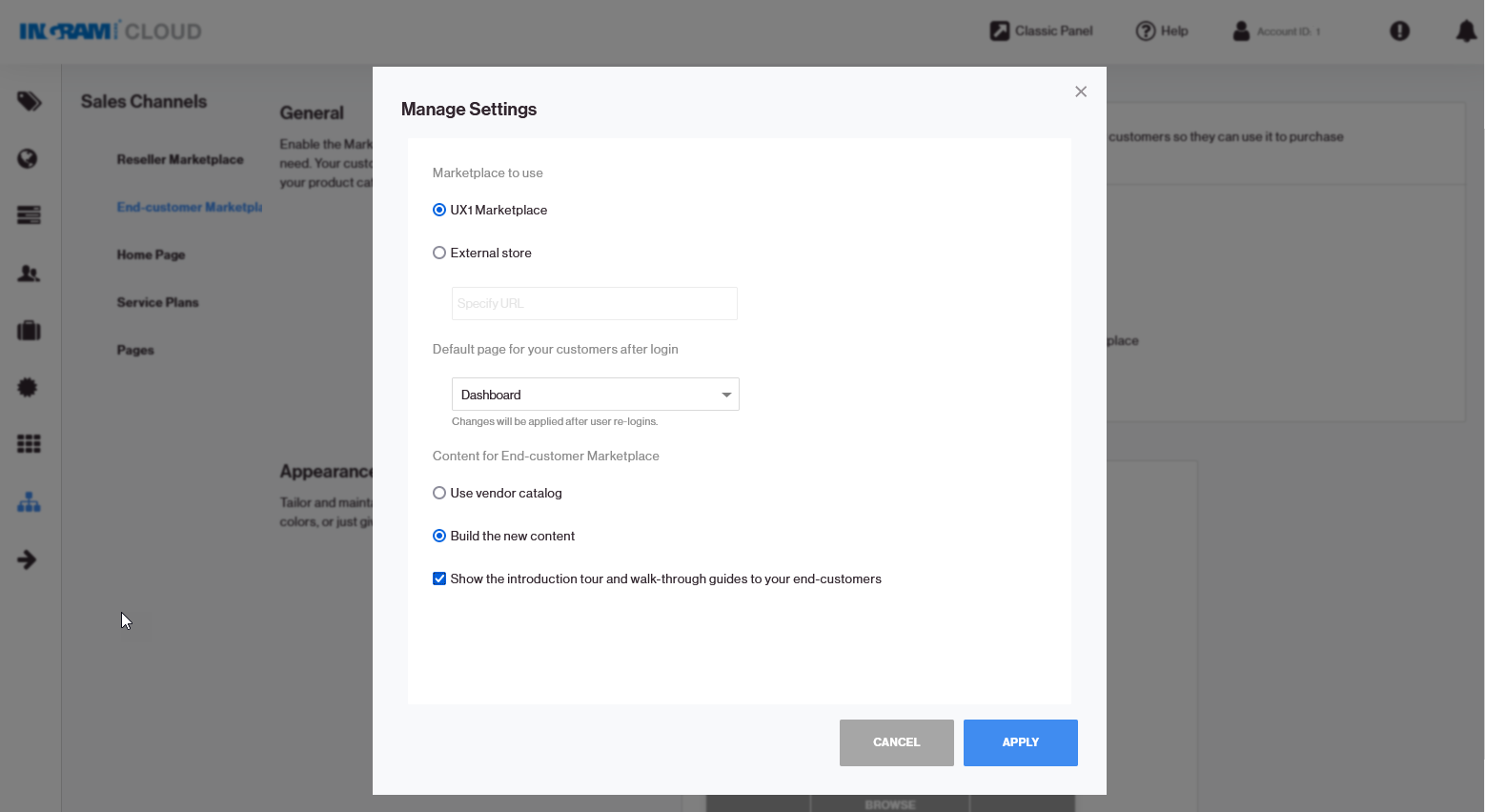
Click Configure and specify the following settings.
-
Which Marketplace to use. Select UX1 Marketplace.
-
The default page for your customers after login (Marketplace or Dashboard).
-
What to offer in the Customer Marketplace. Select Build new content.
-
Whether to display the introduction tour and walk-through guides to your end customers. Select this option for your customers to see a brief presentation on first login.
-
-
Click Apply to save the changes.
Step 3: Import the product catalog from Billing to the End-Customer Marketplace and adjust it
-
Go to Reseller Panel > UX1 > Sales Channels, click Home page in the left navigation pane, click END-CUSTOMER MARKETPLACE at the top, and then click Import Catalog.
When the import is finished, take a few moments to review the service plans and product pages that will be available in the Marketplace. These are the building blocks of a product catalog. Prepare service plans first, and then prepare product pages that include service plans. You can also create category pages if you want to group your offers into categories.
-
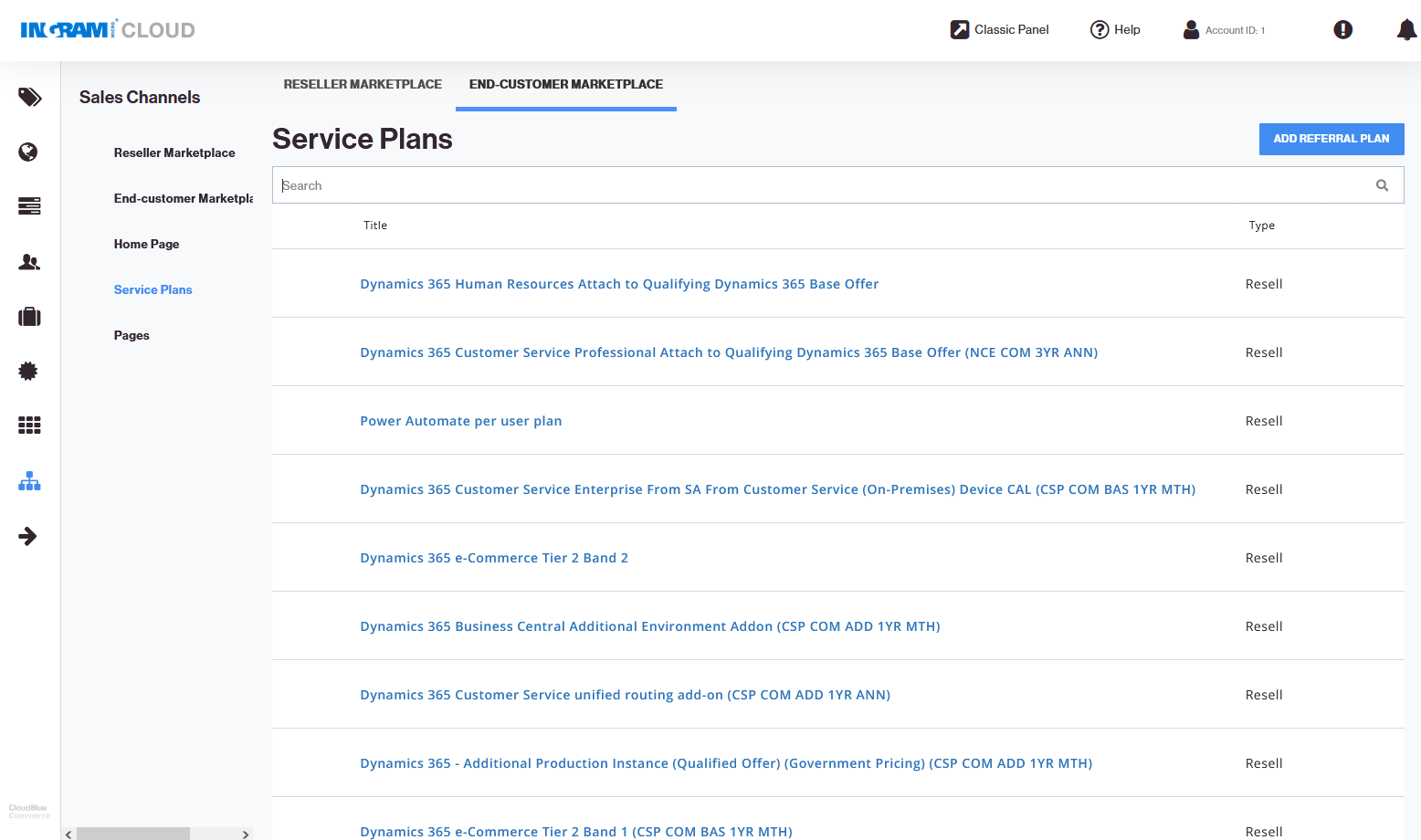
Go to Service plans (Reseller Panel > UX1 > Sales Channels > Service Plans > END-CUSTOMER MARKETPLACE). This is a list of all the service plans you have.
-
To review or change the plan information and adjust how it will appear in the Marketplace, complete the following steps:
-
Click the plan name. Specify the location of an image to use as a plan icon (it should be located elsewhere on the internet), specify a title and a description.
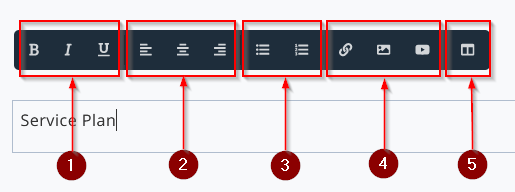
While editing, you can use these items in the toolbar:
-
Change the font style to bold, italics, or underlined.
-
Align text to the left, center, or to the right.
-
Add a bullet list or a numbered list.
-
Insert a link to a webpage, an image, or a video clip.
-
Change the layout of a block by adding columns.
-
-
Click Save.
-
If your customers speak languages other than English, select a language from the menu, specify a title and a description in the other language and click Save.
-
To return to the list of service plans, click the < Service Plans < End-customer Marketplace link in the top navigation.
-
-
To redirect users to an external store for purchase, click Add Referral Plan. Specify the location of an image to use as a plan icon (it should be located elsewhere on the internet), specify a title, a description, and a link (URL) to the store. Click Save. If you want to add a name and description in another language, select a language from the menu, specify a title and a description in the other language and click Save.
-
To add a new service plan, go to the Billing panel, add a service plan there, and then repeat the import as described in step 1.
-
To make a plan temporarily unavailable to users, hover the mouse pointer over the plan’s name and click the
 icon.
icon. -
To remove a plan from the Marketplace, click the plan name, click the
 icon, and then click Delete. Note that this does not delete the service plan from Billing. It only removes the record about this plan and all your customizations to the plan from the Marketplace.
Now, the service plans are ready. Let’s create pages.
-
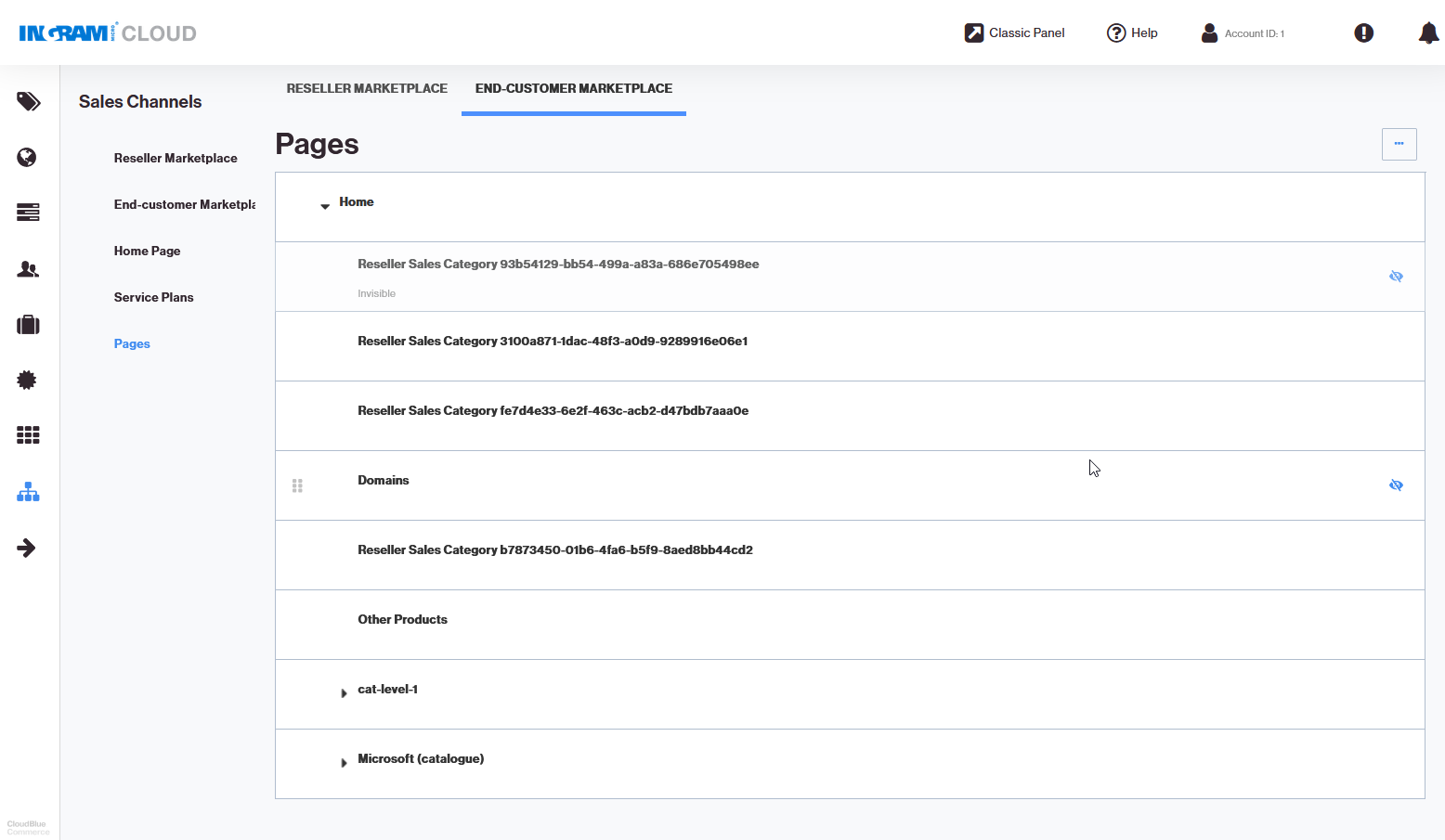
Go to Pages (Reseller Panel > UX1 > Sales Channels > Pages > END-CUSTOMER MARKETPLACE). This is a list of all product pages that were created from sales categories during the import from Billing in Step 1. The pages are organized in a top-down structure starting with Home.
-
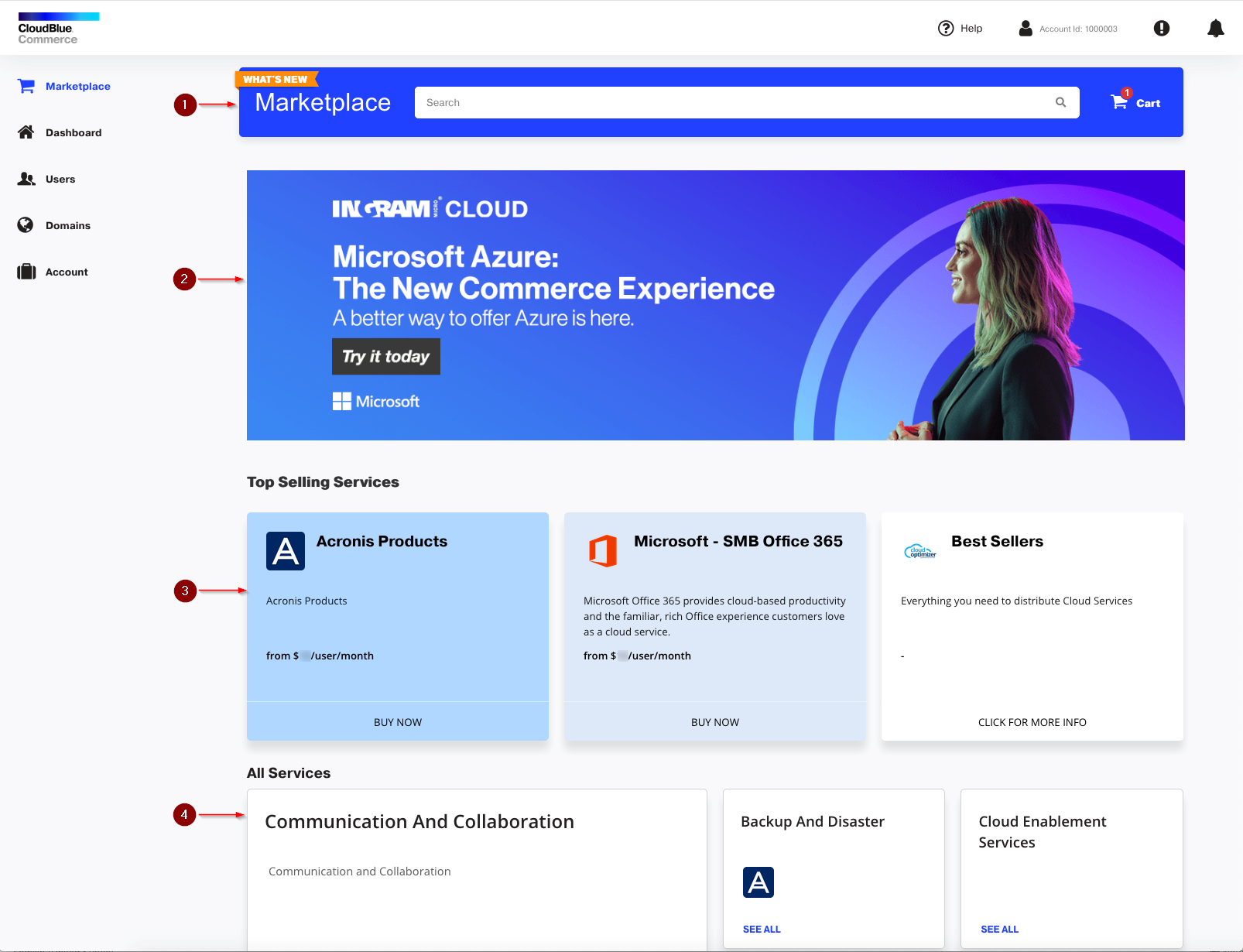
Let’s configure the Home page first. This is the landing page that your customers see when they visit the Customer Marketplace.
-
A search by products and services.
-
A banner. You can add several pictures and make a slide show.
-
A list of featured products or services, also referred to as promo pages or promotions.
-
A product catalog. It consists of product pages, sub-pages with service plans, and category pages.
-
Click Home.
-
Specify what you want to display in the banner area. Click the
 icon.
icon. -
You can choose to upload one banner or make a slide show out of two or three banners.
-
Specify the URL to the banner image. The image must be available elsewhere on the internet. The image dimensions must not exceed 1300 by 375 pixels, and the file size must not exceed 100 kilobytes. We recommend using images in PNG format.
-
If you want to redirect users to a website when they click the banner, type a link in the Link box and select the Open link in new window checkbox.
-
To make a slide show, click the navigation icons
 and
and  to switch between image slots and upload more images.
 -
If you want to rearrange images in the slide show, select the order of each image in the Position menu.
-
If you want to delete an image, click Delete.
-
Click Save.
The banner on the Home page is ready. Let’s configure the pages of your product catalog that will showcase your offers.
-
-
To edit a page with your offering, complete the following steps:
-
Go to Pages (Reseller Panel > UX1 > Sales Channels > Pages > End-Customer Marketplace).
-
Click a page name. All items on the page must be editable by now. If you previously visited this area of the Marketplace settings and selected the Preview mode, click Edit to switch back to the editing mode.
-
Click the title and description to edit them.
-
Click the
 icon to specify the URL to the icon that will accompany the product page in the showcase. You can select a background color to fill the transparent portions of the image with it.
 -
On the Pricing tab, under Service Plans, select the plans that you will offer for users to purchase when they view the product showcase.
-
To add a plan from the list of all plans created earlier, click in the Add plan box, find the plan by name, and select it.
-
To rearrange plans in the showcase, drag plans by the
 icon.
icon. -
To remove a plan from the showcase, click the
 icon.
icon. -
On the Pricing tab, under Frequently Bought Together (this may also appear as Cross-Sell, depending on your Marketplace version, but it is customizable), select the complementary plans that you want to offer.
-
Go to the Overview tab. Provide more information about the solution that you offer. Add screenshots, video clips, and other marketing materials.
-
Go to the Support tab. Provide information about the ways to contact the technical support of the service vendor.
-
-
To add a page, go to Pages (Reseller Panel > UX1 > Sales Channels > Pages > End-Customer Marketplace), click the
 icon, and click Add Category Page or Add Product Page. A category page is a container that you can use to group similar product pages together.
 -
To rearrange pages, hover the mouse pointer over a page name, point at the
icon, and drag the page to another location. Note that by default, all pages are added without any particular order, and the order might change after you edit a page. If you want a specific order of pages, drag the pages within the structure. -
To make a page unavailable to users, hover the mouse pointer over the page name, and click the
 icon.
icon.
The product catalog is now configured in the Customer Marketplace.
Step 4: Promote services on the landing page (Home page) of the Customer Marketplace
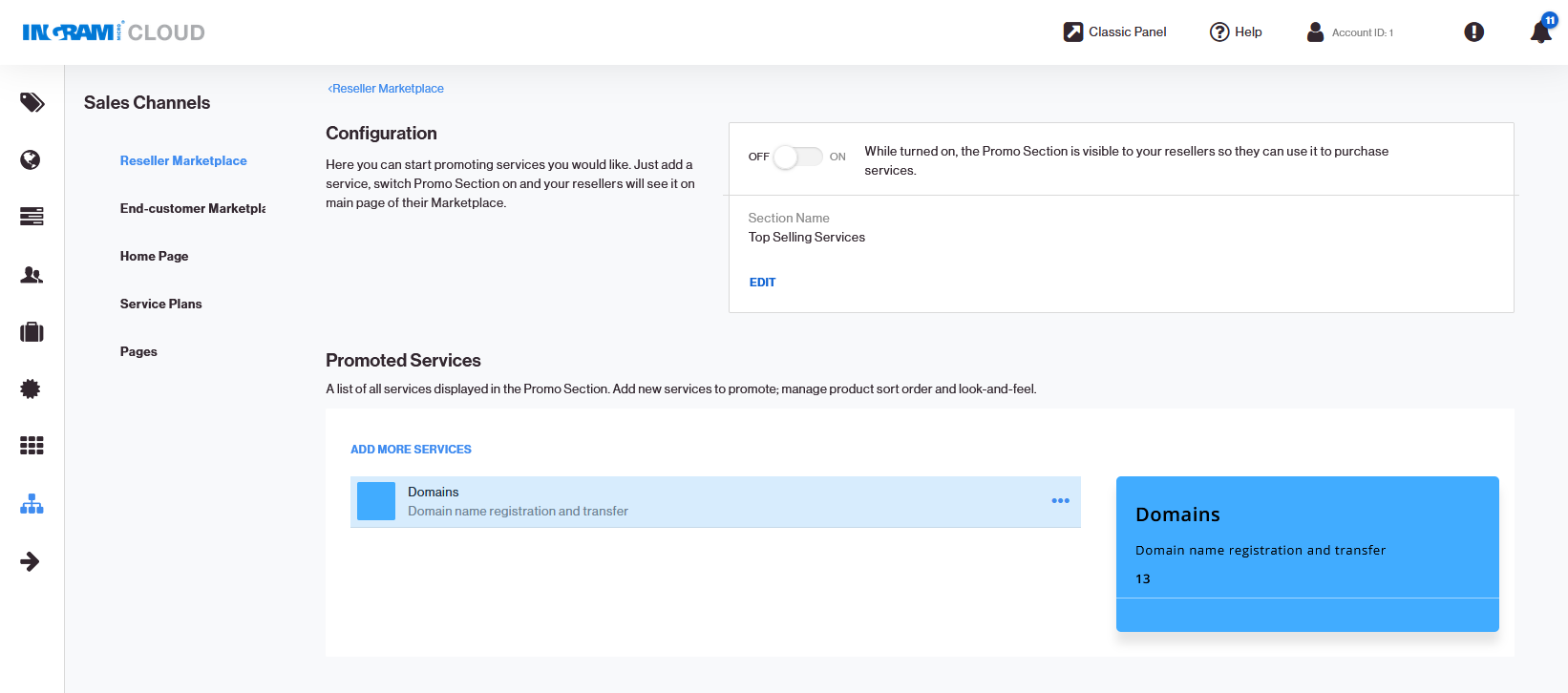
To specify which items or offers to display on the landing page of the Customer Marketplace, in the Top Selling Services area below the banner:
-
Go to Reseller Panel > UX1 > Sales Channels > End-customer Marketplace (in the left navigation pane) > Content > Promo Section > LAUNCH.
-
Click SELECT.
-
Specify the following:
-
Title. Up to 50 characters.
-
Description. Up to 150 characters.
-
Promo price. The price that will be in effect during the promotion period. Up to 20 characters.
-
Button label. The button label such as Buy Now. Up to 20 characters.
-
Under Appearance, select the colors to use for the tile name and button label. Select an icon for the tile (150 by 150 px, PNG or SVG format). Select a background image to fill in the entire Top Selling Services area. We recommend using an image of 400 by 1000 px for a background.
-
Under Promotion Period, specify when and for how long the promoted items will appear in the Reseller Marketplace.
-
-
Click ADD.
-
To launch the promotion campaign, click On under Configuration.
-
If you want to edit or remove an item from the Top Selling Services area: Go to Reseller Panel > UX1 > Sales Channels > End-customer Marketplace (in the left navigation pane) > Content > Promo Section > MANAGE, click the
 icon, and click Customize or Delete.
Your Customer Marketplace is now ready.
Step 5 (Optional): Customize the Marketplace tile on the Dashboard
There are two items in the Customer Panel that lead to the Marketplace: the Marketplace link in the left navigation pane and the Marketplace tile on the Dashboard.
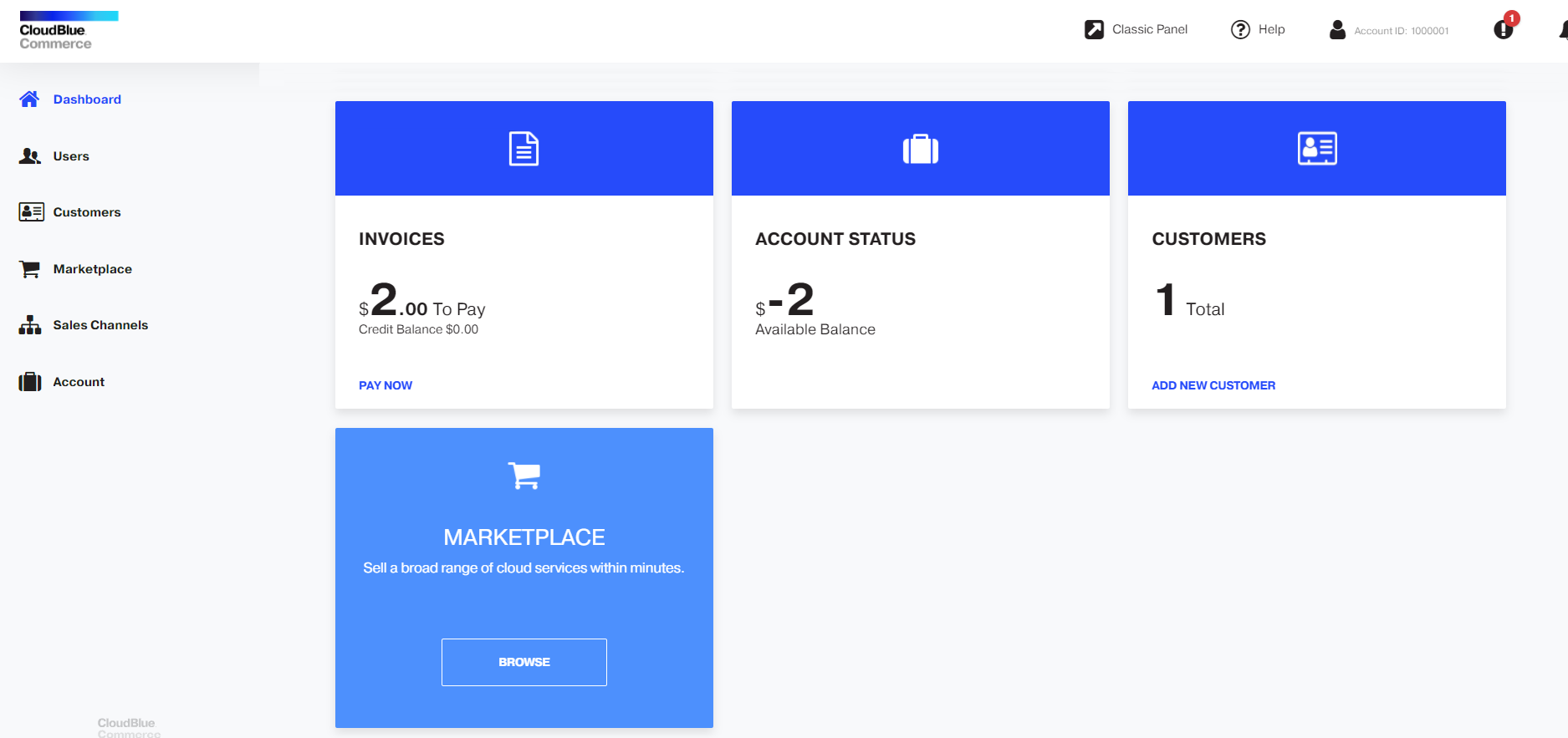
If you want to adjust the appearance of the Marketplace tile on the Dashboard, go to Reseller Panel > UX1 > Sales Channels > End-Customer Marketplace (in the left navigation pane) > Appearance > Preview > CUSTOMIZE.
Purchasing on Behalf of Customers
This section explains how to purchase services on behalf of a customer. As one of the most popular apps among users is Microsoft Office 365, let’s see how to buy it. The steps for purchasing other services or apps might slightly differ.
-
Go to the Reseller Panel > Operations > Customers, click the
 (Log in as a customer administrator) icon, and then click Customer CP in the top navigation pane.
 -
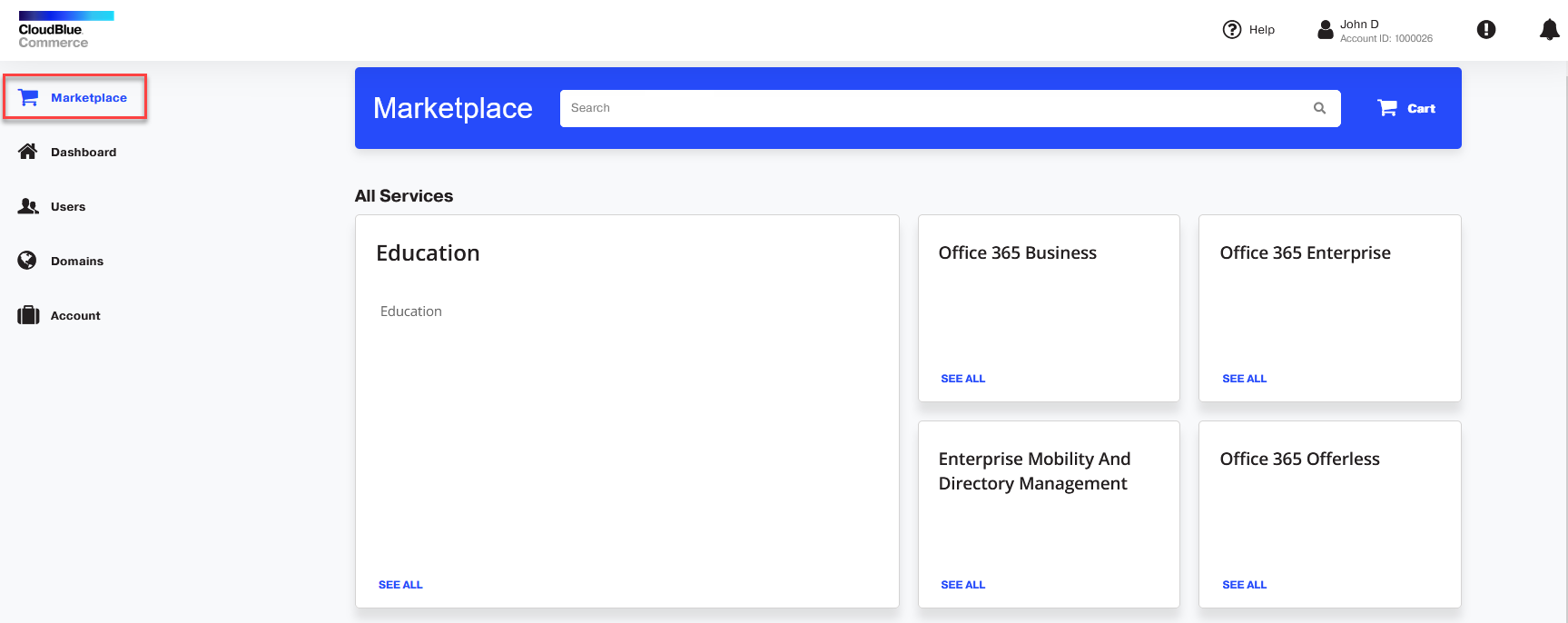
Click the Marketplace link in the navigation pane on the left.
-
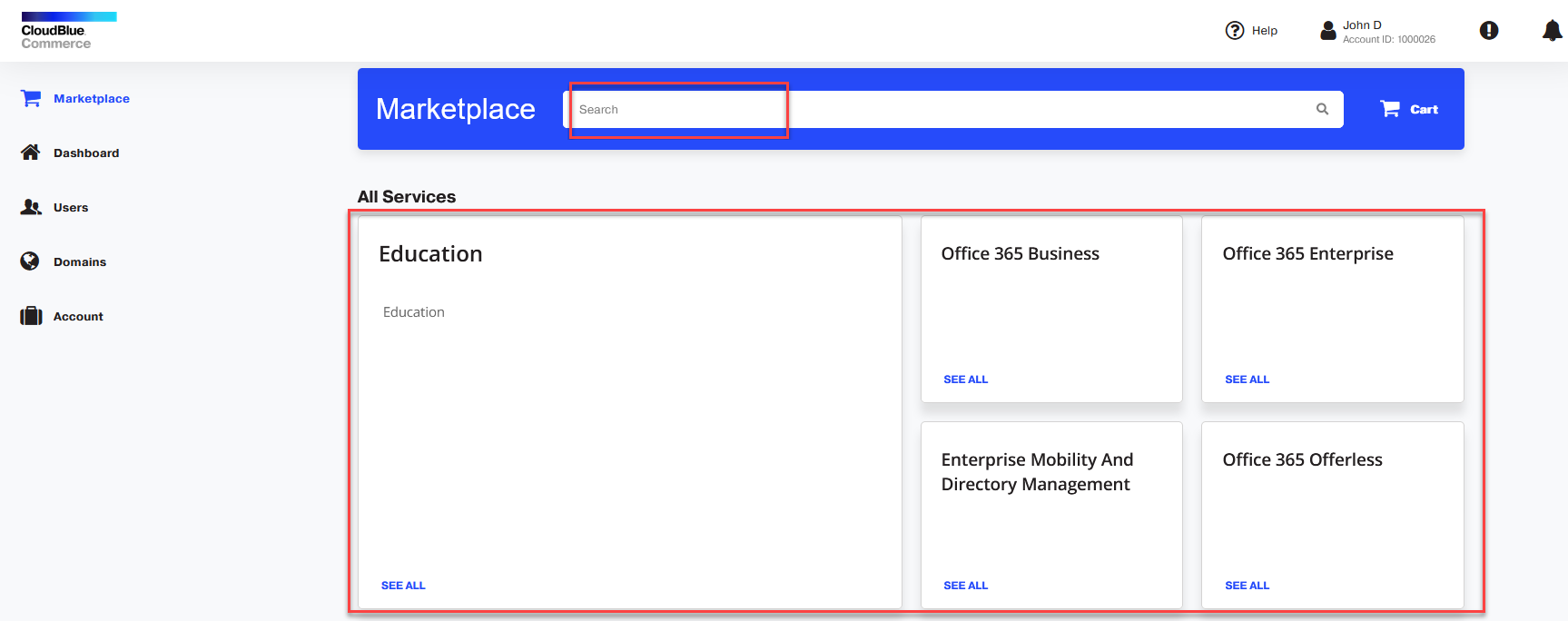
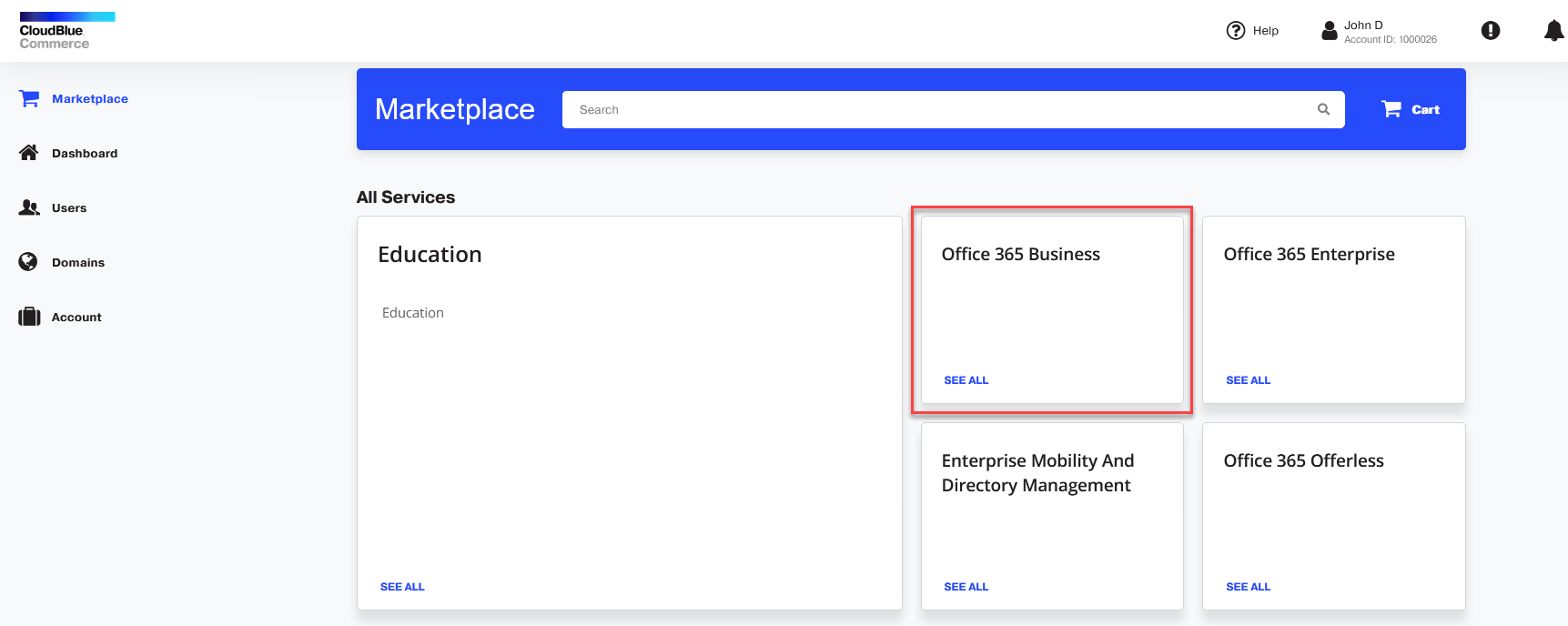
Search for an app or service by using the search bar or browse all apps under All Services.
-
Click the tile with the app name. Let’s select Office 365 Business.
-
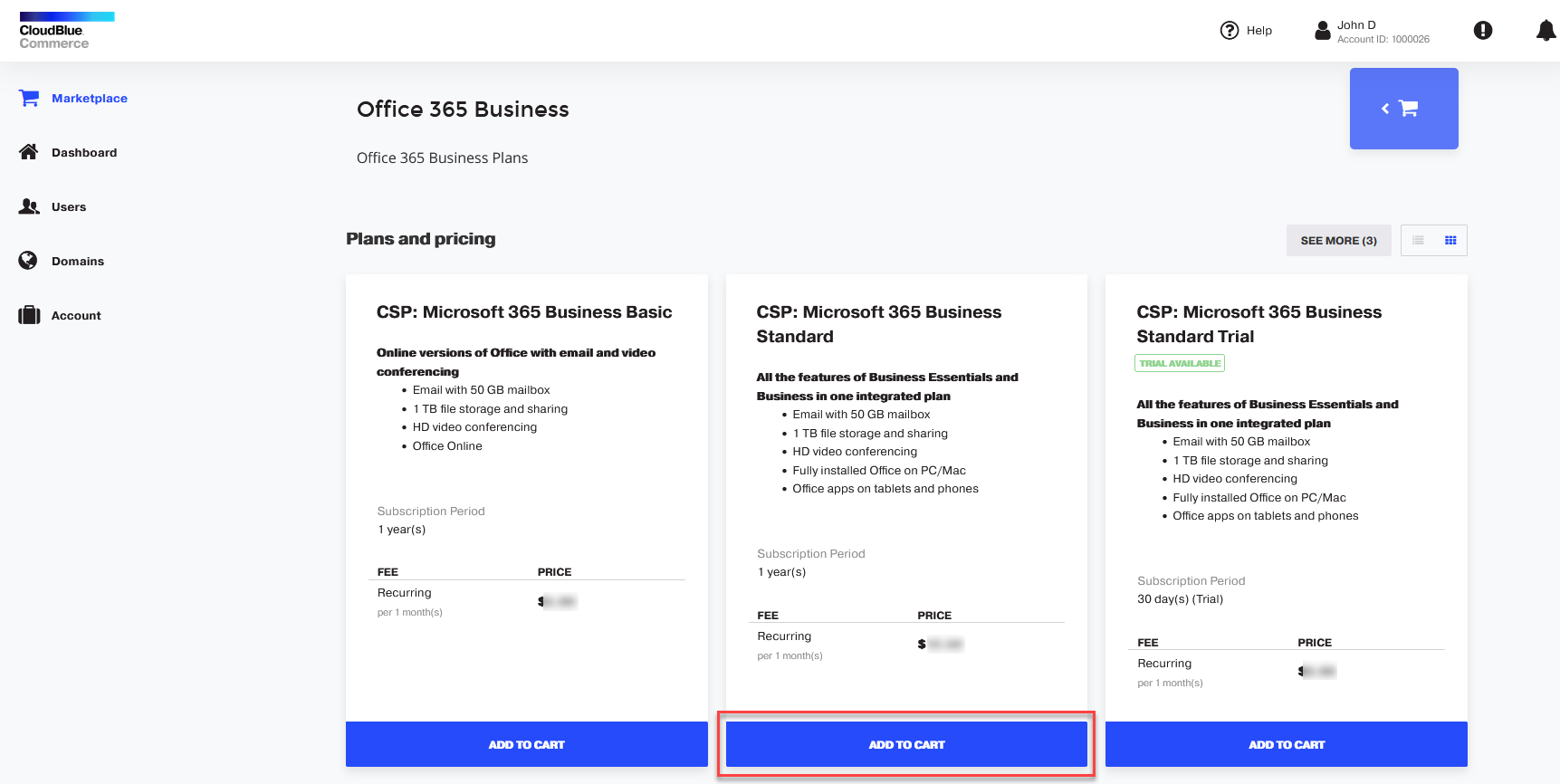
Under Plans and pricing, select the option you need and click ADD TO CART.
-
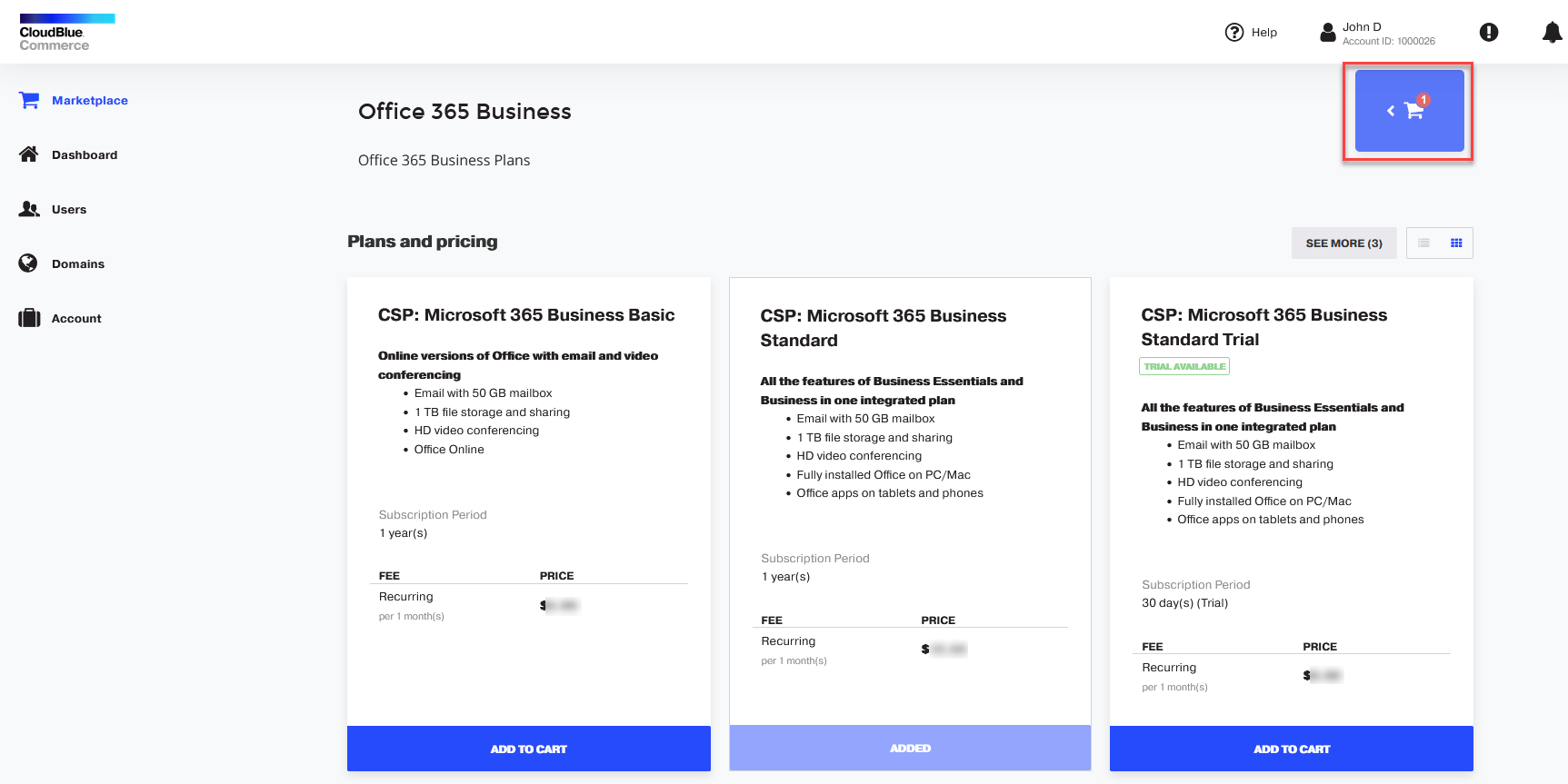
When ready to check out, go to the cart.
-
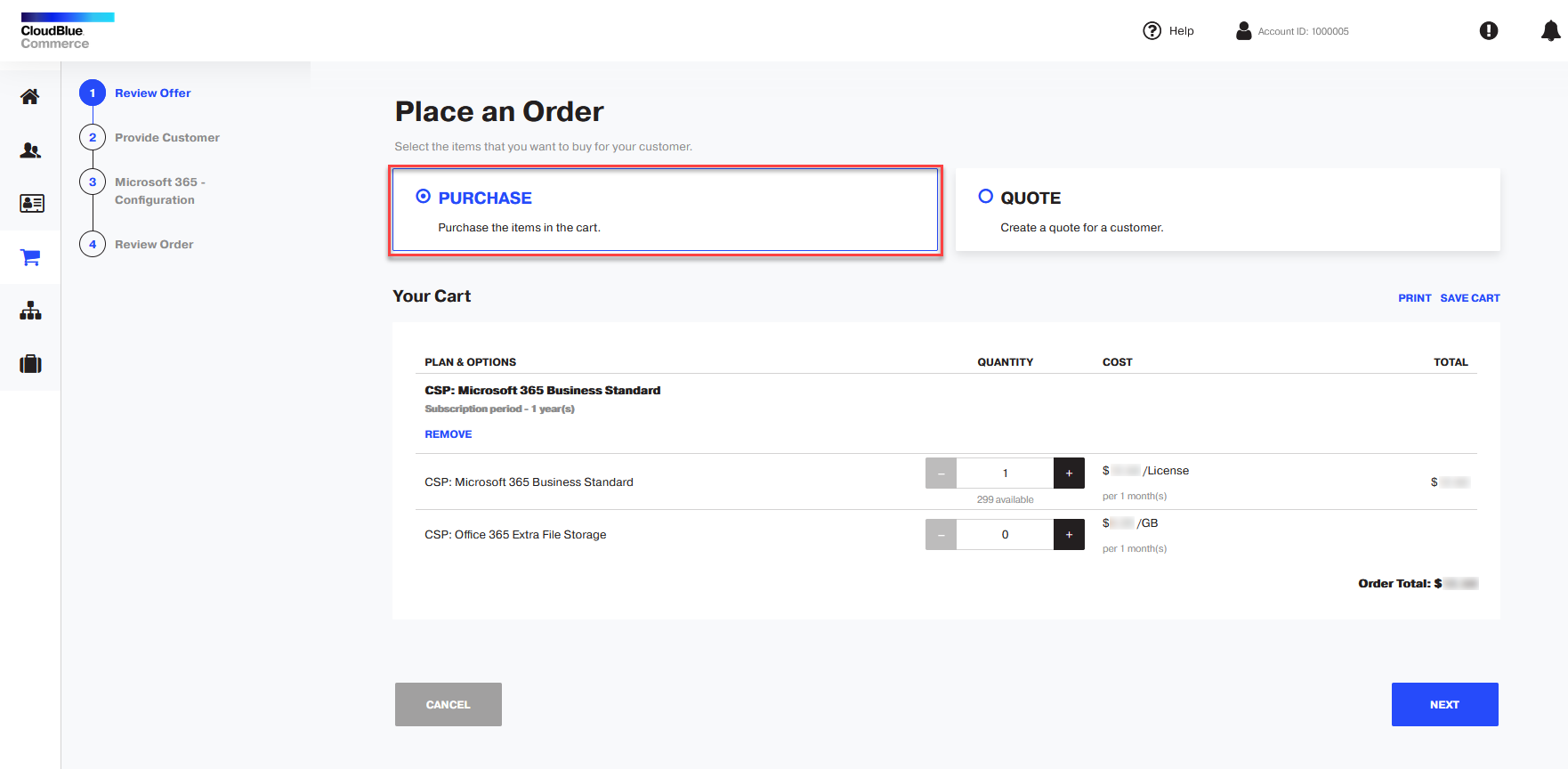
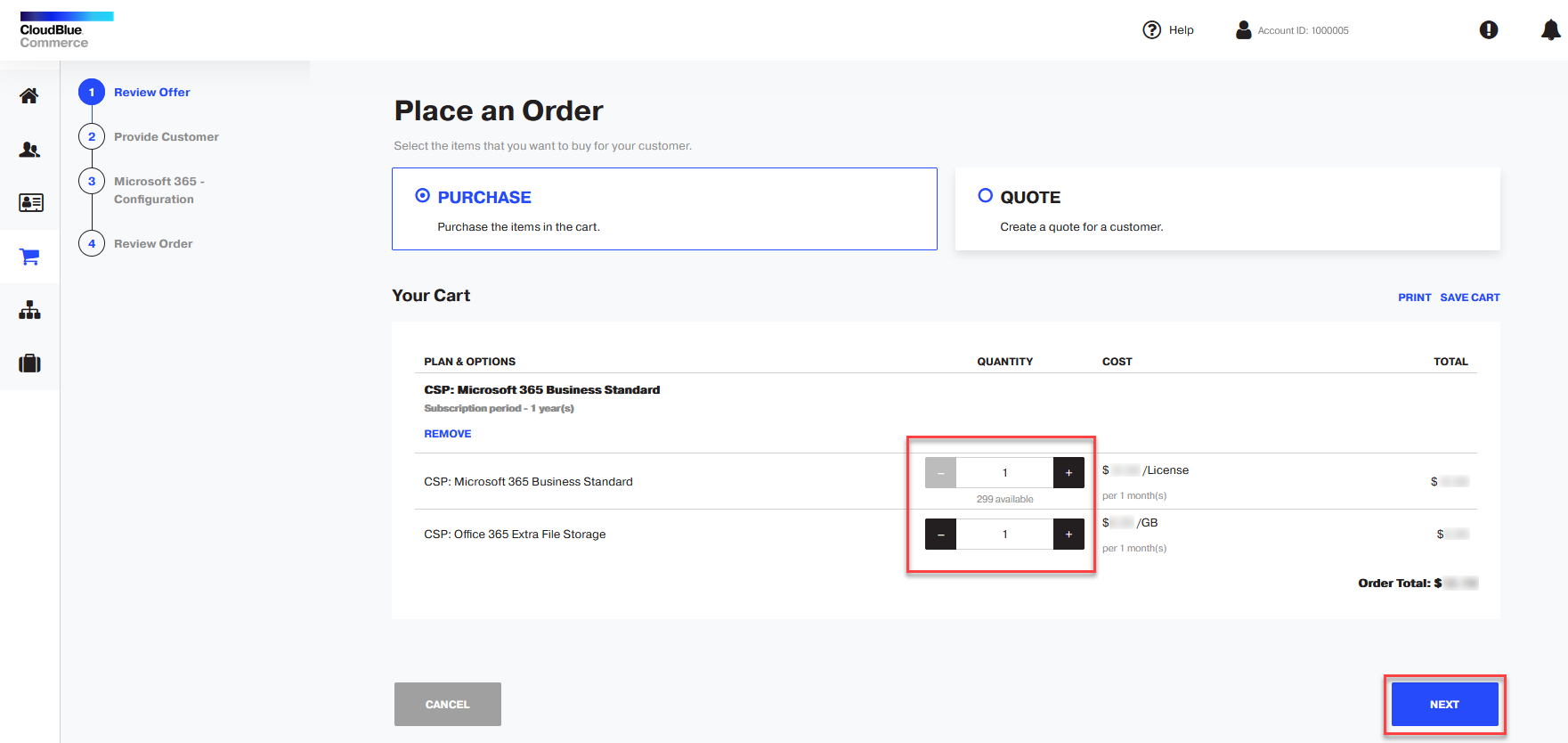
Select PURCHASE.
-
Select the options that you want and click NEXT.
-
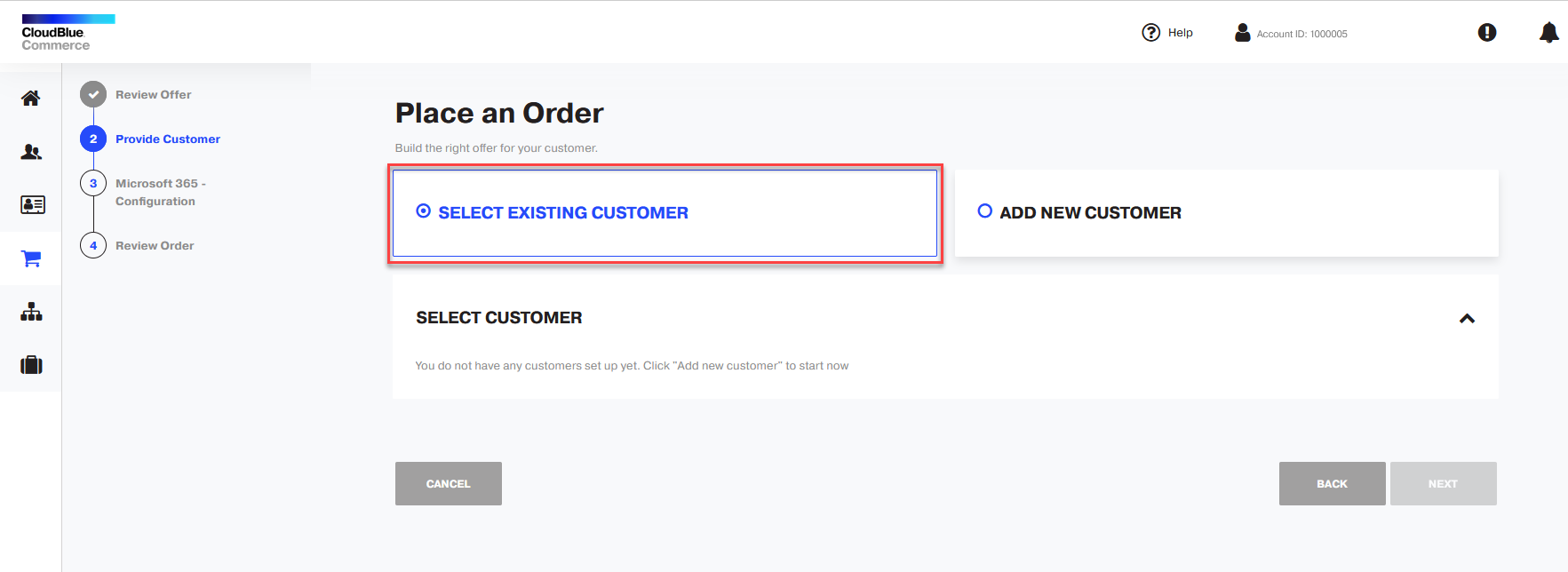
Select the user account for which you want to purchase or add a new user. Click NEXT.
-
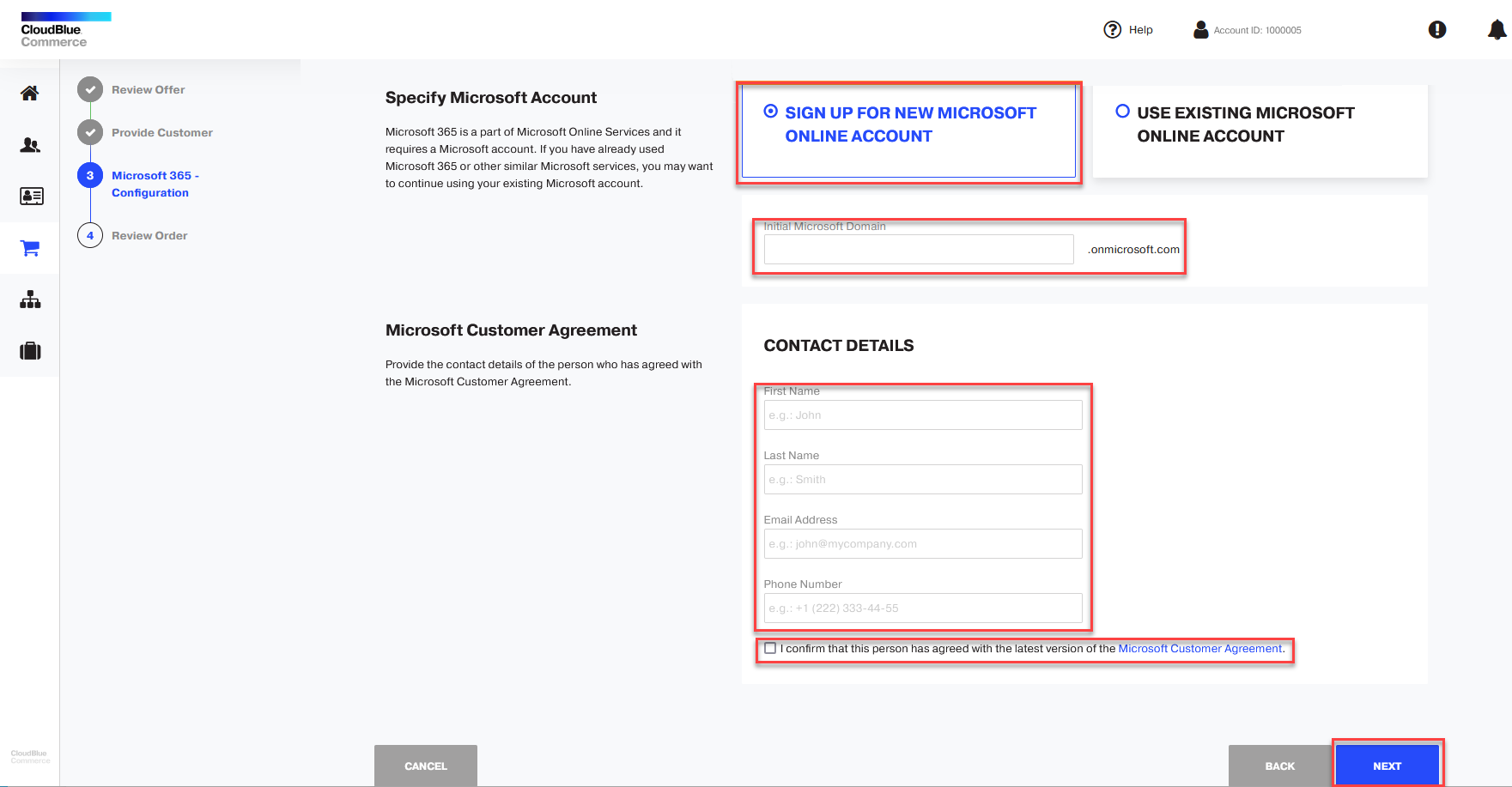
If the user does not have a Microsoft Online account yet, select the option SIGN UP FOR NEW MICROSOFT ONLINE ACCOUNT. Specify the subdomain name (also referred to as a tenant name) that will be used with Microsoft services. Provide contact information and select the checkbox I confirm that this person has agreed with the latest version of the Microsoft Customer Agreement. Click NEXT.
-
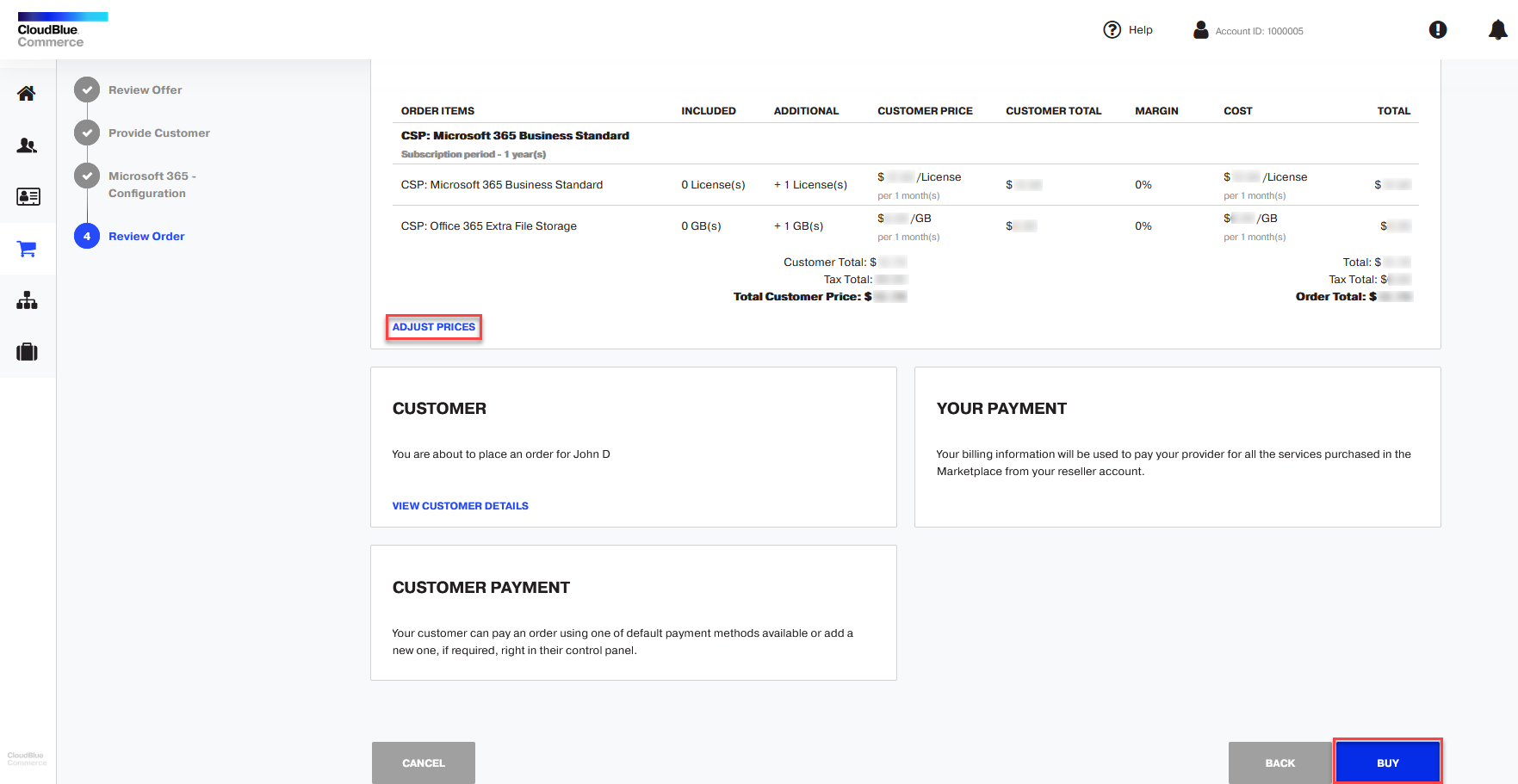
Review the order. If you want to provide a discount, click ADJUST PRICES. Click BUY.
When the service is provisioned and is ready for use, the user will receive notifications by email.