A quote is a formal commercial offer that a reseller prepares for a specific customer: a set of plans and products with fixed or discounted prices and a validity period. Quotes let a reseller negotiate custom pricing with a customer before an order is placed. Once ready, the reseller sends the quote to the customer as a branded PDF and, optionally, makes it available in the Customer Marketplace, where the customer can review it and place an order using the same prices and terms.
Who Can Use Quotes
-
Providers do not create quotes themselves. A provider controls which resellers can use the Quotes app by making it available to them in CloudBlue Store.
-
Resellers (and their sub-resellers) create, edit, send, and archive quotes for their own customers. A reseller sees quotes owned by themselves and by any sub-reseller beneath them.
-
Customers only see quotes that have been explicitly sent to them. They cannot create quotes; they can only review a shared quote and place an order from it.
Enabling Quotes
The quotes functionality is delivered as an app in CloudBlue Store (Quotes) and is enabled per reseller, not for the whole Marketplace at once:
-
The provider must enable Quotes for resellers:
-
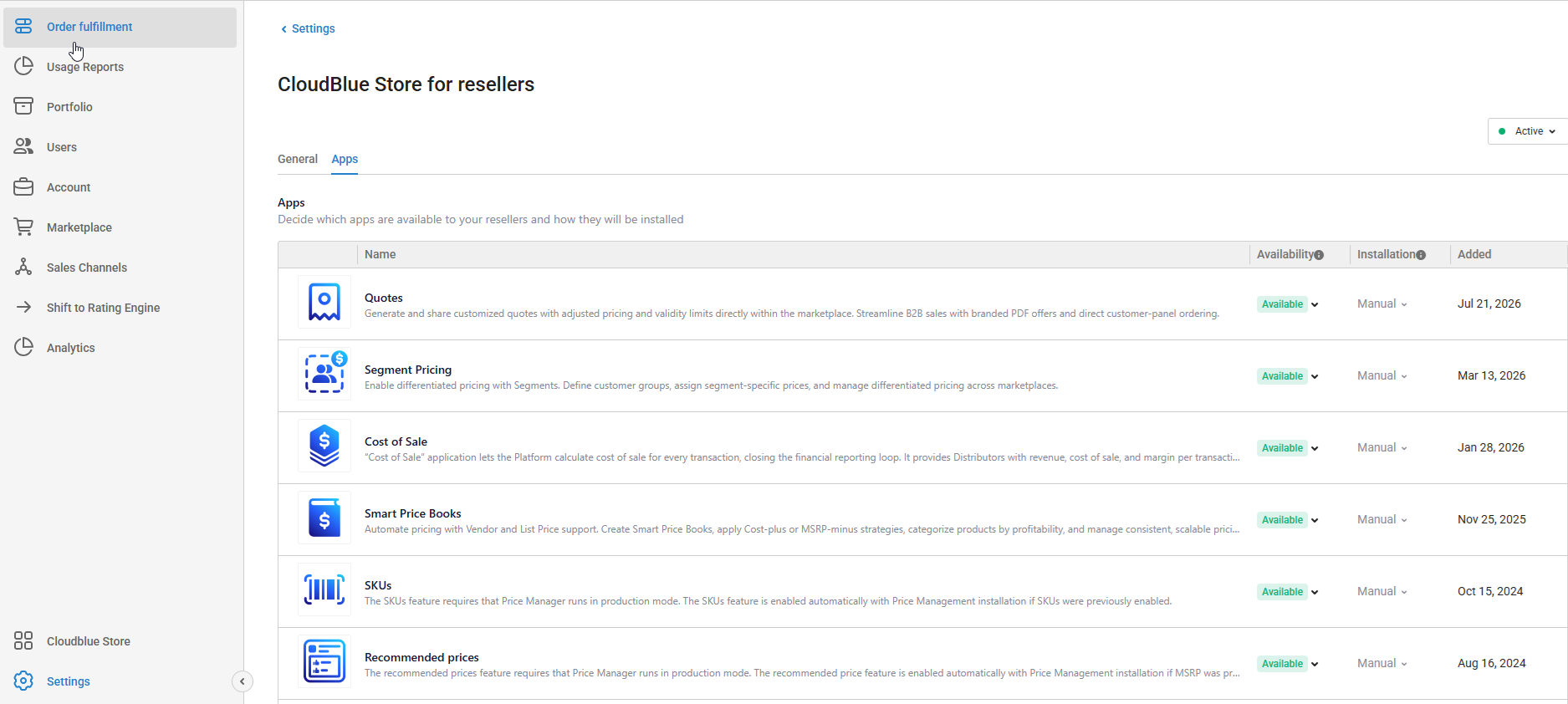
In UX1, open Settings and click CloudBlue Store for resellers.
-
In the Apps tab, click Quotes and make it available for installation.
-
-
The reseller must open their own CloudBlue Store for Reseller, find Quotes among the available apps, and click Install.
-
On first opening the app, the reseller sees an Enable Quotes screen. Clicking Confirm turns quotes on for that reseller account.
-
Once enabled, a Quotes item appears under Customers in the reseller's left navigation, and the Create a quote option becomes available from the Cart page.
Note: The Create a quote option is not available while Sales Assistance Mode is turned on for the cart.
Creating and Sending a Quote
-
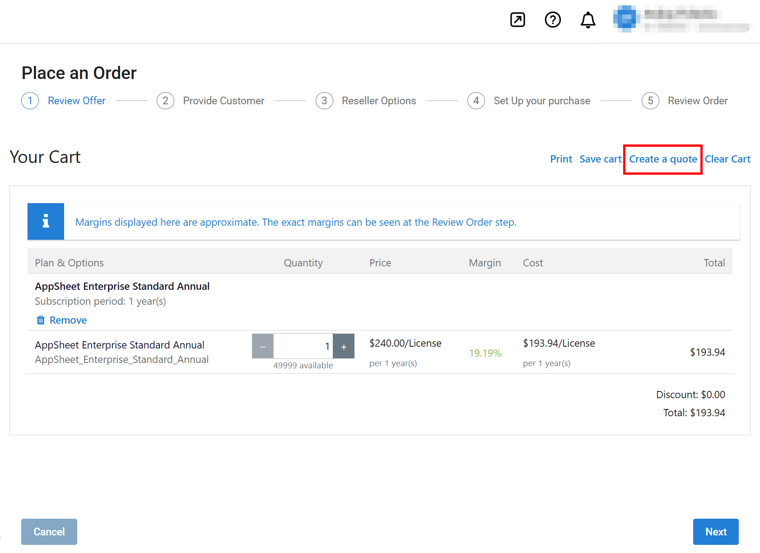
As a reseller, add the plans and products you want to offer to the cart in the Marketplace, then click Create a quote next to the cart actions.
-
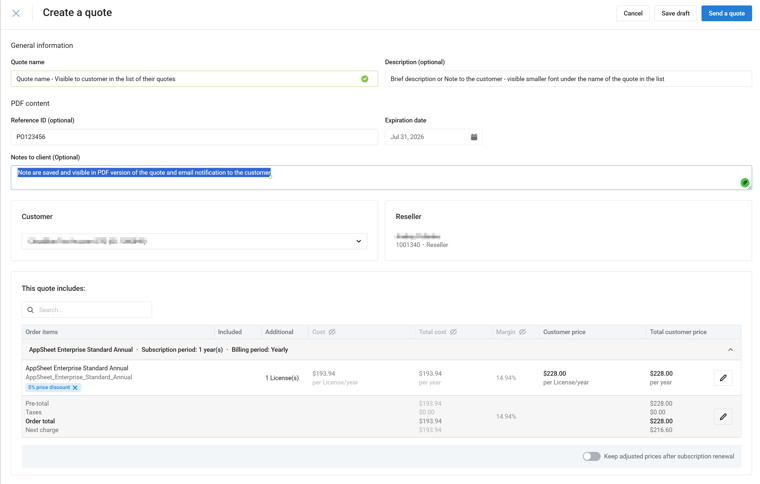
In the Create a Quote screen, fill in the quote details:
-
Quote name and an optional Description – used to identify the quote in the quotes list; they are not printed on the PDF.
-
Optional Reference ID, Expiration Date (the date until which the quote stays valid), and Notes to client – these are printed on the PDF.
-
Select the Customer the quote is for. Price adjustment is disabled until a customer is selected.
-
Use Hide in PDF / Show in PDF on the Customer and Reseller cards to control whether their contact details are printed on the PDF.
-
-
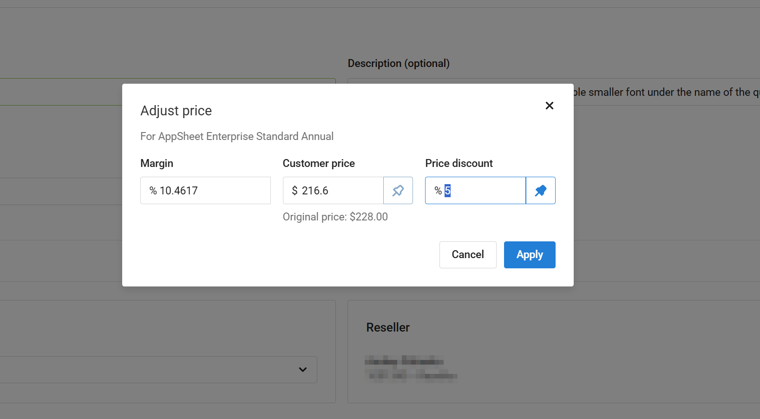
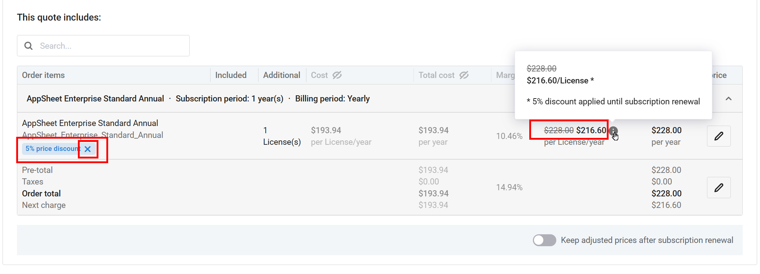
Review the line items carried over from the cart and, if needed, adjust the Customer price for any item – either as a flat price or as a percentage discount off the regular price.
-
Optionally turn on Keep adjusted prices after subscription renewal if the special pricing should also apply when the resulting subscription renews. This is off by default.
-
Click Preview PDF at any time to check how the quote will look to the customer.
-
Click Save draft to keep working on the quote later, or click Send a quote to deliver it now.
-
In the confirmation dialog, optionally select Send a copy to my email and click Send.
The customer receives an email with a summary of the quote and a link to view and download the PDF. A reseller can customize the look of the PDF at Settings > Branding > Quotes template; until a custom template is saved, a default layout is used.
How a Customer Uses a Quote
A customer sees quotes that were sent to them under Marketplace > Quotes in their Customer Panel.
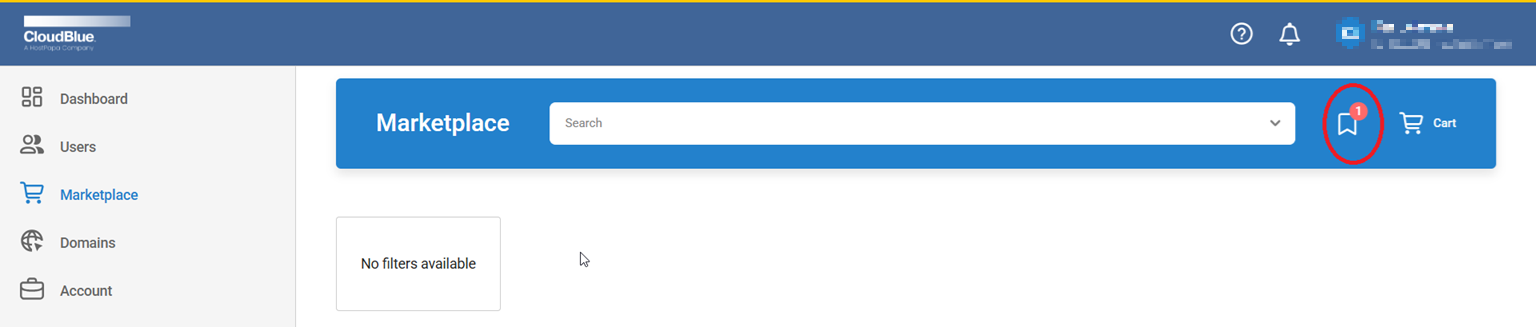
Clicking Place an order on a quote walks the customer through Review Offer (quantities are locked to what is in the quote), Setup your purchase, and Review Order, and then Buy.

Before the order is processed, it is validated against the quote – that the quote is still sent (not archived or expired) and that the prices match what was quoted. If validation fails, for example because the quote has expired, the order is rejected and the customer is asked to contact the reseller.
Note: Adding a quote to the cart replaces any items already in it – a quote cannot be combined with other items in the same order.
Quote Statuses
A quote moves through three statuses, always in the same direction:
Draft → Sent → Archived
|
Status |
Description |
|---|---|
| Draft | The quote has been created but not yet sent. It is visible only to the reseller (and sub-resellers/provider above them) and is the only status in which the quote can still be edited. |
| Sent | The quote has been emailed to the customer and, if it has not expired, is visible to the customer in their Marketplace. A sent quote can no longer be edited. |
| Archived | The quote is no longer available for viewing or purchase. A quote is archived automatically once its expiration date passes. An archived quote can be cloned into a new draft to start over with the same details. |
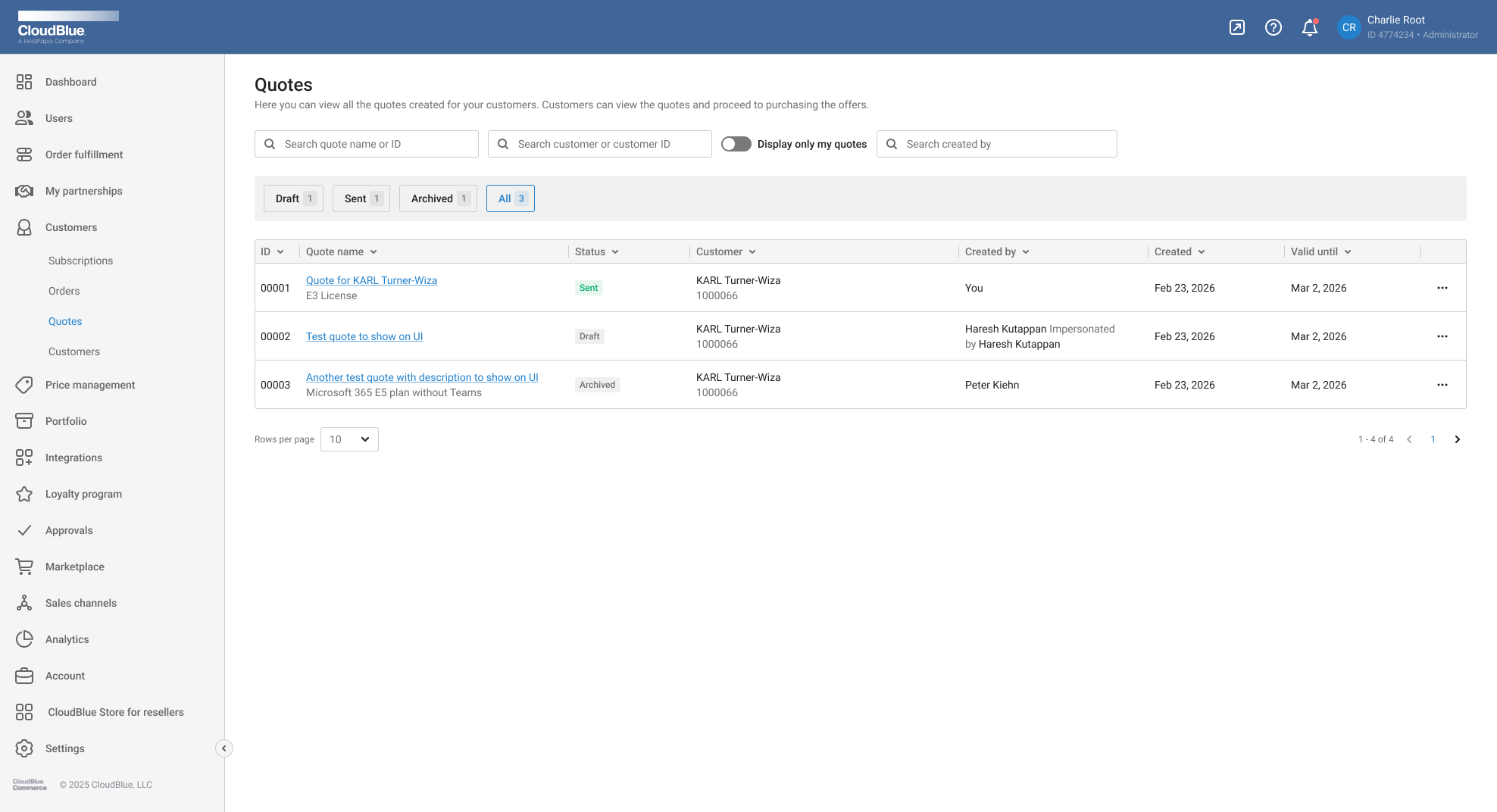
There is no way back from a later status to an earlier one – for example, a Sent or Archived quote cannot be turned back into a Draft. To reuse an old quote, clone it into a new draft instead.
Configure quote templates
Before sending quotes to customers, you can review and customize the PDF template used for generated quote documents.
Configure the PDF template
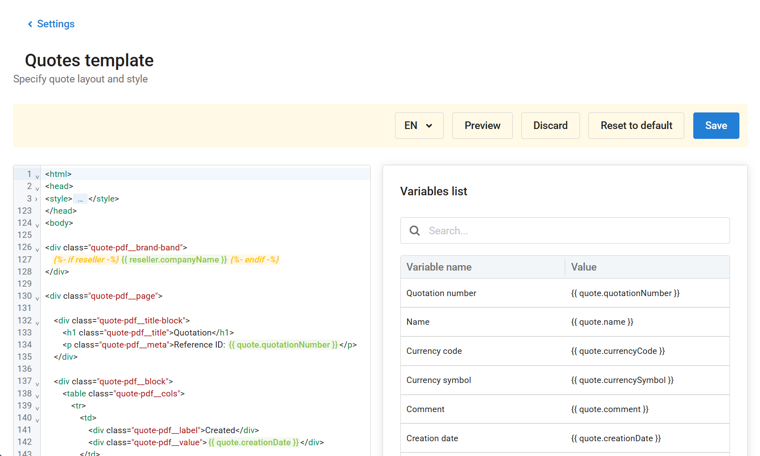
The PDF template controls how the quote document looks when you preview or download PDF quote from the UI, or on the link to PDF quote attached in the email notification. You can use it to adjust customer-facing text, branding, layout, and quote fields.
-
Go to the Settings menu in Reseller UX1.
-
Open the Quotes Template under the Branding section.
-
Choose the locale you want to configure if multiple languages are available.
-
Edit the template content. Keep required quote placeholders such as quote name, customer details, products, prices, totals, expiration date, and notes.
-
Use the Preview button to check the result before saving.
-
Save the template.
To learn how to configure the email templates used for quote notifications sent to customers and reseller staff, refer to the Notification Message Customization section.