How to Switch to Another Subscription Period
Switching to another subscription period means that the current subscription period is changed to one of those available within the service plan. For example, available subscription periods for a service plan are a month, a year, and three years. You purchased a service with a one-year subscription period, and after some time, you want to change the subscription period to three years.
-
Log in to the UX1 for Customers.
-
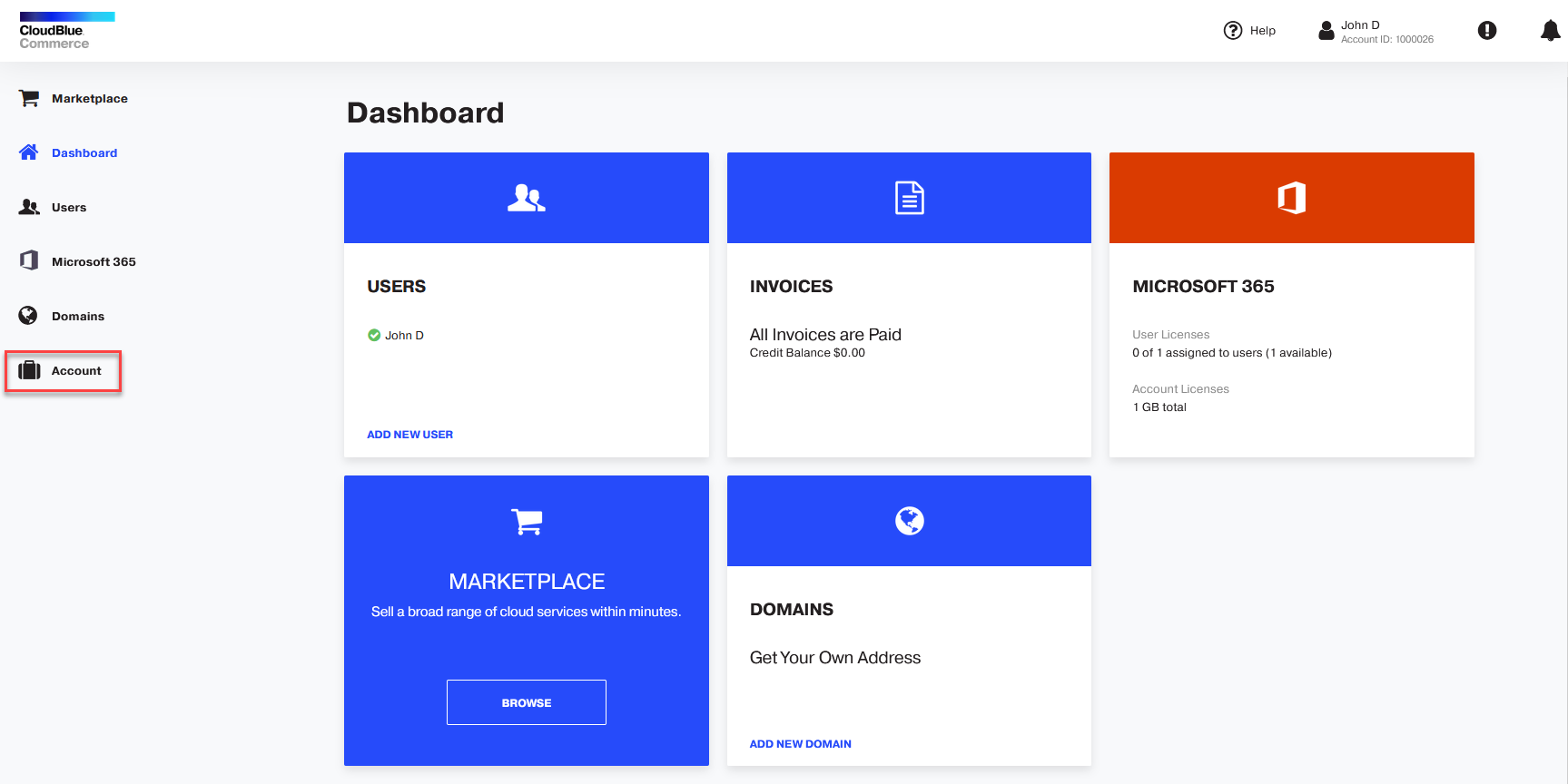
Click the Account link in the navigation pane on the left.
-
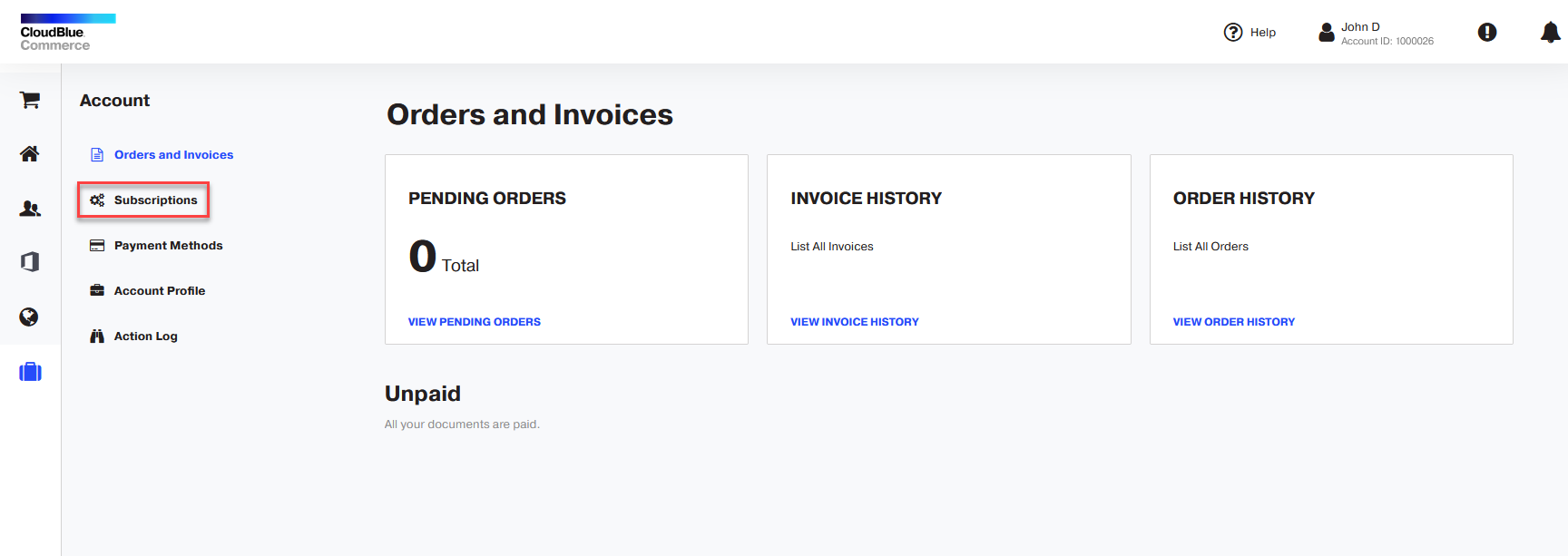
Click Subscriptions.
-
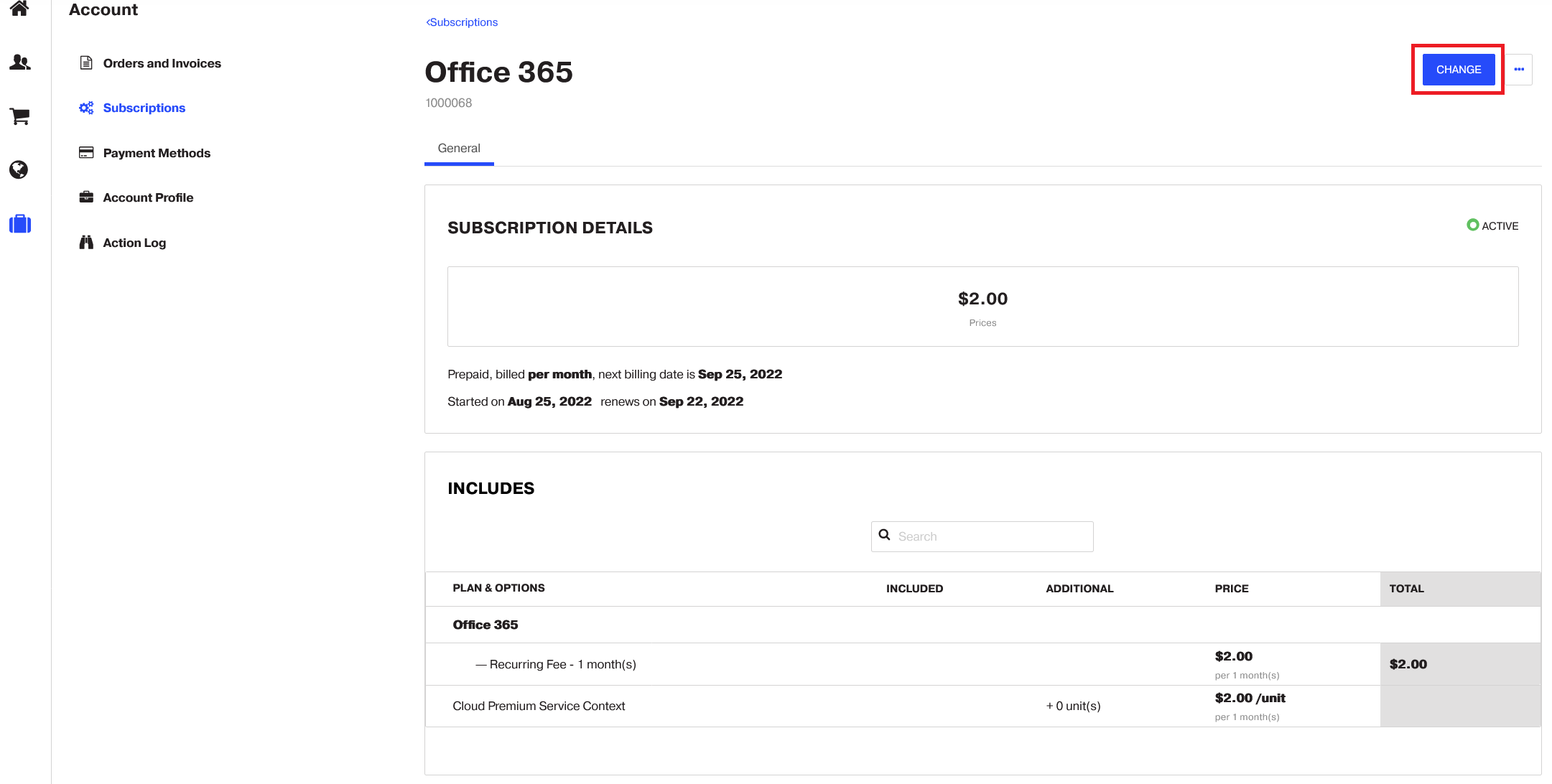
Click the subscription name.

-
Click Change.
-
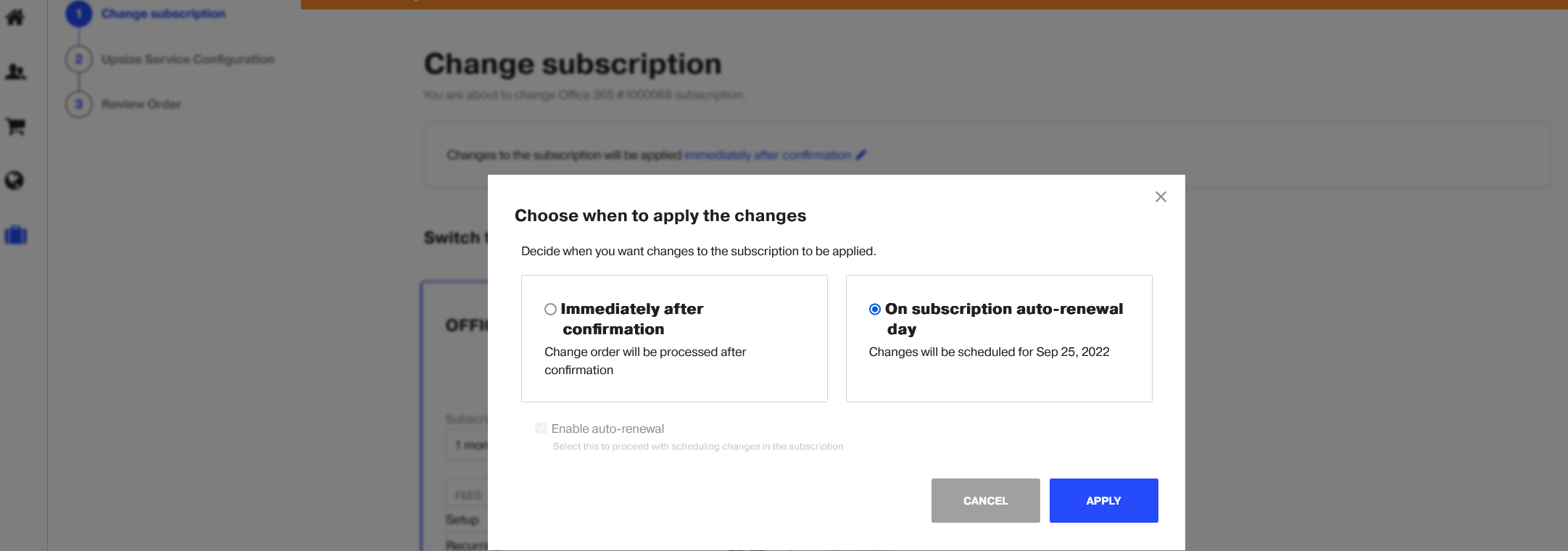
Select when changes to the subscription will be applied. You can select from the two options:
-
Immediately after confirmation, or
-
On subscription auto-renewal day.
Important: A subscription auto-renewal must be enabled for this option.

-
-
Select a new subscription period in the Subscription Period field of your current plan.

-
Click Next.
-
Review your changes and click Place order.
If you selected the Immediately after confirmation option, your order will be processed immediately. If you selected the On subscription auto-renewal day option, your order will be scheduled to be processed on the auto-renewal day.