Configuring a Default Rule
Configuring a default rule is recommended to ensure that all the usage records have a default margin applied for all the services in cases when there are no other discount rules that apply. If a default discount rule is created, both customers and resellers will pay the amount reflected by AWS without any modifications.
To add a default rule, complete the following steps:
-
In the Connect Distributor portal, go to Settings and click the AWS Discount and Credit Extension in the left menu (under Extensions).
Note: If you have not installed the extension yet, click here for additional information.
-
Click the Configure Marketplace tab.
-
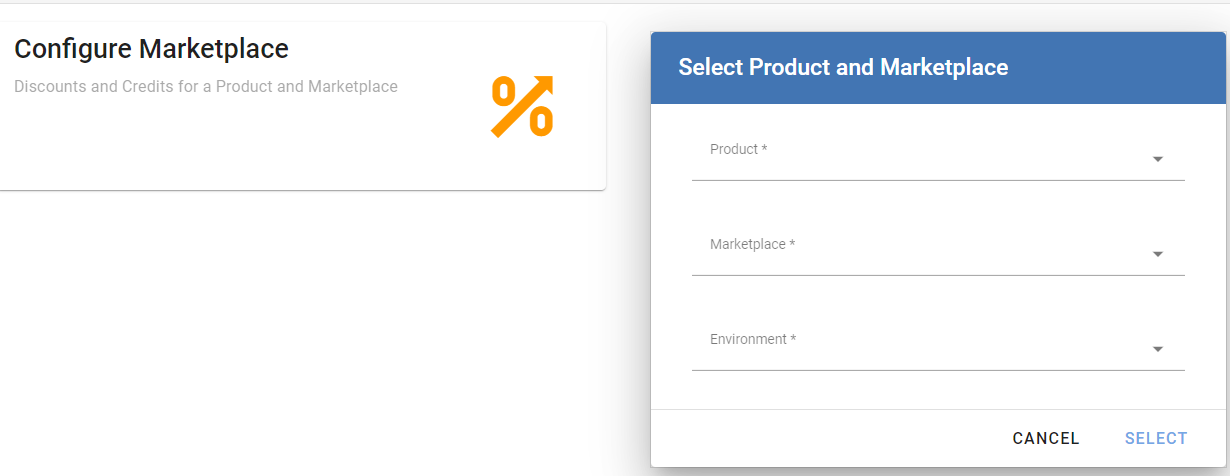
Enter the Connect product ID, the marketplace and the environment and click Select.
-
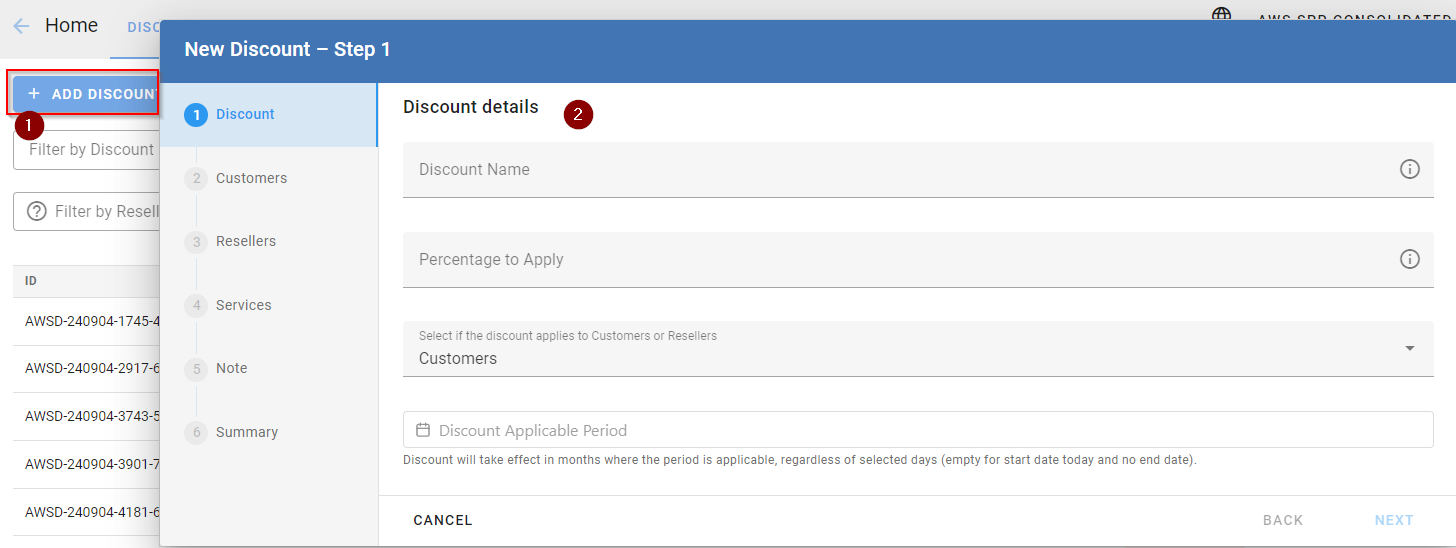
Click Add Discount. Then, enter a name for the discount, the discount percentage and specify if the discount will be applied to customers or resellers. You can leave the Applicable Period field empty if you do not want to specify an end date for the default discount. Click Next.
-
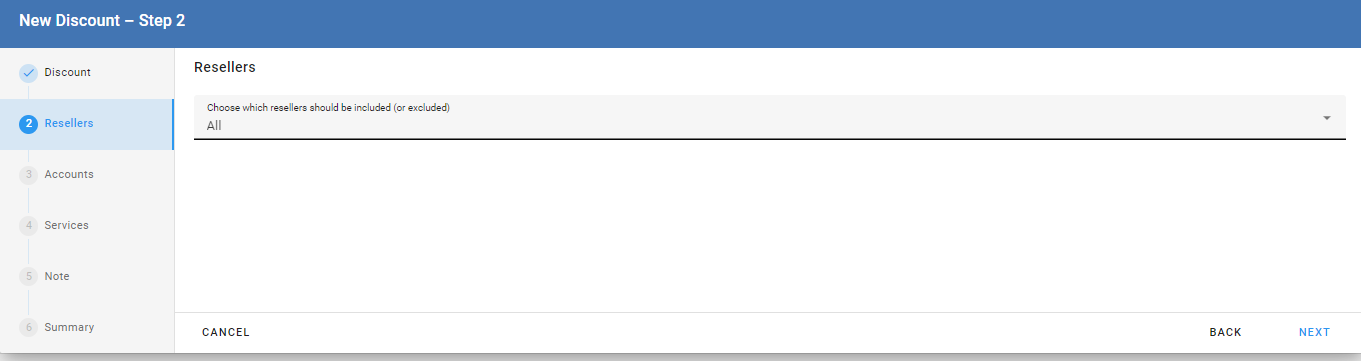
Select All to apply this rule to all the resellers, as this will be a default rule.
-
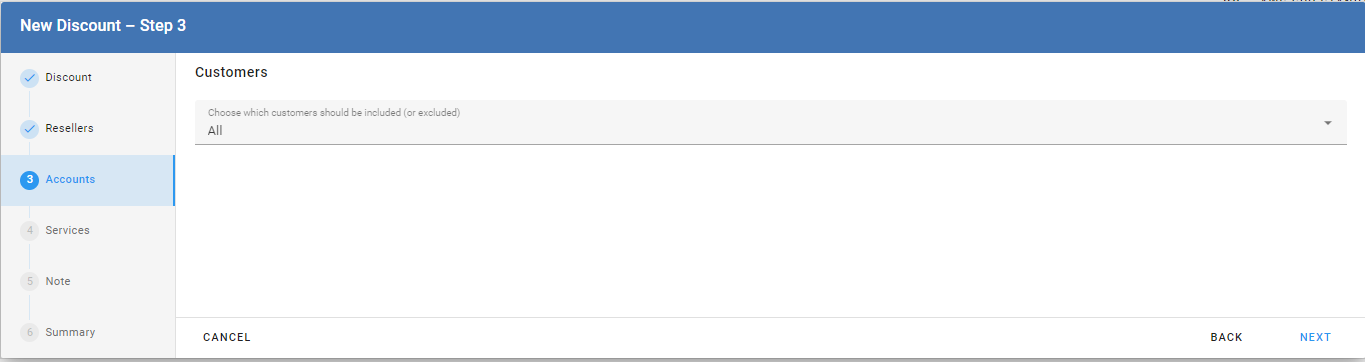
Select All to apply this rule to all the customers.
-
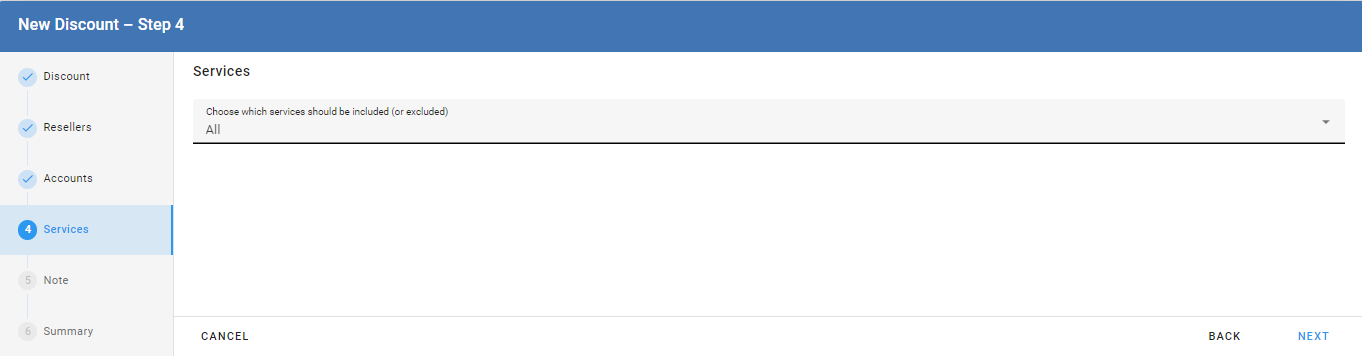
Select All to apply the discount rule to all the services.
-
Optionally, you can add a discount rule note. Click Submit to add the rule.
-
Finally, a summary of the discount will be displayed.