High-Level Architecture
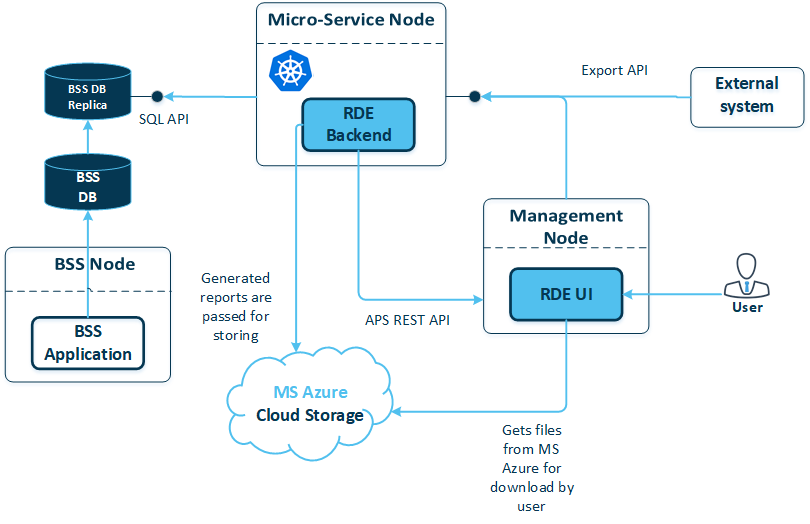
The RDE is a microservice with its own release cycle. It is not included in the CloudBlue Commerce distribution package by default and must be installed on the platform as an APS application.
The RDE microservice consists of two components:
- RDE UI, hosted on the management node
- RDE backend, hosted in a separate container on the service node with installed Kubernetes
Installation Prerequisites
Before importing the RDE APS package, ensure that:
- Odin Automation version 8.0, 8.2, or 8.3, or CloudBlue Commerce version 20.4 or later is installed
- A service node with a Kubernetes cluster is configured and registered in the CloudBlue Commerce platform
-
The RDE has read access to BSS Database. For configuration instructions, please refer to Allowing a Microservice to Access the BSS Database PostgreSQL Server.
Note: Since RDE needs only read access, for better load balancing, using a BSS DB replica with RDE is recommended.
Hardware Requirements
The minimum Kubernetes resources required for the microservice deployment, including on-premise Kubernetes cluster deployment, are as follows:
| Requests: | |
|
1 |
|
1280Mi |
Firewall Requirements
The following ports must be open on the micro-service node and the BSS database replica node:
| From | To | Protocol | Port | Purpose |
|---|---|---|---|---|
| CloudBlue Commerce Management Node | Micro-service node | TCP | 8081 | For access to the RDE service back end (HTTPS is used for communication) |
| Micro-services node | BSS database replica node | TCP | 5432 | For connection to the PostgreSQL database |
How to Install RDE
Before installing the RDE application, select from one option:
- Set up MS Azure cloud storage to store generated reports, or
- Set up SFTP storage to store generated reports.
You also need to restart the following services on the management node before RDE installation:
- pau
- pa-agent
 Deployment with MS Azure storage
To install the RDE application, run the following command:
- Using internet access:
# helm install a8n/rateddataexport --name rateddataexport --set oauthkey=`uuidgen` --set oauthsecret=`uuidgen` --set dslogin=<BSS_DB_login> --set dspassword=`echo -n <BSS_DB_password> | base64` --set dsdbname=<BSS_DB_name> --set dshost=<BSS_DB_IP_address> --set dstimezone=<MN_timezone> --set azconnstr=<Azure_connection_string> --version <version>
where
<BSS_DB_login>: the user login to the BSS database.<BSS_DB_password>: the password to the BSS database.<BSS_DB_IP_address>: the BSS database IP address.<MN_timezone>: the time zone the MN is set to. Use the region-based zone ID formatarea/city. For example,Europe/MoscoworAmerica/New_York.<Azure_connection_string>: the MS Azure Cloud Storage connection string.
- Or using proxy:
# helm install a8n/rateddataexport --set proxyhost=<Proxy_IP_address> --set proxyport="8008" --name rateddataexport --set oauthkey=`uuidgen` --set oauthsecret=`uuidgen` --set dslogin=<BSS_DB_login> --set dspassword=`echo -n <BSS_DB_password> | base64` --set dsdbname=<BSS_DB_name> --set dshost=<BSS_DB_IP_address> --set dstimezone=<MN_timezone> --set azconnstr=<Azure_connection_string> --version <version>
where:
<Proxy_IP_address>: the proxy server IP address.
Deployment with SFTP storage
To install the RDE application, run the following command:
- Using internet access:
# helm install a8n/rateddataexport --name rateddataexport --set oauthkey=`uuidgen` --set oauthsecret=`uuidgen` --set dslogin=<BSS_DB_login> --set dspassword=`echo -n <BSS_DB_password> | base64` --set dsdbname=<BSS_DB_name> --set dshost=<BSS_DB_IP_address> --set dstimezone=<MN_timezone> --set sftp_host=<SFTP_HOST> --set sftp_port=<SFTP_PORT> --set sftp_login=<SFTP_LOGIN> --set sftp_password=<SFTP_PASSWORD> --version <version>
where
<BSS_DB_login>: the user login to the BSS database.<BSS_DB_password>: the password to the BSS database.<BSS_DB_IP_address>: the BSS database IP address.<MN_timezone>: the time zone the MN is set to. Use the region-based zone ID formatarea/city. For example,Europe/MoscoworAmerica/New_York.<SFTP_HOST>: the SFTP server address.<SFTP_PORT>: the SFTP server port.<SFTP_LOGIN>: the SFTP server login.<SFTP_PASSWORD>: the SFTP server password.
After installing the RDE application, the following scenarios will be available for resellers:
- Generating a one-time report with aggregated billing data
- Configuring generation of periodic reports with aggregated billing data
How to Upgrade RDE to the Latest Version
The upgrade procedure is different depending on your currently installed RDE version.
Your current RDE version is 1.3-117 or later
-
To upgrade the existing application with MS Azure cloud storage, run this command:
# helm upgrade rateddataexport a8n/rateddataexport --version <version>--set jdbcconnectionparams='?sslmode=require&ApplicationName=rateddataexport' --set devmode.enabled=false
-
To upgrade the existing application to store new reports in SFTP storage instead of MS Azure, run this command:
helm upgrade rateddataexport a8n/rateddataexport --version <version> --set sftp_host=<SFTP_HOST> --set sftp_port=<SFTP_PORT> --set sftp_login=<SFTP_LOGIN> --set sftp_password=<SFTP_PASSWORD> --set azconnstr=' ' --reuse-values
Your current RDE version is earlier than 1.3-117
To upgrade the existing application, complete the following steps:
-
On the CloudBlue Commerce management node, run the following command:
# kubectl get nodes -o yaml | grep address:
-
For each IP address in the response, run the following command:
# ssh <user>@<IP_address> sudo mkdir -p -m 777 /opt/rde_sql
where
<user>:rootif local Kubernetes is used, orautodeployif AKS is used.<IP_address>: the IP address from the output above.
-
Update the RDE endpoint in the OSS DB:
begin;
update aps_application_instances set uri='https://rateddataexport:8081/rest' where uri='https://rateddataexport-com-odin-billing:8081/rest';
update aps_application set endpoint_uri='https://rateddataexport:8081/rest' where endpoint_uri='https://rateddataexport-com-odin-billing:8081/rest';
delete from aps_container where container_id='rateddataexport-backend.com.odin.billing';
commit;
-
Reconfigure the RDE:
-
Write the existing settings for the RDE back end to the
rateddataexport.yamlfile.# helm get values rateddataexport-backend.com.odin.billing -a > rateddataexport.yaml
-
Decode base64 values (oauthkey, oauthsecret, dslogin) in the
rateddataexport.yamlusing the following commands:# grep oauthkey rateddataexport.yaml | cut -f2 -d' ' | base64 -d
# grep oauthsecret rateddataexport.yaml | cut -f2 -d' ' | base64 -d
# grep dslogin rateddataexport.yaml | cut -f2 -d' ' | base64 -d
- Replace the oauthkey, oauthsecret and dslogin values in the
rateddataexport.yamlfile with the respective decoded values from the previous step. -
Remove the following fields in the
rateddataexport.yaml:- dsport
- maxdbpoolsize
- mindbpoolsize
-
-
Remove the previous version of RDE by running the following command on the MN:
# helm delete rateddataexport-backend.com.odin.billing --purge
-
Install the new version of RDE (the necessary settings will be taken from the .yaml file):
# helm install a8n/rateddataexport -n rateddataexport -f rateddataexport.yaml --set azconnstr=<AZURE_CONNECTION_STRING>
where
<Azure_connection_string>: the MS Azure Cloud Storage connection string.