Placing a Scheduled Order to Reduce the Number of Licenses in a Subscription at Renewal (New Custom UI)
Important:
- There are a few business scenarios in which renewal dates in CloudBlue may be misaligned with the ones in Adobe. To avoid confusion, please always refer to the Renewal Date specified in the Adobe platform, as this will be the only valid date for all business purposes.
- For additional details on the Adobe business rules, refer to the following section: Managing Adobe Products on the CloudBlue Marketplace: Cancellation, Upsizing, Downsizing.
To reduce the number of licenses in a subscription, complete the following steps:
-
Log in to the control panel as a reseller.
-
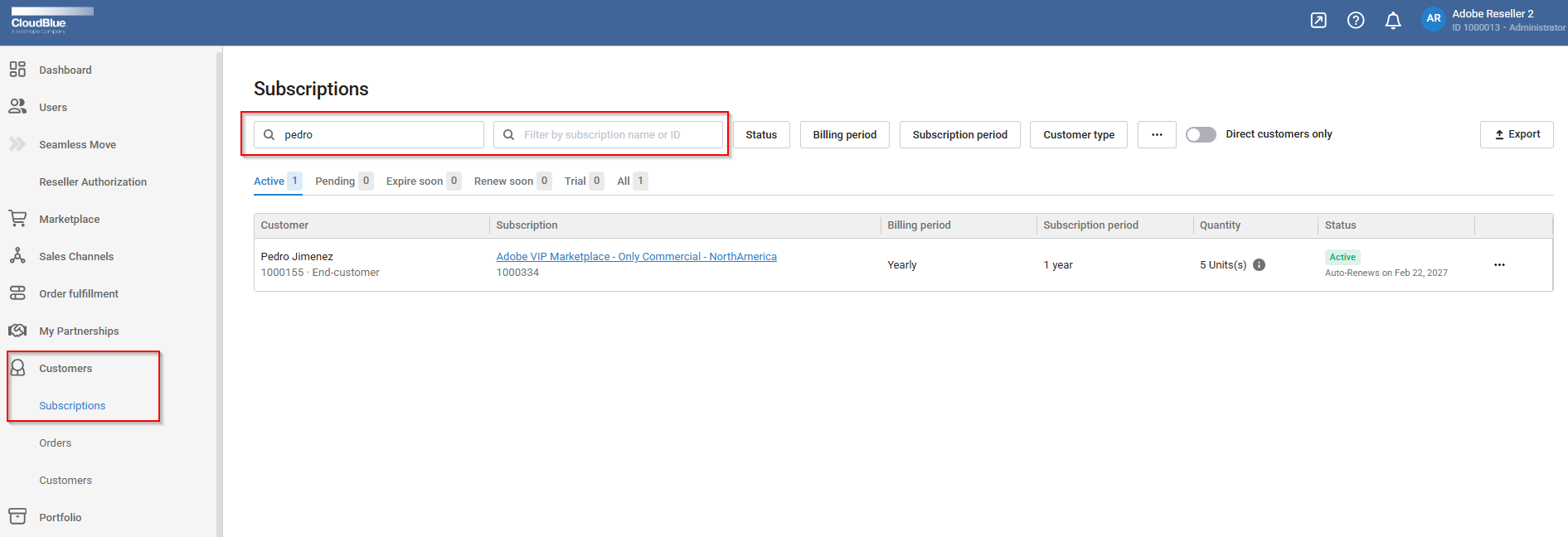
If you logged in as a reseller, click Customers > Subscriptions and find the customer and the subscription.
-
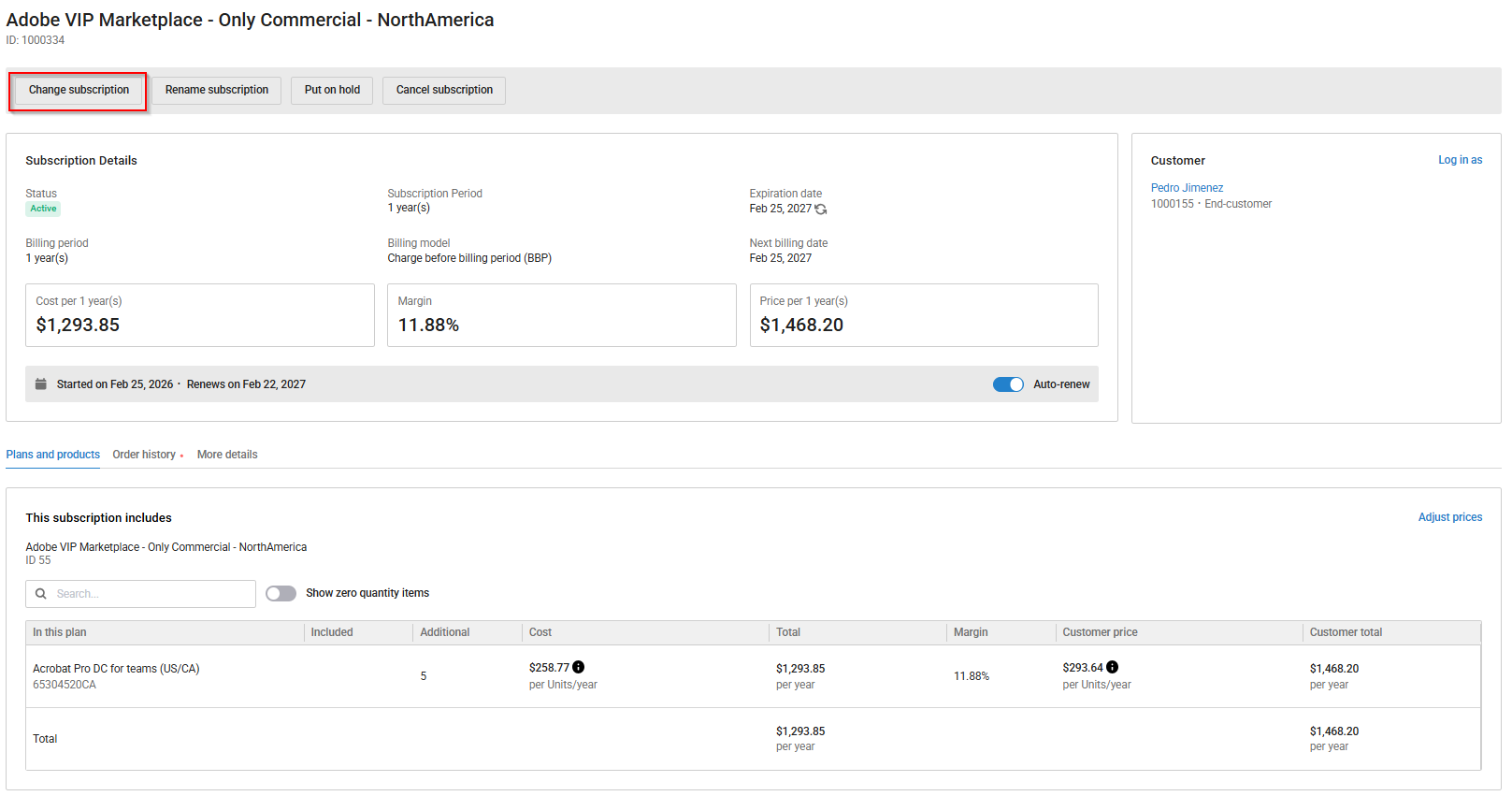
Click on the subscription and click Change Subscription.
-
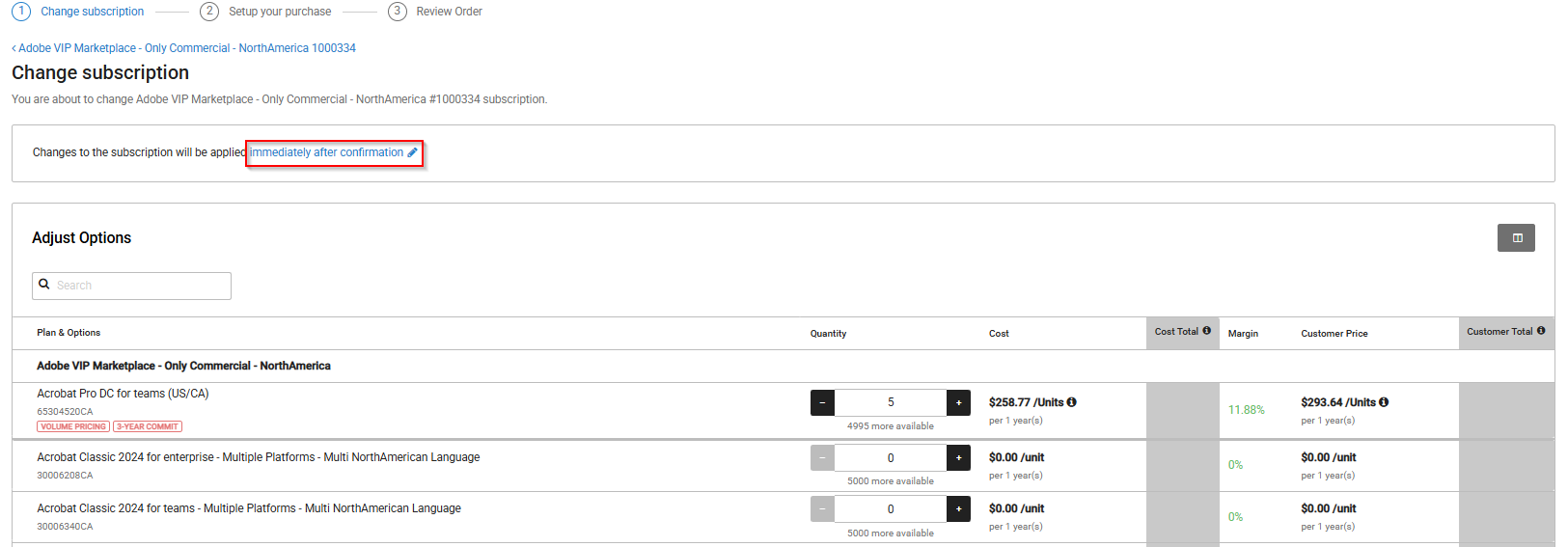
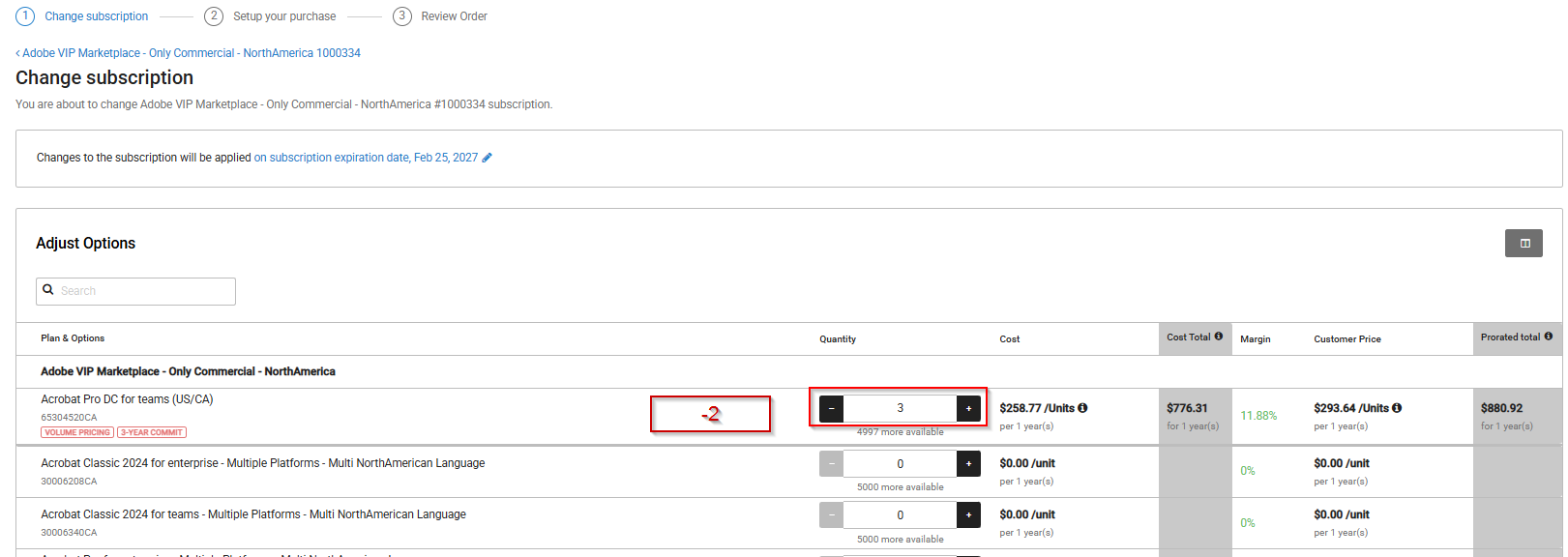
In the Adjust Options section, you need to schedule the order so that it takes effect at renewal. To do this, click Immediately after confirmation.
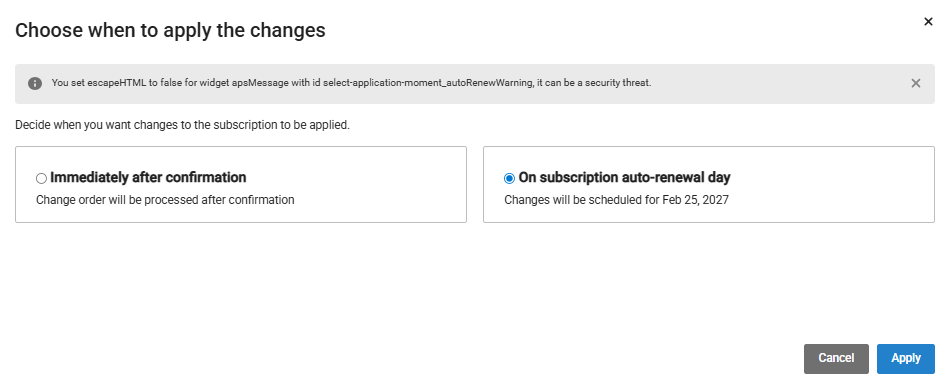
Click On subscription auto-renewal day and click Apply.
Now, decrease the license count for the Adobe products (resources) in the subscription.
-
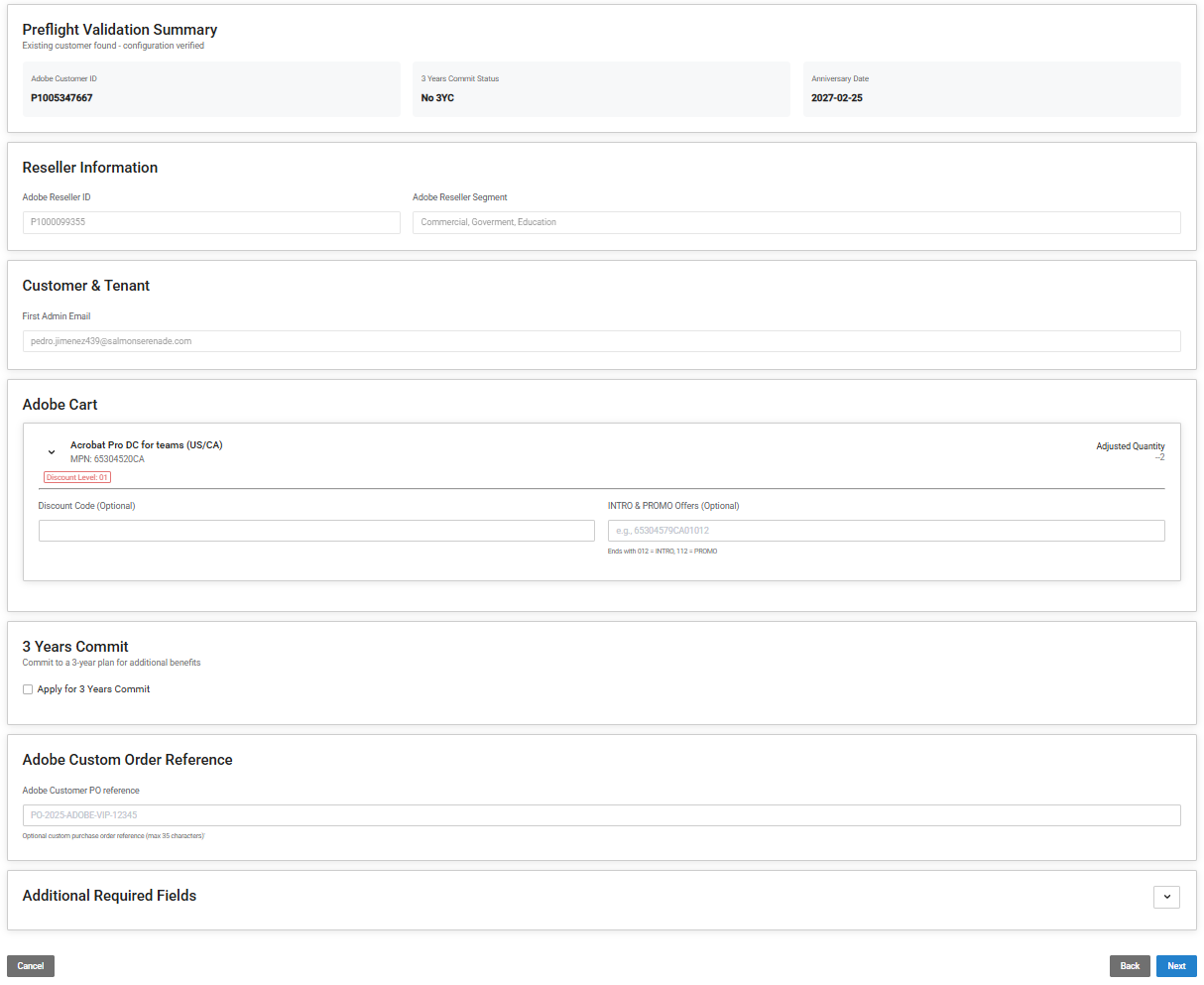
A preflight validation summary is displayed along with the reseller and customer details. If necessary, enter the specific administrative and promotional details for the order:
-
Administrator email: Enter the email for the person managing the Adobe Admin Console.
Note: This email must be unique and cannot be a primary admin with existing Adobe licensing.
-
Adobe Promos and Discounts:
- Promos/Intro Offers: If applicable, enter the Offer ID in the required format. For additional information, see the Adobe Intro Offers and Promo Offers section.
-
Discount Code: Optionally enter a code if available. For additional information, see Flexible Discounts.
Note: If the marketplace is configured to allow the discount auto-discovery, the Discount Code field may be automatically populated with a discount code. In that case, you can either use the provided discount code or use a different one.
-
3-year Commitment: Specify if you are applying for a 3-year commitment.
-
Customer PO: Optionally provide a PO number reference from the end-customer.
-
-
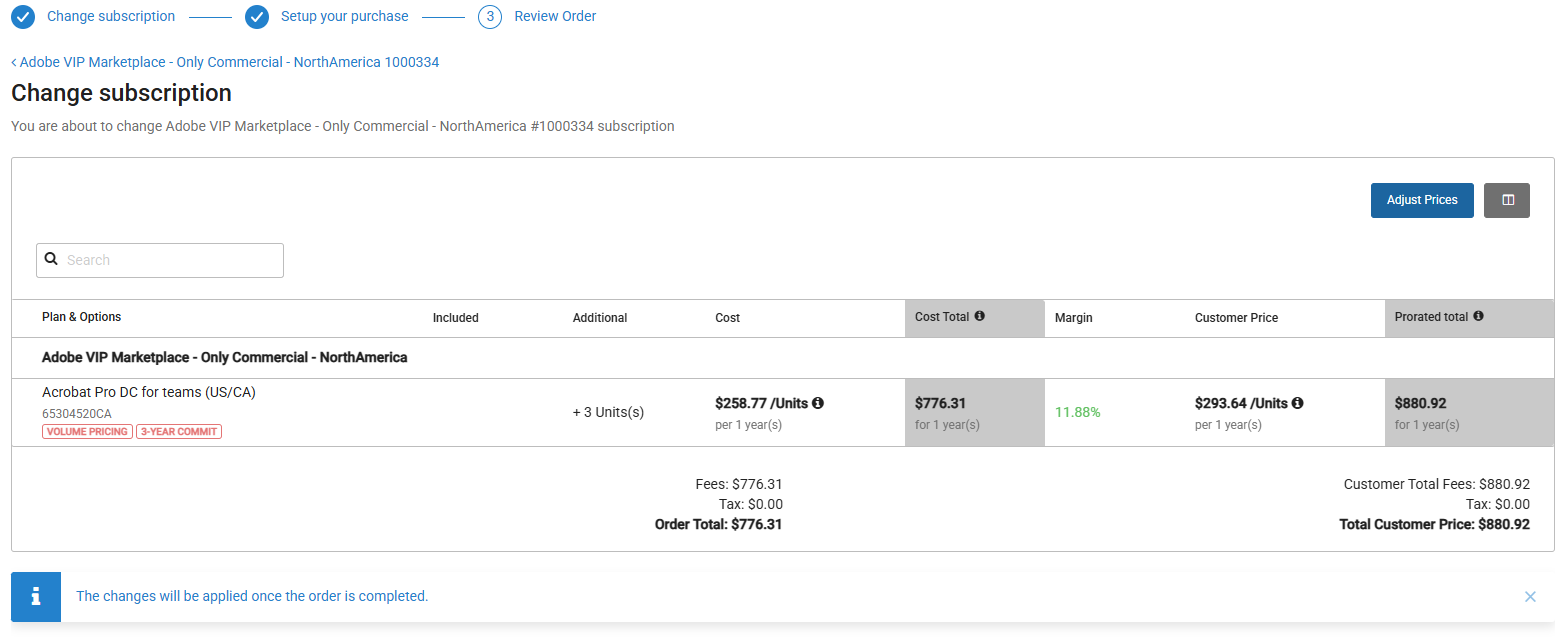
Review the order details and click Place order.
-
Note down the order ID, as you may need it later. If you click the order number or the Track Order option you will see the change order status and details.
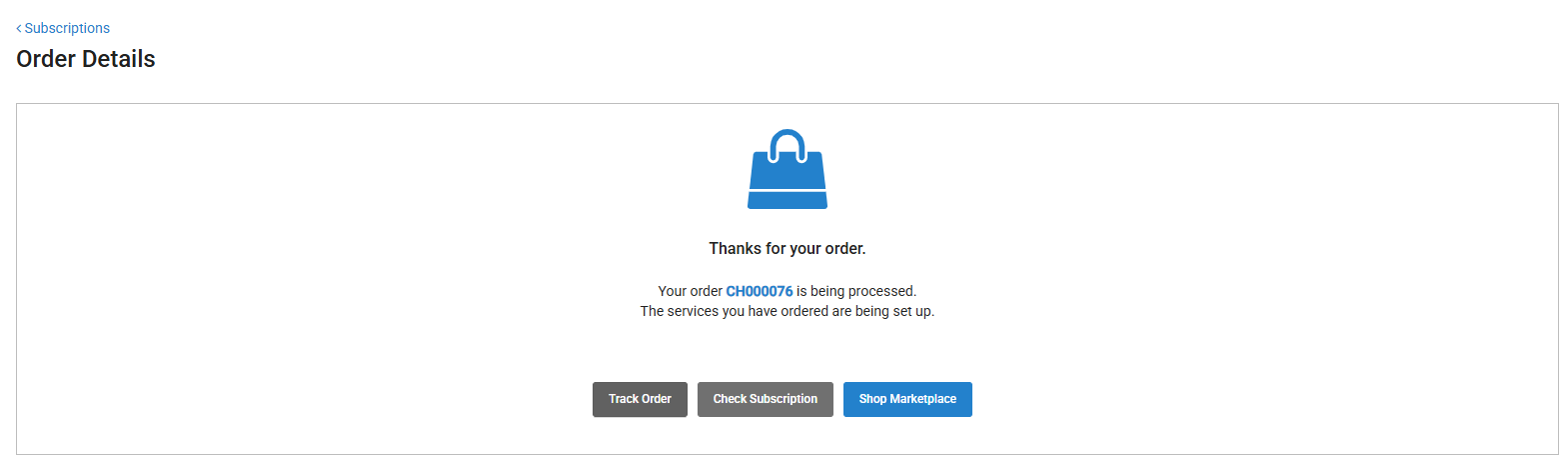
Note: The changes in the order will be scheduled to take effect on the anniversary date of the order.The license reduction will remain in a 'Scheduled' state until the Adobe anniversary date, at which point the new seat count and billing will take effect.