Placing a Purchase Order for Adobe Products (New Custom UI)
This section provides a step-by-step walkthrough of the purchase order process within the UX1 Marketplace.
Locate the Product
-
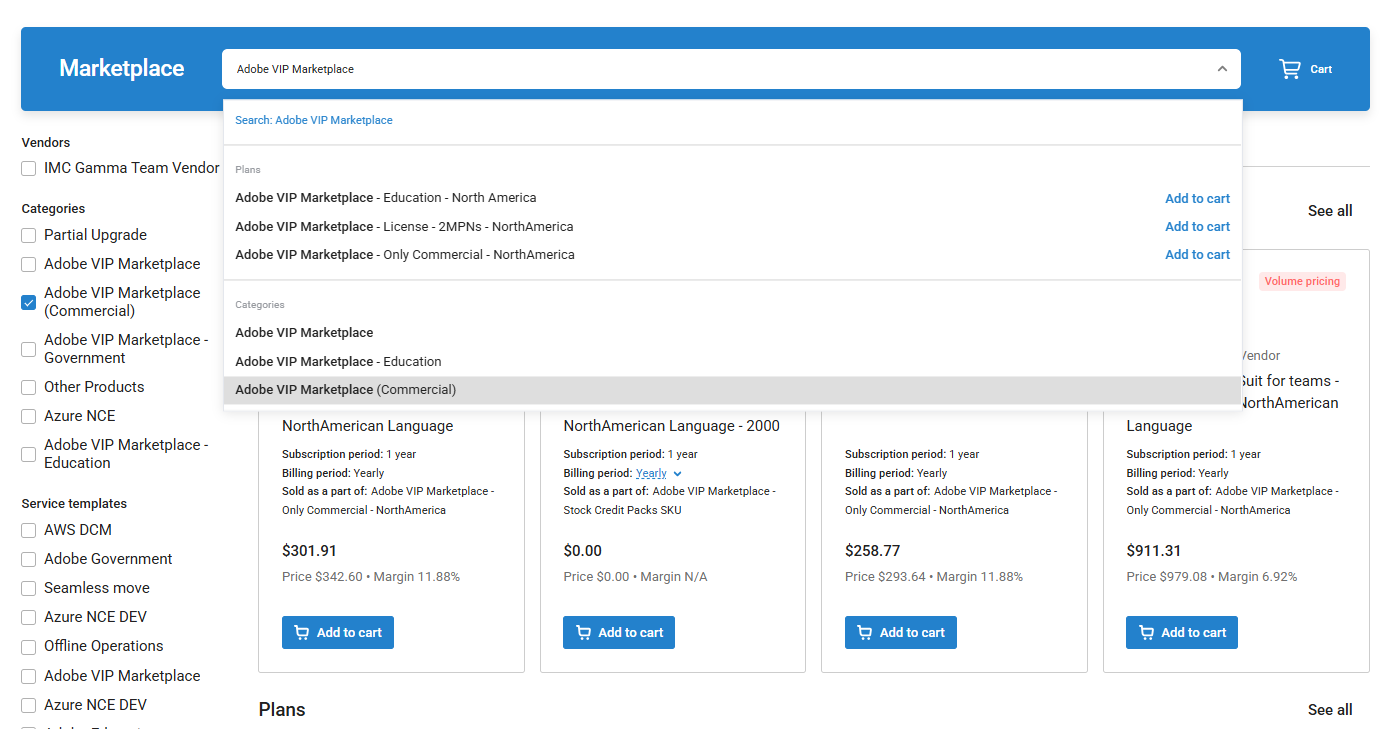
Log in to UX1 Marketplace, click the Marketplace option in the left-hand menu, and type Adobe VIP Marketplace in the search bar.
-
Select a plan and click the Add to cart button.
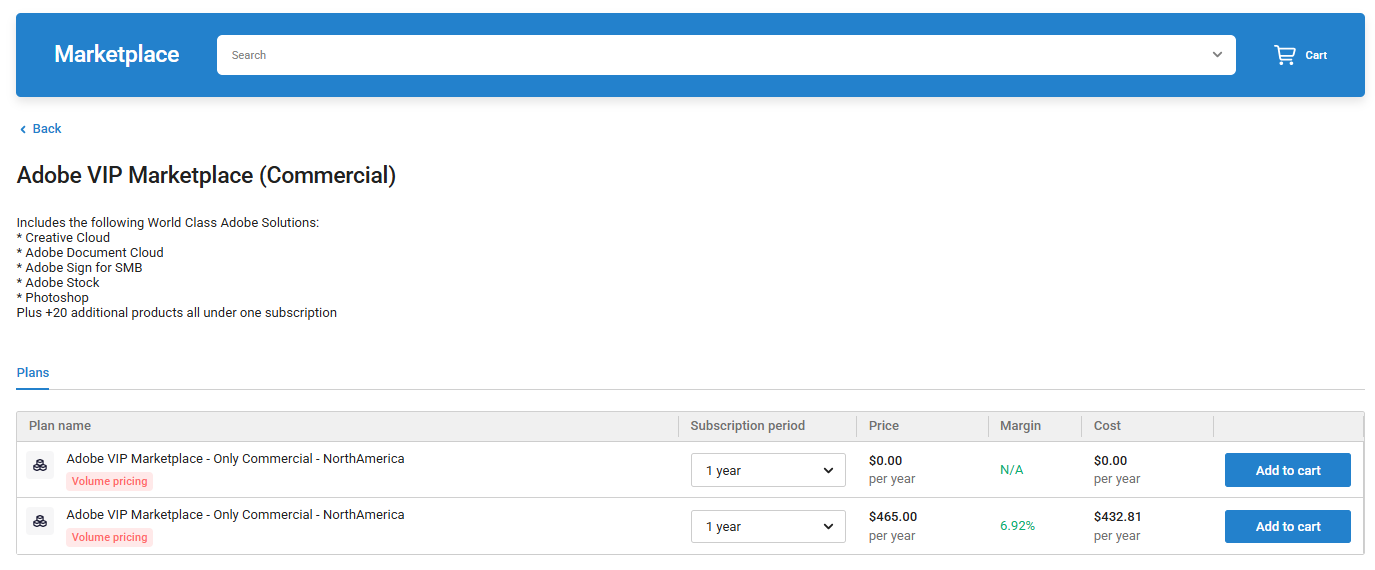
Important: Adding products from multiple services to the shopping cart is not supported.
Configure your Cart
-
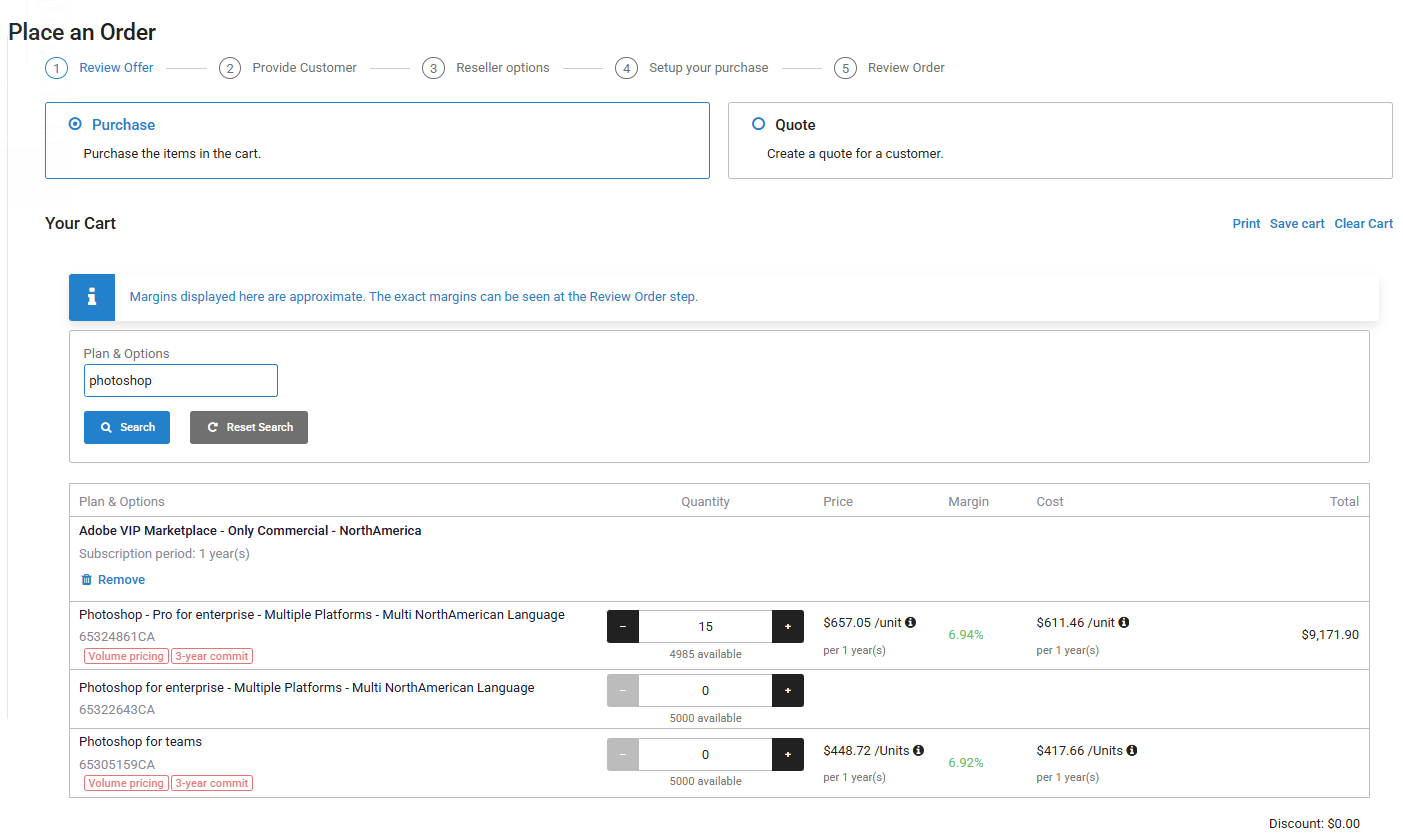
Click the Cart icon and look for the Adobe products that you would like to purchase. To narrow down the list, click Show search and enter a specific product name.
-
If volume pricing is available for the products you are purchasing, you can view the margin and cost breakdown for the different license volume levels.
Customer Selection
-
Select an existing customer or create a new one. In this example, we will select an existing customer. Click Next.
Note: The Admin Contact must contain the Partner's details. However, the Account Information must reflect the end-user’s details, specifically the end-customer's Company Name.
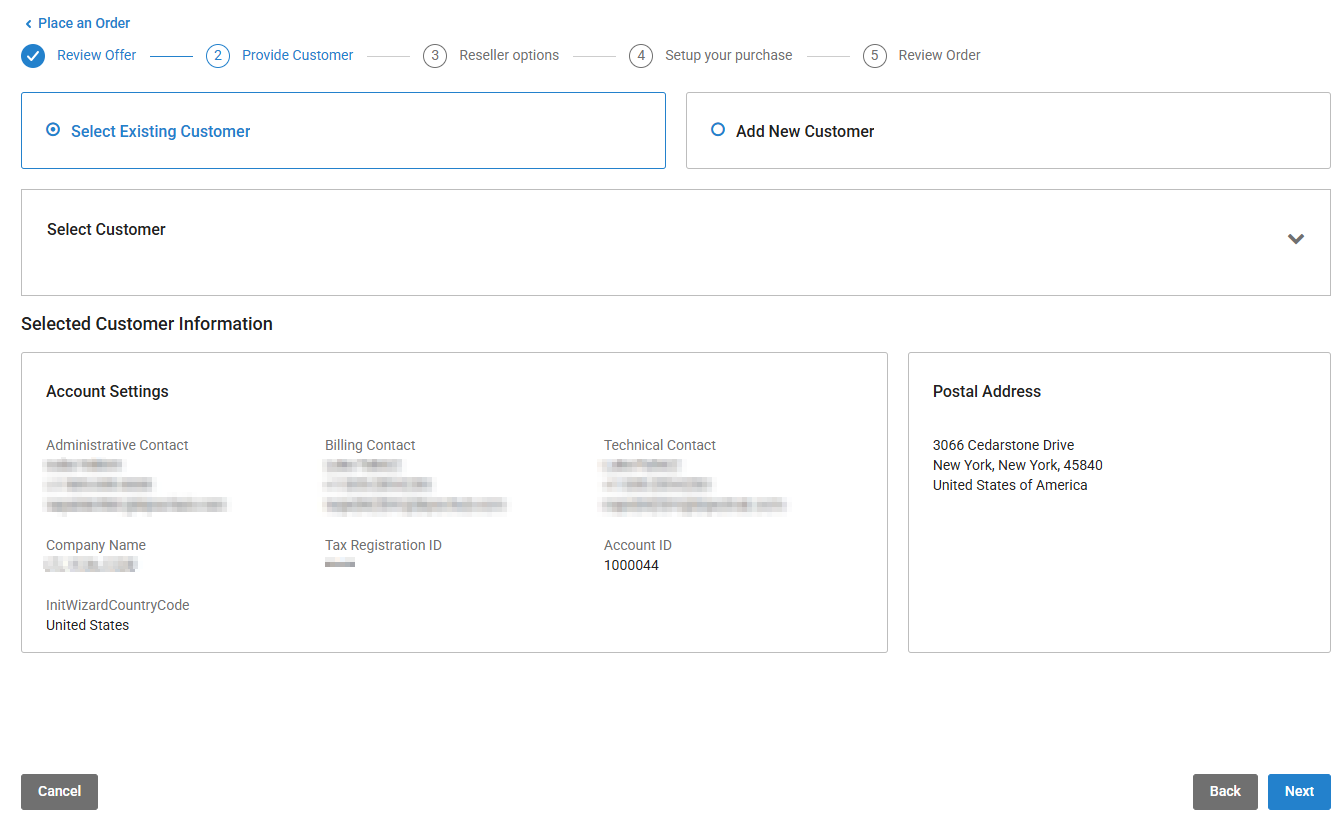
Note: Reseller parameters are validated at this stage. If further information is required, you will receive an email request.
Admin and Offer Details
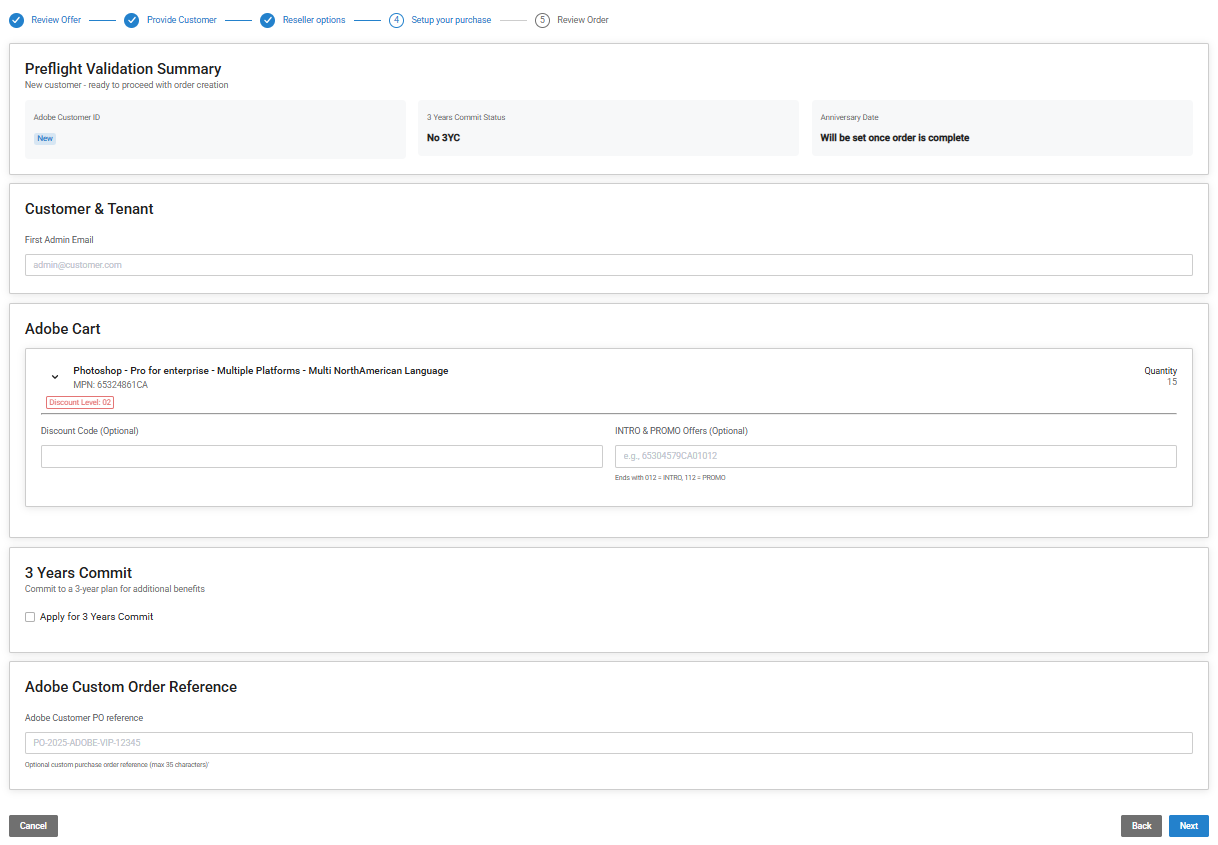
Enter the administrative and promotional details for the order:
-
Administrator email: Enter the email for the user managing the Adobe Admin Console.
Note: This email must be unique and cannot belong to a primary admin with existing Adobe licensing.
-
Adobe Promos and Discounts: Expand an item in the Adobe Cart to enter any promos or applicable discount codes.
-
Promos/Intro Offers: If applicable, enter the Offer ID in the required format. For details, see the Adobe Intro Offers and Promo Offers section.
-
Discount Code: Optionally enter a code if available. For additional information, see Flexible Discounts.
Note: If the marketplace is configured to allow the discount auto-discovery, the Discount Code field may be automatically populated with a discount code. In that case, you can either use the provided discount code or use a different one.
-
-
3-year Commitment: Indicate if you are applying for a 3-year commitment.
-
Customer PO: Optionally provide a PO number reference from the end-customer.
Special Requirements by Sector
-
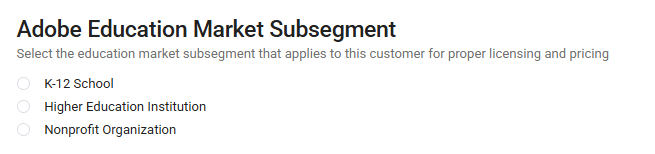
Government/Education: When purchasing a Government or Education offer, you must select your industry sector from the provided list.
-
Education Sub-segments: For Education offers, you must select a sub-segment (K-12, Higher Education, or Nonprofit) that matches the specific product purchased.
Finalize the Purchase
-
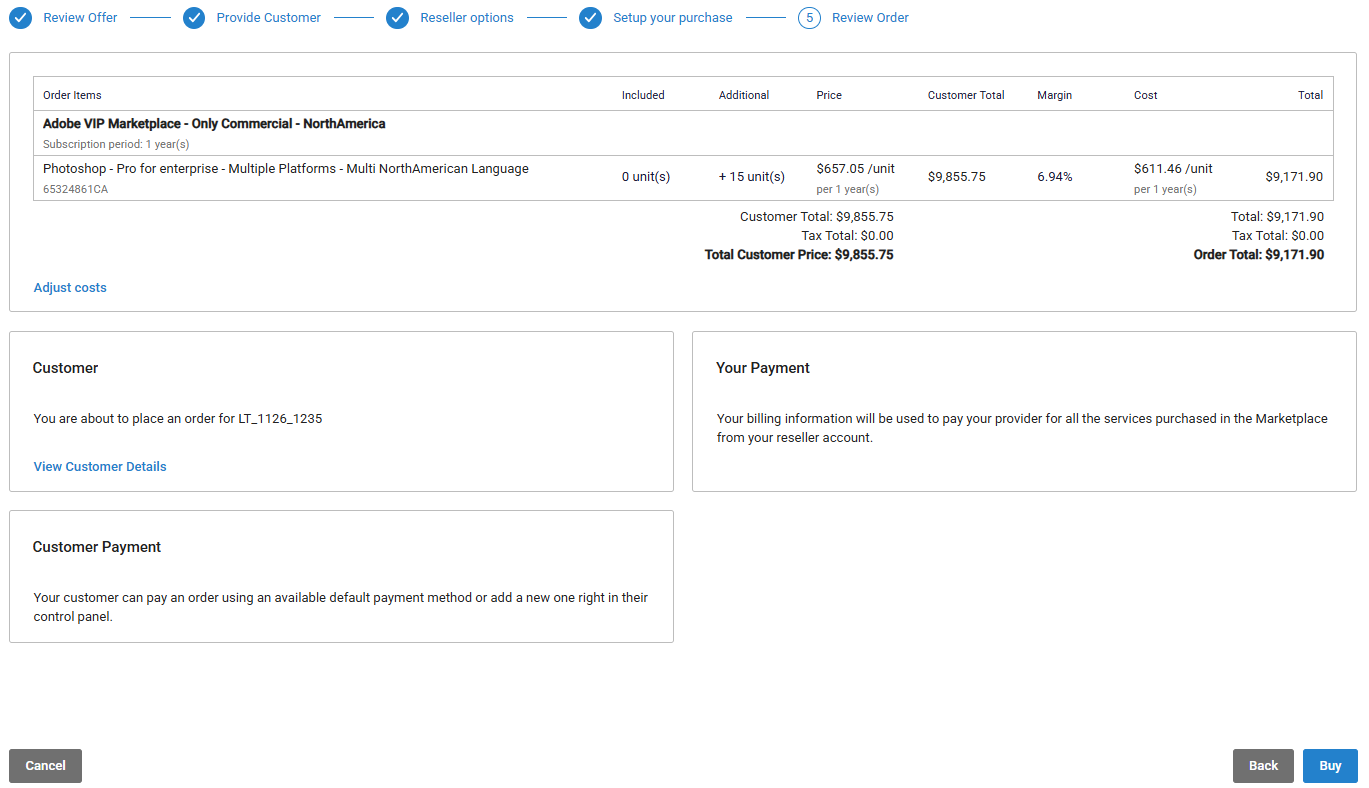
Review the order details and click Buy to complete the order process.
Order Tracking and Provisioning
| Platform | Navigation Path | Details Available |
|---|---|---|
| UX1 Control Panel | Customers > Orders | General order details and provisioning status. |
| CloudBlue Connect | Subscriptions > [Request] > Fulfillment | Parameters, request status, and fulfillment. |
For additional details on managing subscription requests, refer to the CloudBlue Connect Documentation.