Order Process as a Transacting Partner (New Custom UI)
This guide provides a step-by-step walkthrough for placing an order within the UX1 Marketplace as a transacting partner.
Phase 1: Selection and Cart Management
-
Log in to the UX1 Marketplace.
-
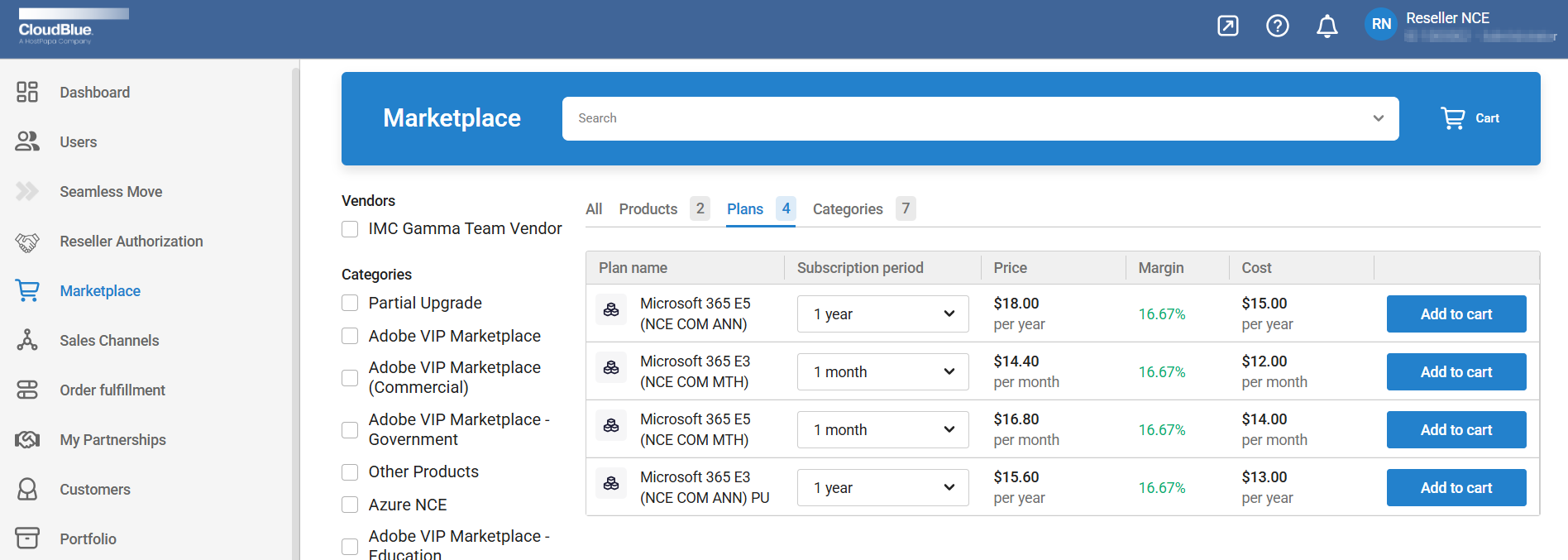
Expand the Product Collection, select one of the NCE Microsoft 365 products available (e.g., NCE Microsoft 365 (Commercial).
-
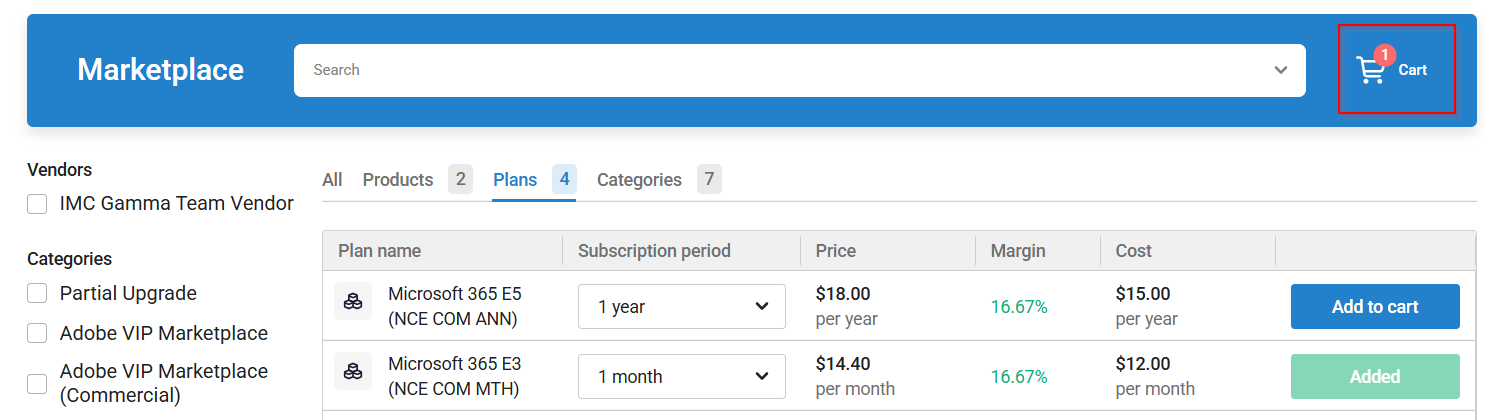
Click Add to Cart. A red notification icon will appear on the cart showing your item count. Click Next.
-
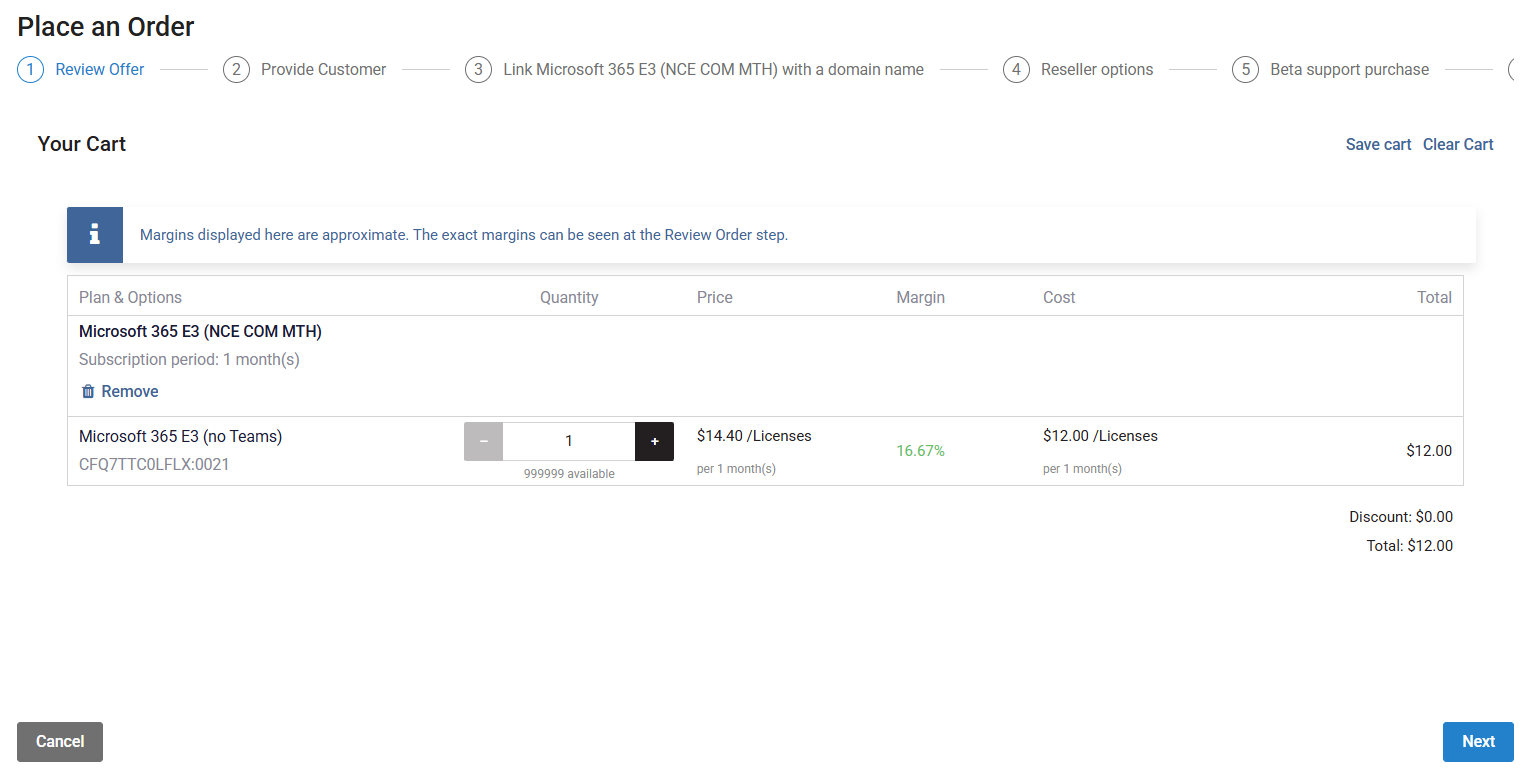
Click the cart icon and use the + and - buttons to adjust license quantities if necessary. Click Next.
Phase 2: Customer Selection
-
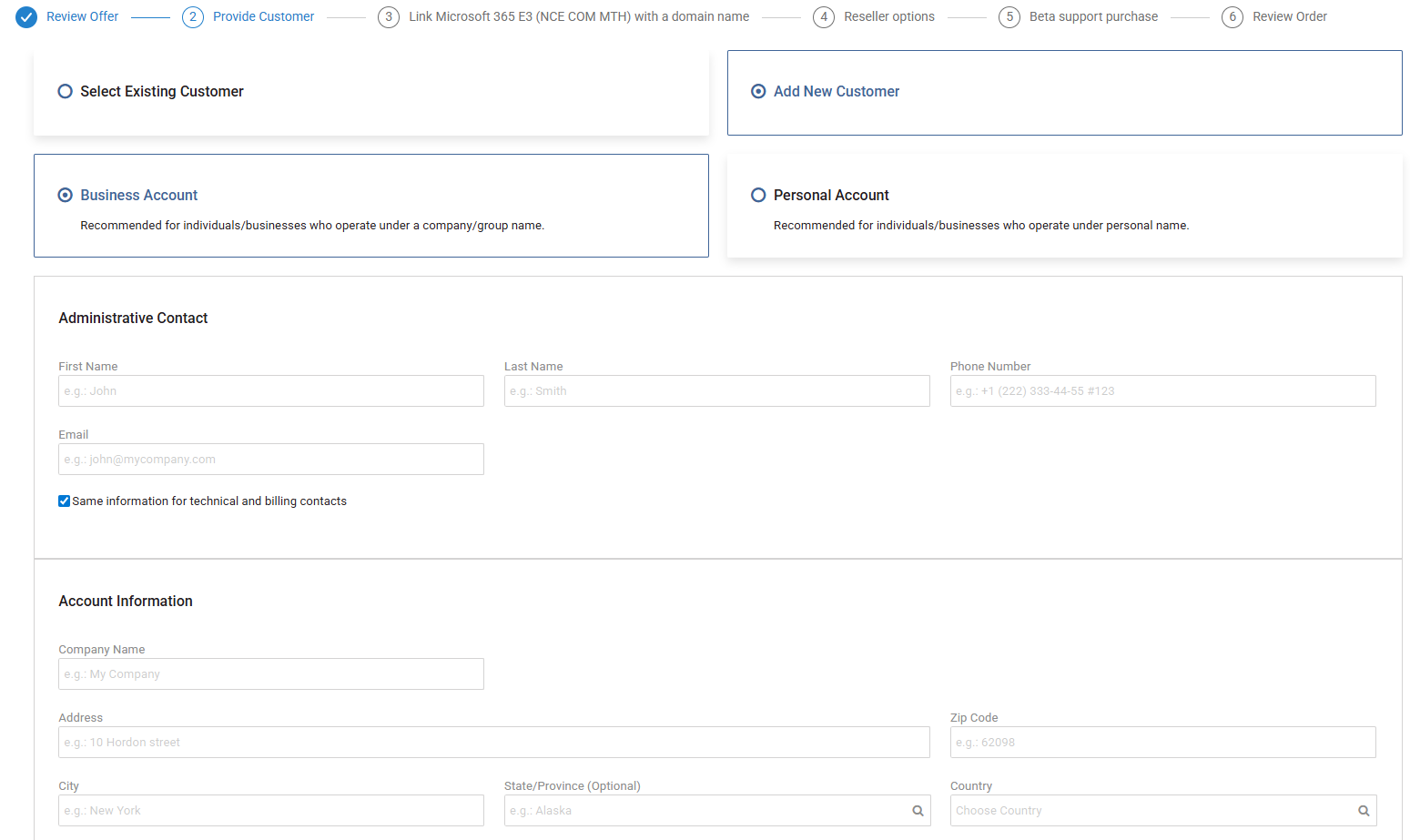
Choose whether to link this purchase to an existing CloudBlue customer or a new customer:
-
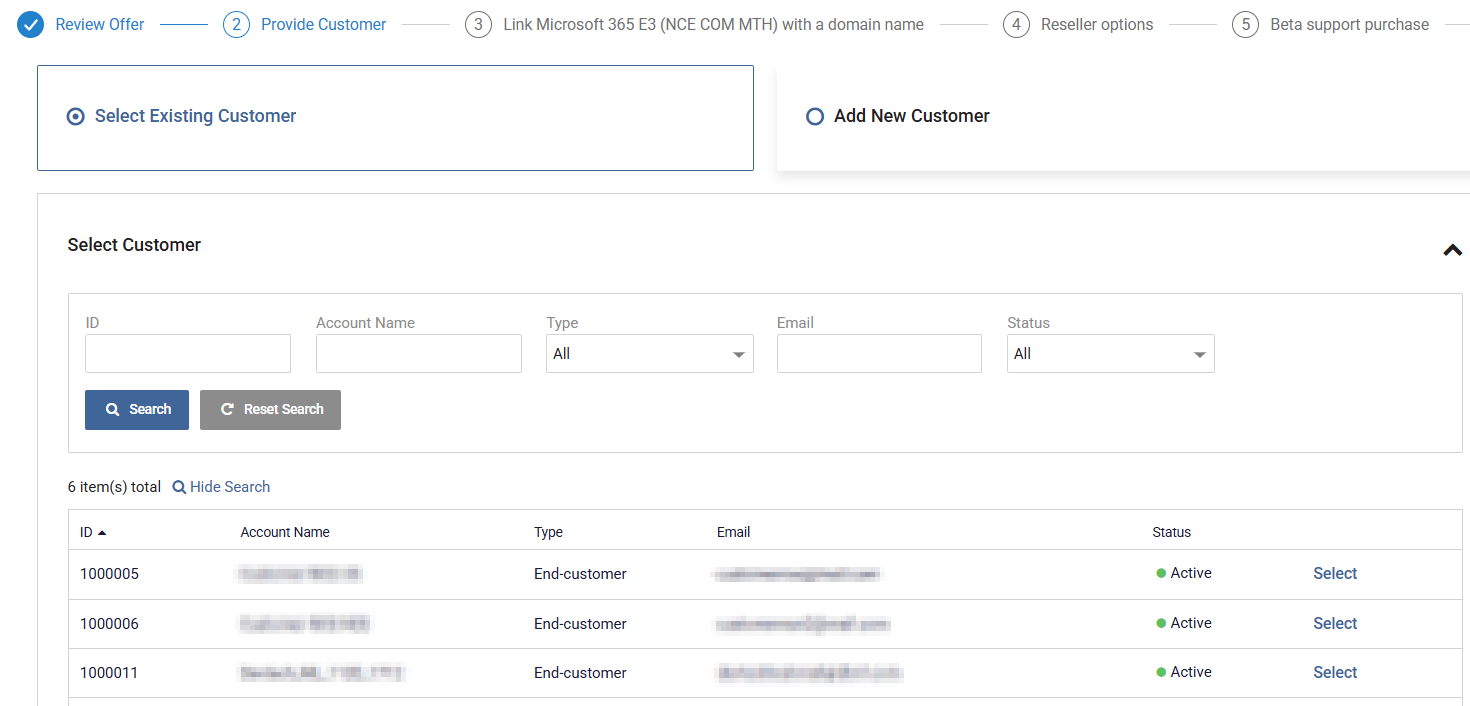
Existing customer: Click Select Existing Customer. Use Show Search to find the account by ID, Name, or Email. Click Select, then Next.
-
New customer: Click Add New Customer, complete the required fields, and click Next.
Phase 3: Reseller and Sales Model Configuration
-
Depending on your distribution model, provide the following details:
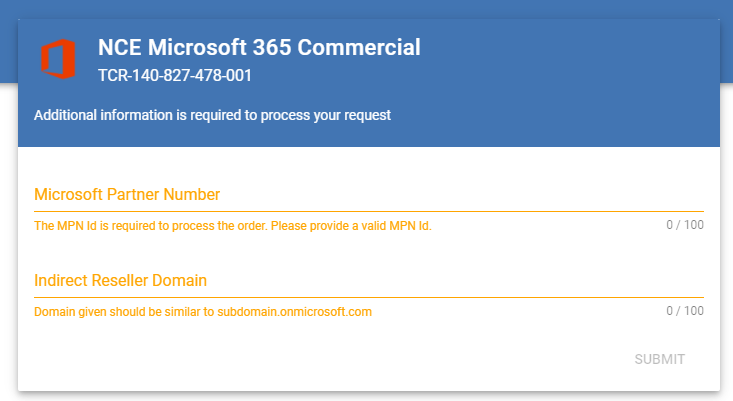
Sales Model Requirements Distribution (2-Tier) Enter PLA ID (formerly Microsoft Partner Network MPN ID) and Indirect Reseller Tenant ID. Direct Model PLA ID is not required. Dual Model (1T/2T) PLA ID is optional.
Important: First-time purchases: If an "Inquiring" status appears, click the Here link in the Additional Information tile to provide supplemental data. Refer to the Distributor Portal Configuration Guide for more details.
For help obtaining your PLA ID (MPN ID) and Indirect Reseller Tenant ID, see the section Obtaining your Partner MPNID and Indirect Reseller Tenant ID. Click Submit to continue.
Phase 4: Microsoft Account and Compliance
-
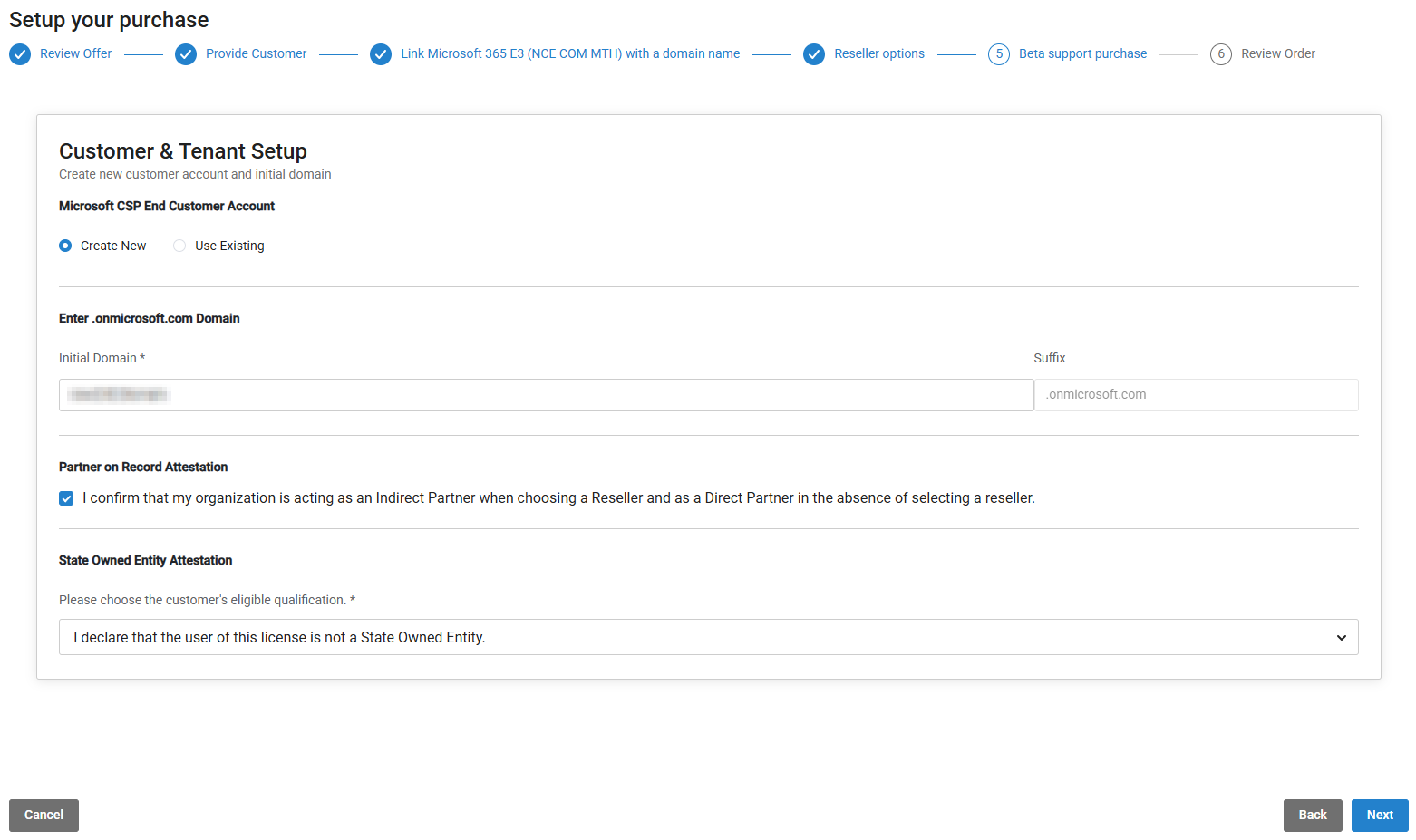
Account Setup: Choose to create a New Microsoft CSP Account or use an Existing one. Enter an
.onmicrosoft.comdomain, as applicable. -
Attestations:
-
Confirm the Partner on Record (POR) attestation. This is a legal confirmation required for partners transacting in the Cloud Solution Provider (CSP) program. This statement is designed to ensure legal clarity regarding your role in a specific transaction. To do this, select the following checkbox: I confirm that my organization is acting as an indirect Partner when choosing a reseller and as a Direct partner in the absence of selecting a reseller.
-
To ensure compliance, CloudBlue pre-validates the reseller's Partner of Record (PoR) status via the Microsoft Partner Center API. Requirements for Eligibility:
-
An active CSP tenant linked to an authorized Partner Location Account (PLA) ID.
-
A signed Microsoft Partner Agreement (MPA). For instructions, refer to the MPA Indirect Provider FAQ.
-
Association with a distributor in the same CSP region.
-
-
Indicate if the customer is a State-Owned Entity.
-
-
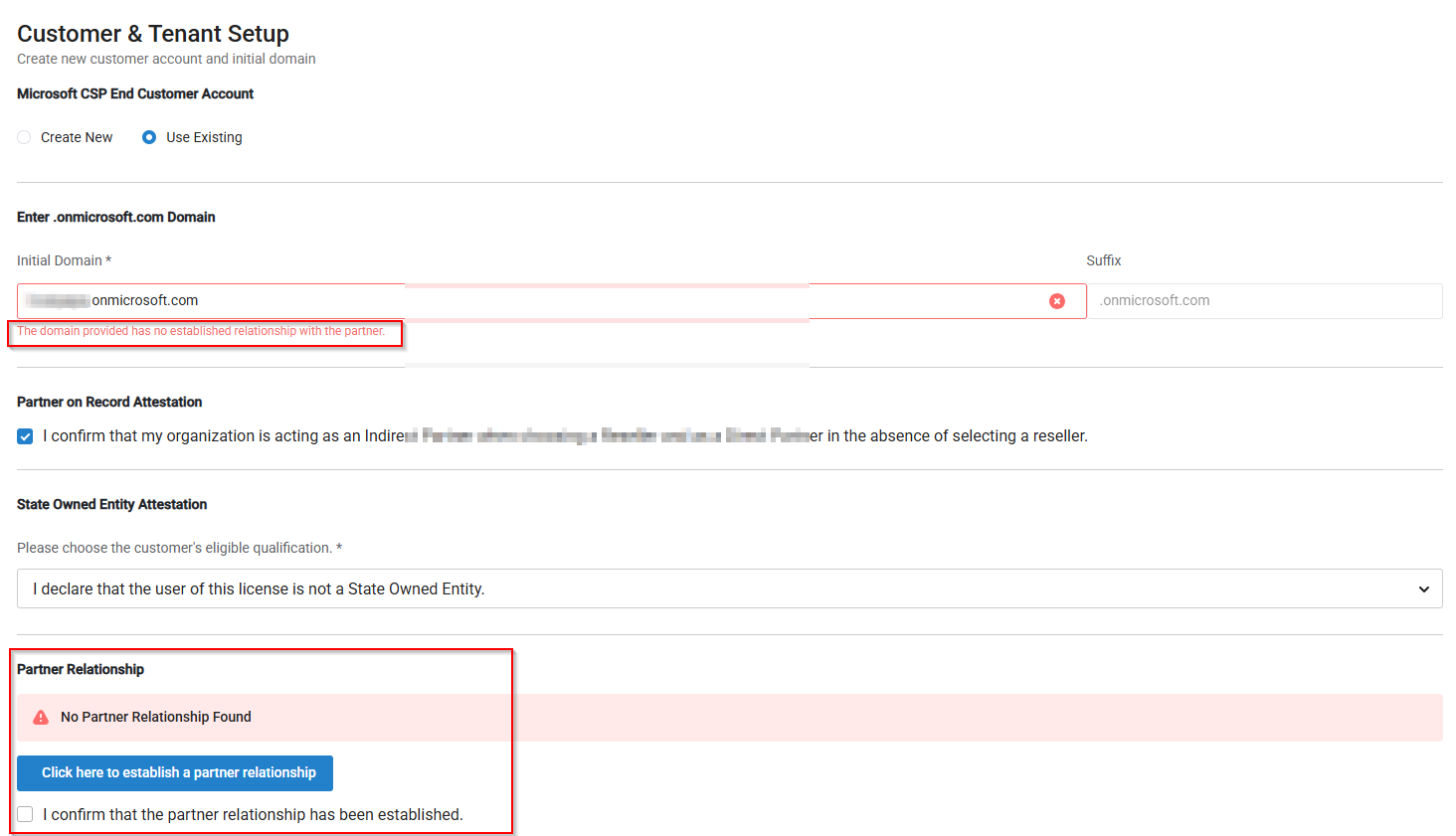
: Only if a Partner Relationship has not been established with the customer:
-
Establish a Partner Relationship by clicking the corresponding button. This will redirect you to Microsoft where the relationship must be accepted.
-
Confirm that the customer partner authorization has been completed by selecting the following checkbox: I confirm that the partner relationship has been established.
-
-
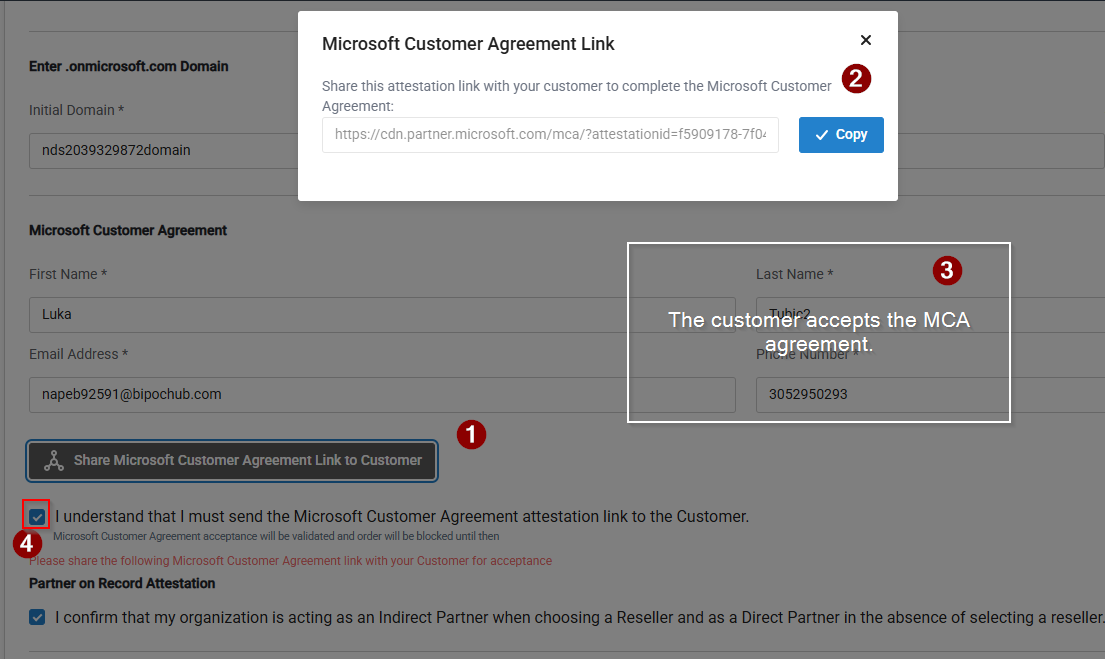
Microsoft Customer Agreement (MCA):
-
If the customer has not accepted the MCA, click Share Microsoft Customer Agreement to Customer and copy the link.
-
Once the customer accepts, select the checkbox: I understand that I must send the Microsoft Customer Agreement attestation link to the Customer to proceed with the order.
Note: For Microsoft Education offers, specify the education segment (K12 or Higher Education). Only existing customers are eligible for Education offers.
-
Phase 5: Finalization and Fulfillment
-
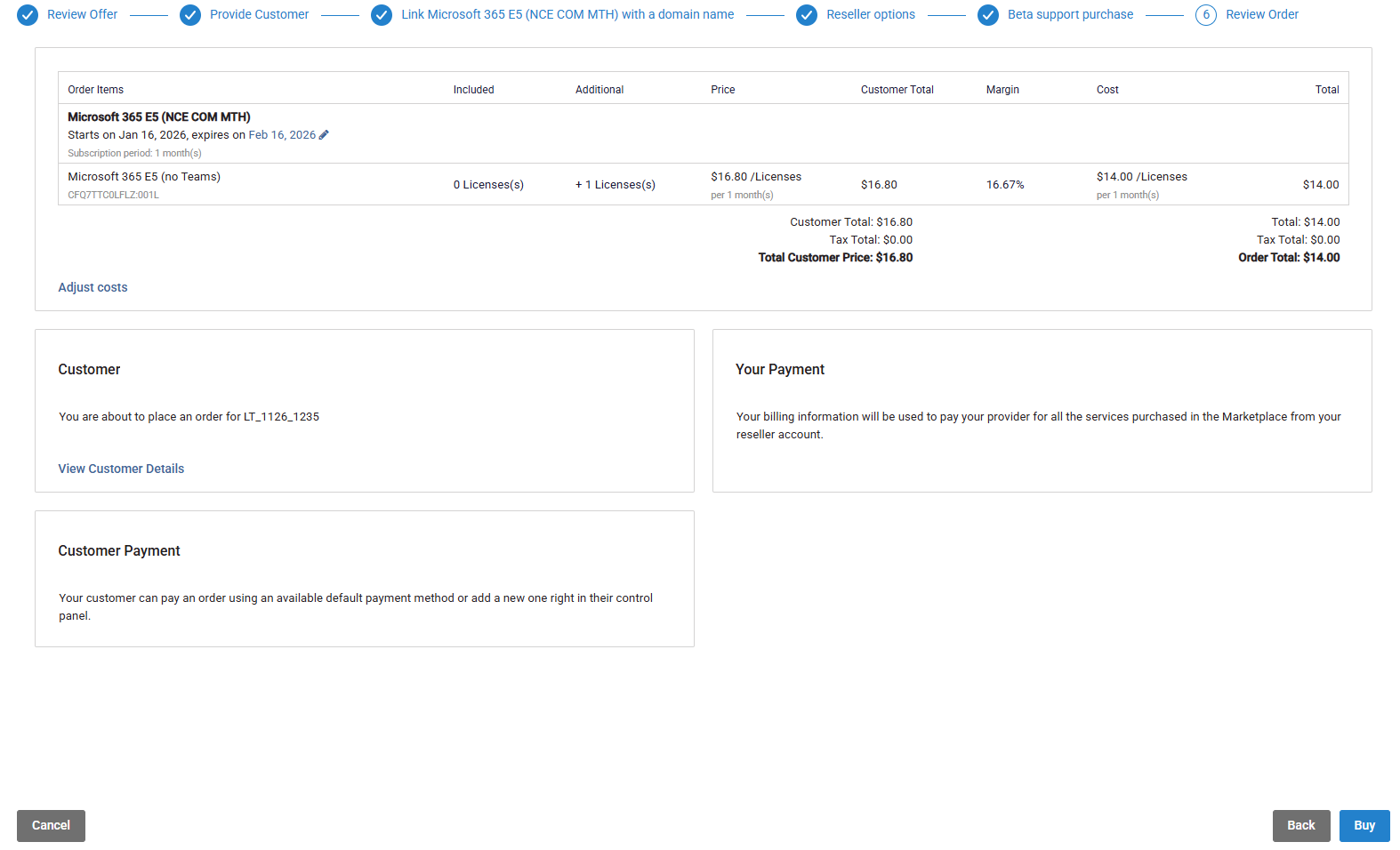
Once you have reviewed your order, click Buy to complete the order.
-
Track the order (Optional):
-
In CloudBlue Connect, go to Subscriptions.
-
Select the subscription request and open the Fulfillment tab.
-
View request details, parameters, and status.
For more information, refer to the CloudBlue Connect Documentation.
-
-
Customer Access and Role Approval:
Once provisioned, the customer can:
-
View subscription details in the Customer Control Panel.
-
Access the Microsoft Portal using the provided link and password.
-
Use the Approved Partner Roles button to check for pending role approvals.
If approval is needed, they will be redirected to the Microsoft Admin Portal.
Note: This may be required if new roles were added or the admin relationship expired. For more details, see Requesting a Granular Admin Relationship with Customers (GDAP).
-
Note: To obtain information about the Microsoft customer eligibility and the organizational tax ID, refer to the Microsoft Customer Transaction Readiness.