Creating or Editing a Custom Price list for a Reseller
You can create or edit a custom price list for a particular reseller, where you can configure different margins for the different products. To do this, complete the following steps:
-
Go to the Settings module in the CloudBlue Connect Distributor portal and look for the Adobe Management extension in the left menu, under Extensions.
Note: If the Adobe Management Settings extension is not installed yet, refer to the Installing the Adobe Management extension section.
-
Click Adobe Management extension and then click the Price List tile.
-
Click on one of the uploaded price lists.
-
Click Reseller Custom Price List.
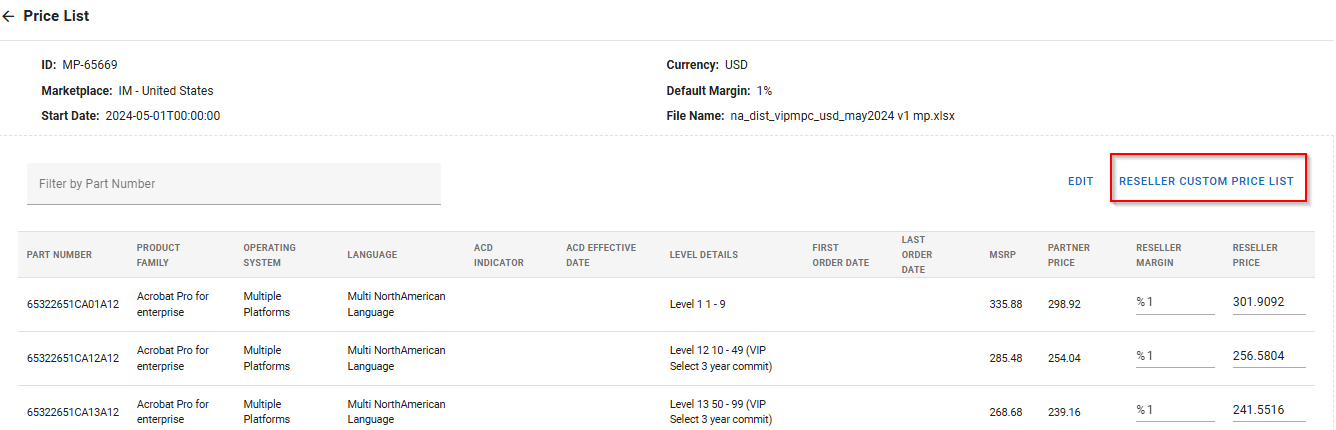
-
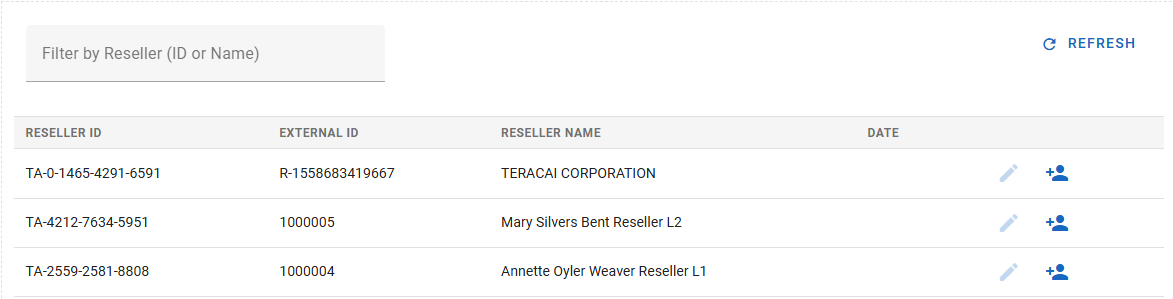
Use the search box to find the reseller by typing the reseller ID or reseller name.
-
If there is no custom price list for the reseller yet, click the Add icon
 . If the custom price list was already created and you wish to edit it, click the Edit icon
  .
.
-
Enter the reseller margin for the corresponding products, which you will find in the Reseller Margin column in the far right. When doing so, the reseller price will be updated accordingly. Click Save.