Importing Microsoft Subscriptions that are Part of a Transfer from a Different CSP Partner (Inbound Transfers)
You can use Seamless Move to import subscriptions being transferred from a different partner by providing a Microsoft Transfer ID.
Prerequisites
-
Microsoft Partner Center: The inbound transfer process must be completed in the Microsoft Partner Center before initiating the import in Seamless Move. For more details, see Microsoft's documentation.
-
Azure RBAC & GDAP: Role-based access control (RBAC) does not transfer automatically, and Admin on Behalf Of (AOBO) is not granted by default to the new partner. It is highly advisable to establish an active GDAP relationship and required RBAC permissions with the customer before the transfer is finalized. The warning message displayed in the Azure transfers view to inform about this prerequisite can be configured by distributors. For additional information, see the Instance Creation section.
-
Transfer Tab: To ensure subscriptions are prorated correctly, you must perform the import from the Transfers tab.
Import Procedure
Once you have obtained the transfer ID, complete the following steps:
-
Log in to the UX1 control panel as a provider or reseller.
-
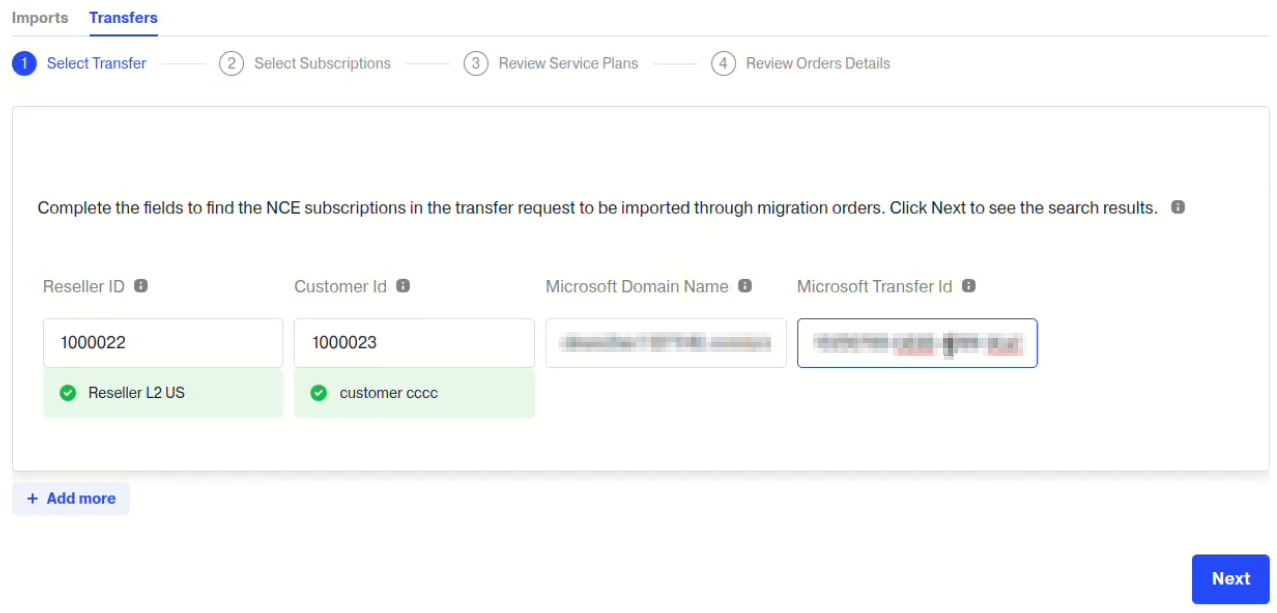
Click Seamless Move > Microsoft / Azure and then select the Transfers tab.
-
Fill in the following fields:
-
Reseller ID (visible to providers only): Enter the reseller ID.
-
Customer ID: Select the CloudBlue Commerce customer account where NCE subscriptions will be imported.
-
Microsoft domain name: Microsoft domain name of the subscriptions to be imported.
-
Microsoft Transfer ID: Enter the transfer ID from the Microsoft Partner Center.
Note: This field is optional. If left empty, you can select the transfer from a list in the next step.
-
-
If a Transfer ID was not provided, select a transfer from the list. The transfer must be in Completed status.
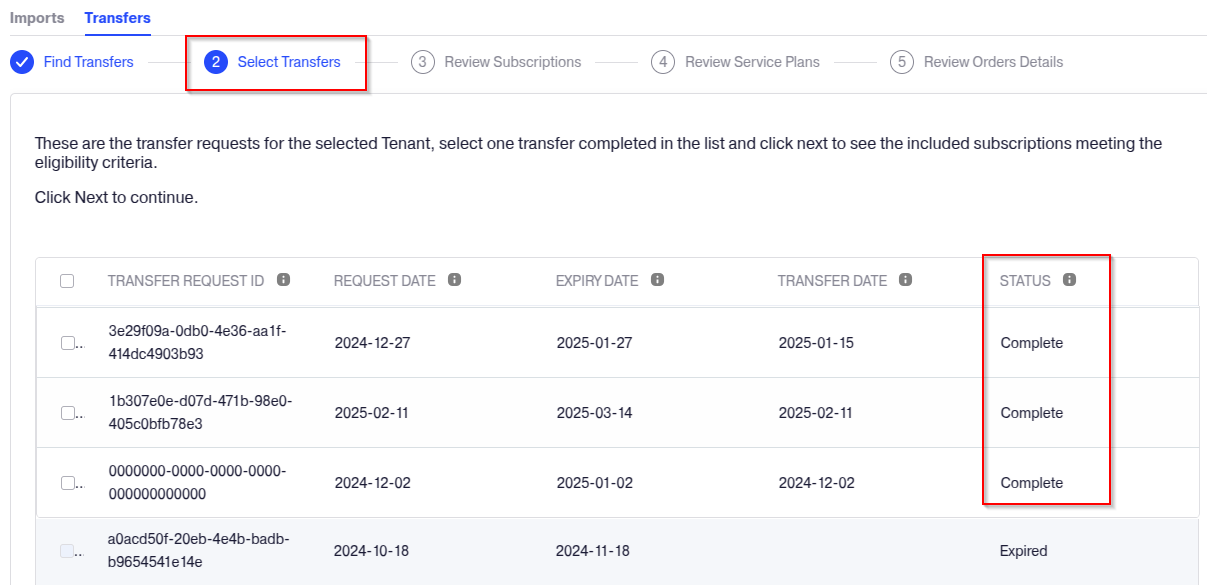
Note: Only one transfer can be selected at a time. To import multiple completed transfers, repeat this process for each.
-
Review the details of the subscriptions meeting the transfer eligibility criteria for the selected tenant. Select the subscriptions you wish to import and click Next.
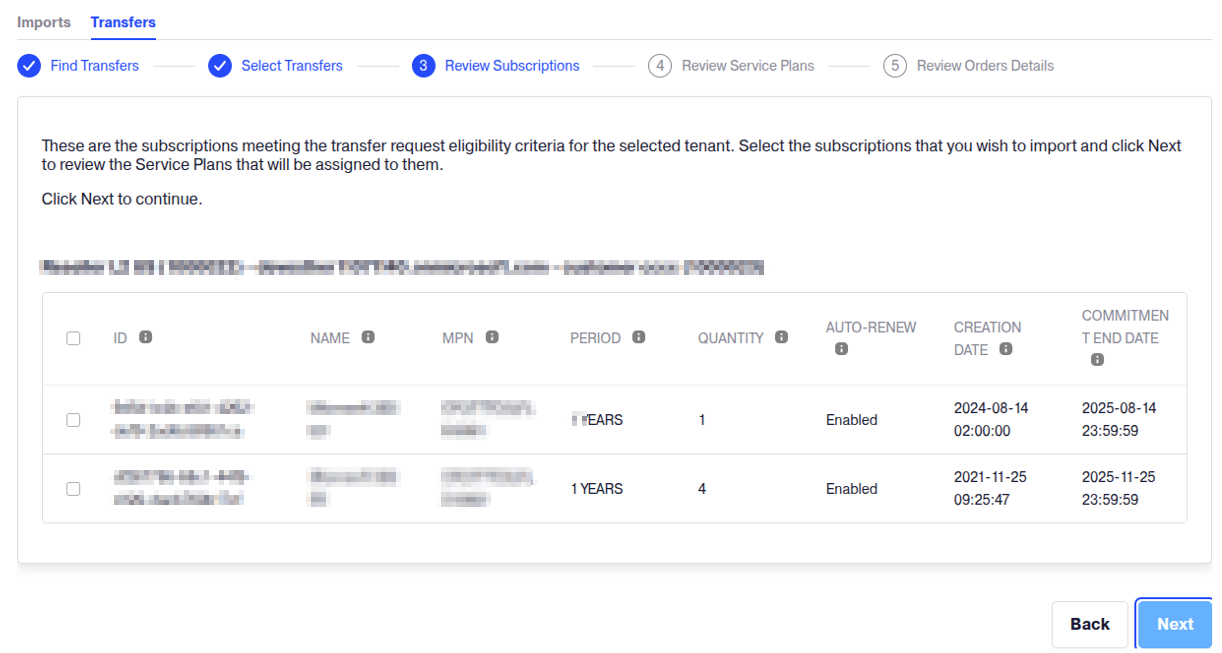
Note: The Auto-renew column displays the current status; subscriptions can be imported regardless of whether auto-renewal is enabled or disabled.
-
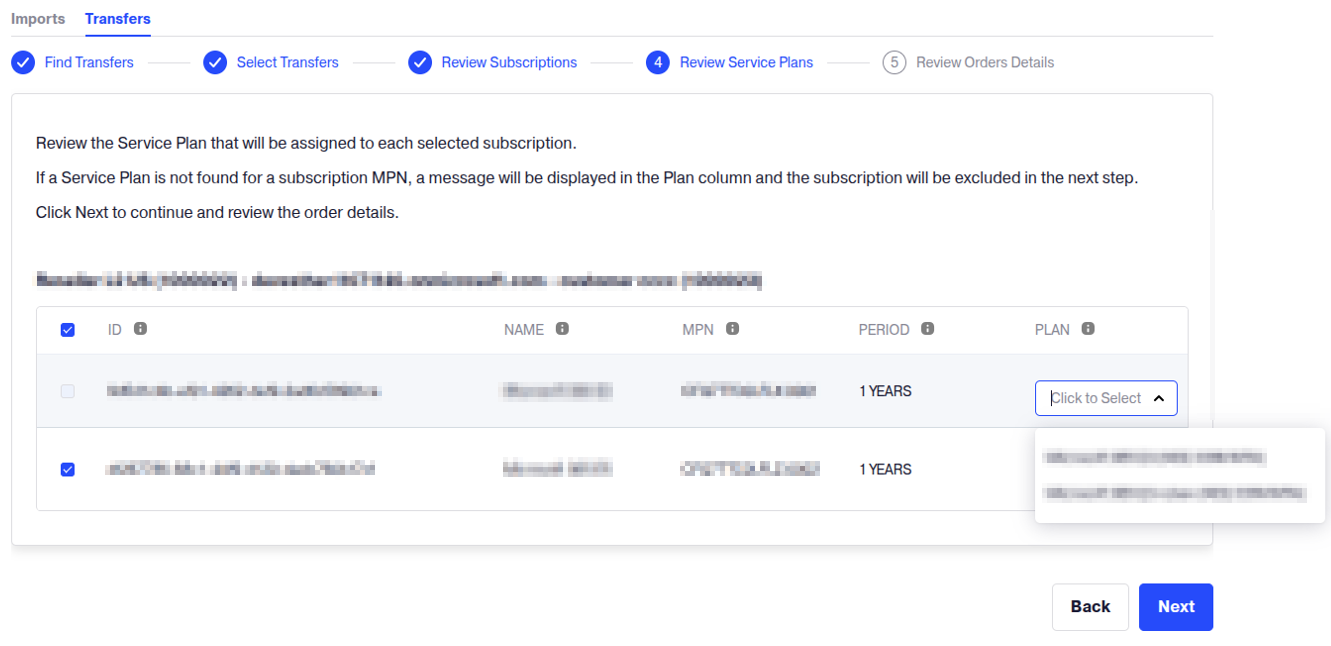
Review the service plan that will be assigned to each subscription.
-
If there is no service plan available, the subscription will be highlighted and disabled for transfer.
-
If an SKU exists in multiple service plans, select the preferred plan from the drop-down menu in the Plan column.
-
-
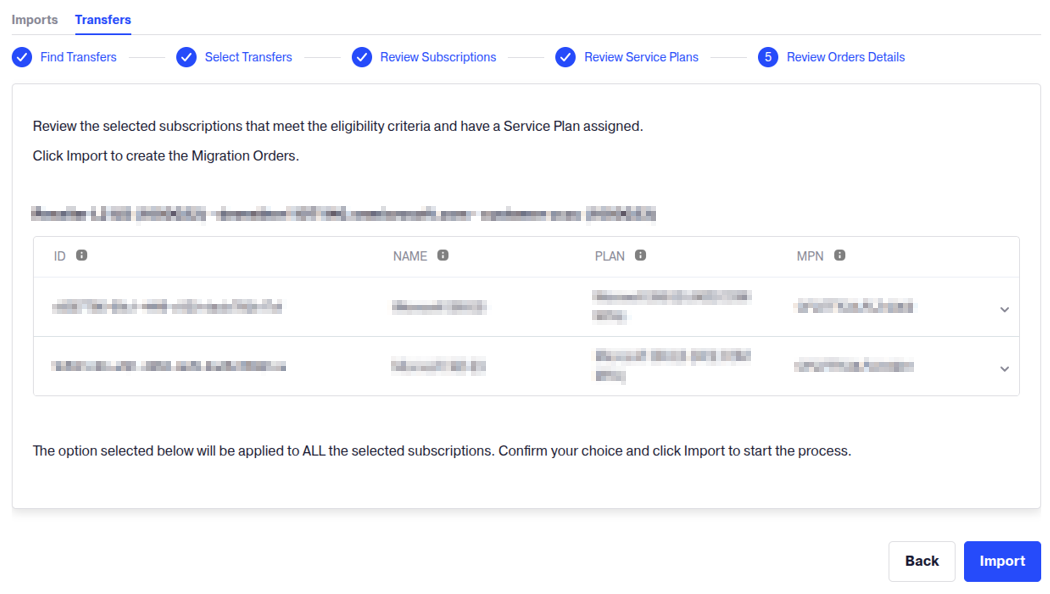
Click Import and then specify when the billing order should be created:
-
Current billing period
-
Next billing period.
Note: Indirect resellers do not see this option; the billing order is automatically created in the current period for indirect resellers.
-
-
(Optional for Provider Operators — NCE Microsoft 365 Only) Review or override pricing via Excel:
-
NCE Microsoft 365 (License-Based): If you need to review or manually adjust the baseline reseller and customer prices, click the Export to Excel button. This generates a digitally signed .xlsx file containing the subscription metadata, billing terms, and blank unit price override columns (
Recurring_Reseller_Unit_PriceandRecurring_Customer_Unit_Price).-
To apply custom prices, do not click Import in this wizard. Edit the Excel file and upload it via Admin Operations > Microsoft NCE Bulk Import to create the migration orders with deal prices.
-
-
NCE Microsoft Azure (Usage-Based): The Export to Excel option is not available for Azure NCE transfers. Because Azure plans are pay-per-use, prices are determined by consumption and cannot be customized via Excel pricing overrides.
Important:
- The Export to Excel button in the Transfers wizard is visible strictly to Provider/Distributor accounts.
- Resellers cannot set their own agreement prices and will not have access to bulk pricing overrides. Reseller operators must finalize transfers directly within the wizard by clicking Import. -
-
If required, enter values for any Order Attributes.
Note: The Order Attributes must be previously added to the Generic Seamless Move extension. See the Configuring Order Attributes in Seamless Move section for additional information.
-