Managing Special Pricing in Seamless Move for NCE Microsoft 365
Before finalizing orders in Seamless Move, Provider/Distributor operators can verify and override the standard catalog prices for NCE Microsoft 365 subscriptions.
Scope and Eligibility
| Microsoft Offer Type | Imports Flow | Transfers Flow | Notes |
|---|---|---|---|
| NCE Microsoft 365 (License-Based) | Supported | Supported | Export to Excel is available on the Review Orders Details step in both wizards. Upload via Admin Operations applies prices as deal prices. |
| NCE Microsoft Azure (Usage-Based) |
Not Supported |
Not Supported |
Azure plans are consumption-based (pay-per-use); no Excel export button or custom pricing overrides exist in either flow. |
Workflow Overview
-
Export the pending subscriptions to a signed Excel file from the final step (Review Orders Details) of either the Microsoft NCE Imports or Microsoft NCE Transfers wizard.
-
Populate the recurring reseller and customer unit prices in the Excel file.
-
Re-import the signed file via Admin Operations > Microsoft NCE Bulk Import.
-
The system validates the digital signature and applies the overrides as Deal Prices on the resulting migration orders. Subscriptions without override entries default to standard price-book rates
Step 1: Export and Review Prices (NCE Microsoft 365 Only)
-
In Seamless Move, go to the final step (Review Orders Details) of either the Imports or Transfers wizard for Microsoft NCE.
-
Click the Export to Excel button.
Note: This button is absent in the Azure NCE import and transfer views.
-
Open the downloaded .xlsx file, which includes:
-
Identifiers: Subscription ID, Customer ID, Reseller ID, and Product/Plan details.
-
Terms: Period_Unit_and_Duration, Billing_Terms, and Subscription_Periods.
-
Editable Pricing Columns: Recurring_Reseller_Unit_Price and Recurring_Customer_Unit_Price
-
-
Enter the required baseline unit prices in the pricing columns.
-
Recurring_Reseller_Unit_Price: Agreement price from Distributor to Reseller.
-
Recurring_Customer_Unit_Price: Agreement price from Reseller to End Customer
-
Important:
- Do not modify, add, or delete any columns, headers, or metadata. Any structural alteration invalidates the cryptographic signature (verify-hash) and causes the bulk upload to fail.
- Entering 0 is treated as a valid zero-price override. Blank, non-numeric, or negative entries are skipped and default to standard catalog/price-book rates.
Step 2: Upload Updated Pricing
-
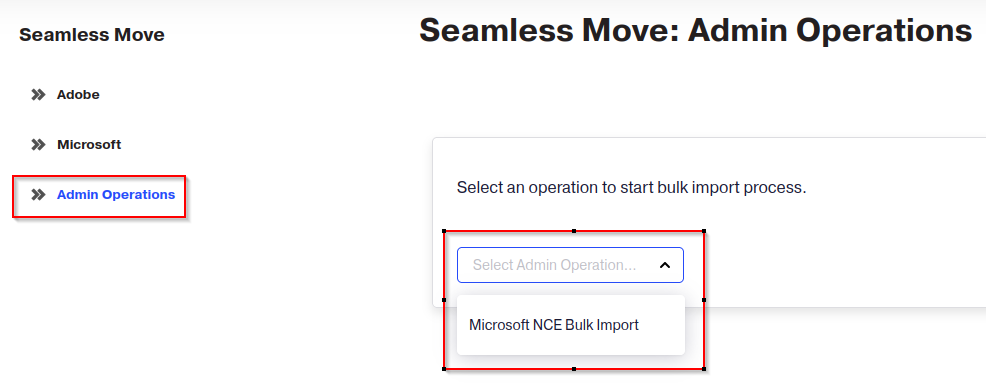
Navigate to Seamless Move > Admin Operations in the left navigation menu.
Note: This requires the Seamless Move Admin Operations privilege. For additional information, see the Managing Privileges section.
-
Select Microsoft NCE Bulk Import from the dropdown list.
-
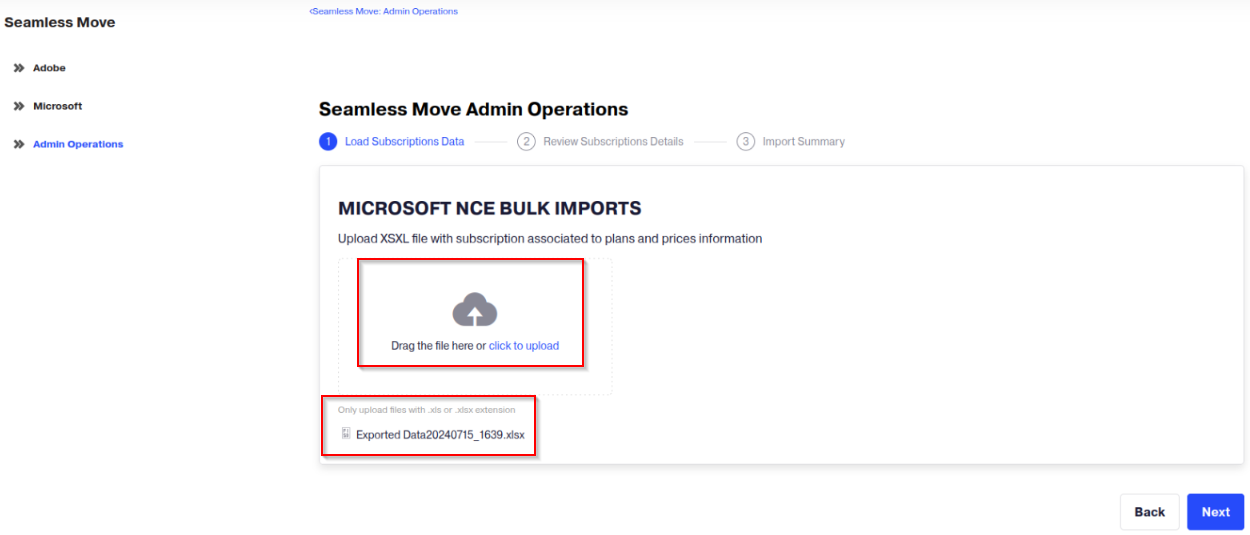
Drag and drop your edited .xlsx file into the upload area or click the upload link.
-
The platform verifies file structure, data types, and digital hash validity.
-
Click Next upon successful validation.
-
Review the summary of subscriptions and pricing overrides on the confirmation screen.
-
Click Import to generate the migration orders with deal prices.
Permissions and Operational Requirements
Role Permissions:
-
Provider / Distributor: Allowed to export and upload bulk price overrides (requires
view-seamless-moveandadmin-operations-seamless-moveprivileges). -
Operating Unit: Allowed if the reseller is designated as an Operating Unit in PCP.
-
Standard Reseller and Customer: Restricted. Resellers cannot define their own agreement prices; attempting to import custom deal prices will fail validation.
Note: For additional information, see Migration Order Creation Permissions.
System Settings:
-
Deal Pricing must be active in MMS (Microsoft Management Settings extension). If inactive, prices are bypassed and standard price books apply.
-
A bulk import hash key must be configured in Generic Seamless Move for file hashing and verification.
Note: The system settings are configured internally by CloudBlue.