Uploading Adobe Price Lists to Connect
Introduction
Adobe publishes the offers catalog and pricing to its direct-bill provider partners within their private Adobe Partner Portal on a calendar monthly basis. Since Adobe does not permit CloudBlue to access the provider's offers catalog on demand, it is important for Adobe direct-bill provider partners to upload their offers catalog and pricing to CloudBlue. This must be done on a monthly basis or as soon as possible after the offers catalog effective date. CloudBlue will operate on the offers catalog and pricing version that was most recently uploaded.
Audience
This guide is directed to associates of Adobe direct-bill provider partners, in order for that persona to maintain effective offers and pricing catalog in CloudBlue. Adobe reseller partners are reliant upon their direct-bill provider partner to maintain an effective offers and pricing catalog.
Scope
-
Program: Adobe VIP
-
Adobe Platform: Adobe Commerce Platform
-
CloudBlue Platforms: CloudBlue Connect, Modern CloudBlue Shared SaaS, Modern CloudBlue Dedicated SaaS, Legacy CloudBlue On-Premises
-
Geography: Worldwide except China and embargoed regions
-
Products: Adobe VIP Marketplace
-
Offers: All
-
Qualifications: All
-
Partners: Direct Billed Provider Partners
-
Customers: All
Details
Adobe Management extension allows you to upload price lists provided by Adobe, which include all the SKUs, detailed pricing information, effective dates, start dates, deprecation dates, etc. By uploading price lists to Connect, you will be able to generate reseller price lists by applying the corresponding margins.
To upload Adobe Price Lists to Connect, complete the following steps:
-
Go to the Settings module in the CloudBlue Connect Distributor portal and look for the Adobe Management extension in the left menu, under Extensions.
Note: If the Adobe Management Settings extension is not installed yet, refer to the Installing the Adobe Management extension section.
-
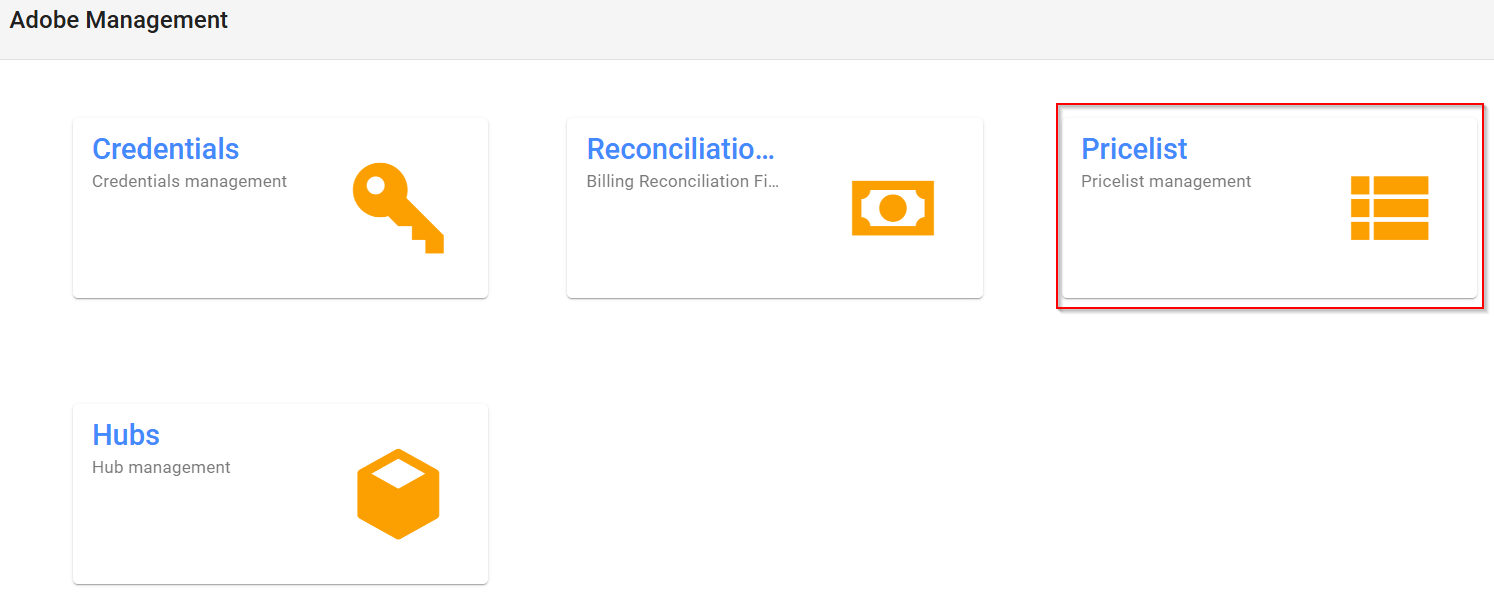
Click Adobe Management extension and then click the Price List tile.
-
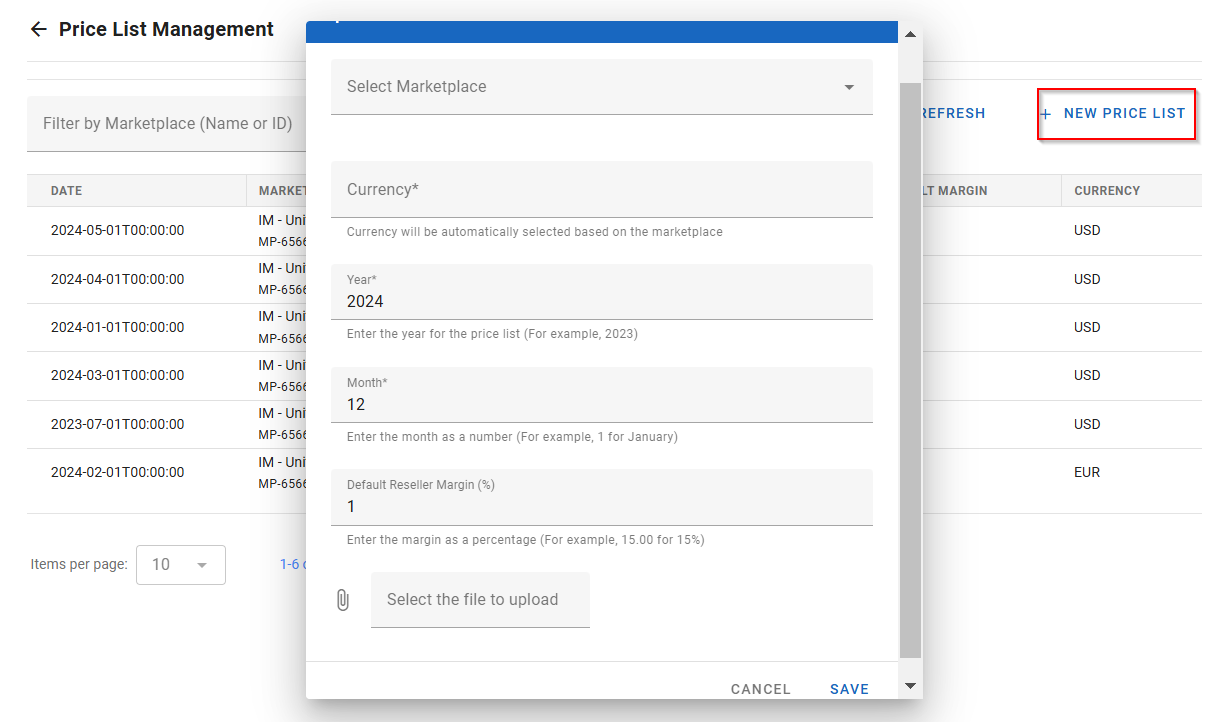
Click New Price List.
-
Select the marketplace, the year, the month and the default reseller margin to be applied to all the products. The currency will be automatically selected based on the marketplace.
Notes:
- If the marketplace currency and the price list currency do not match, it will be necessary to specify the exchange rate to convert the price list currency to the marketplace currency.
- In the price list details view, you can apply different margins to different products if necessary. -
Select the price list to upload, which you must have obtained previously from Adobe.
Important: The price list file name must have the following format:
<region>_dist_vipmpc_<currency>_<monthYear> <additionalInfo>.xlsx. For example:
we_dist_vipmpc_eur_nov2024 IT.xlsx
mx_dist_vipmpc_usd_nov2023 MX.xlsx
- Only files with.xlsx format are accepted. Files with .csv format must be converted to .xlsx format before uploading them. -
Click Save.
Once a price list has been uploaded, it will be added to the list of price lists, where you can see the date, the marketplace, price list file name, the default margin that was applied, and the currency. You can use the search box at the top to filter the list by marketplace ID.
Additional Steps for CloudBlue Commerce Customers
For CloudBlue Customers using the CloudBlue Commerce Marketplace in addition to Connect, it is important to ensure that the CloudBlue Commerce Price Manager is appropriately configured for Adobe. For details and instructions on how to do this, please see the following articles:
Related Topics